Dentalore cloud system allows user to send manual messages for patients from different views in system, One of these views is the Recall Module.
There 2 different ways to send message (SMS and/or Email) from Recall Module which are:
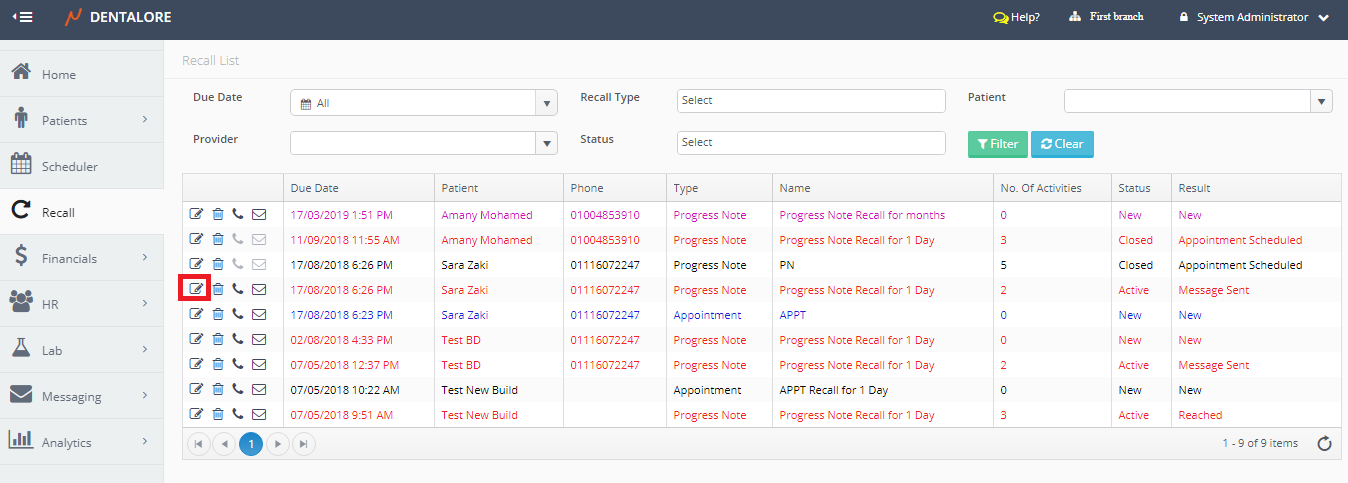
1- “Message” icon in the Recall List View Main Page
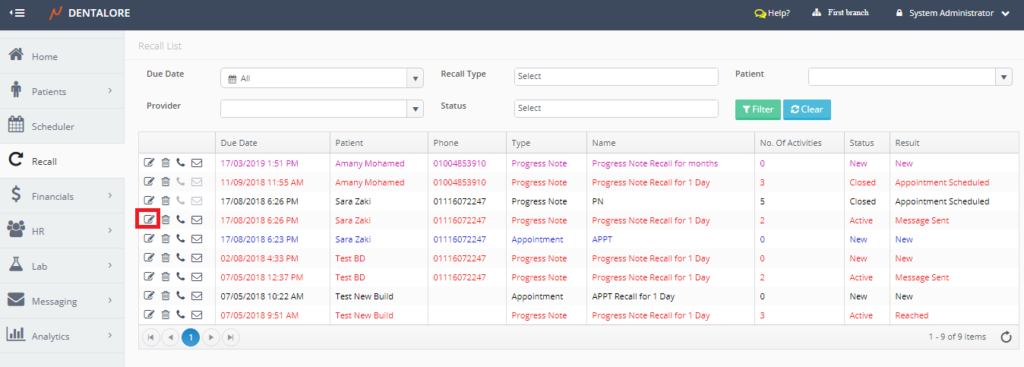
- Select Recall Module. Directly the Recall List View page opens.
- Press the “Message” icon beside required Recall record.

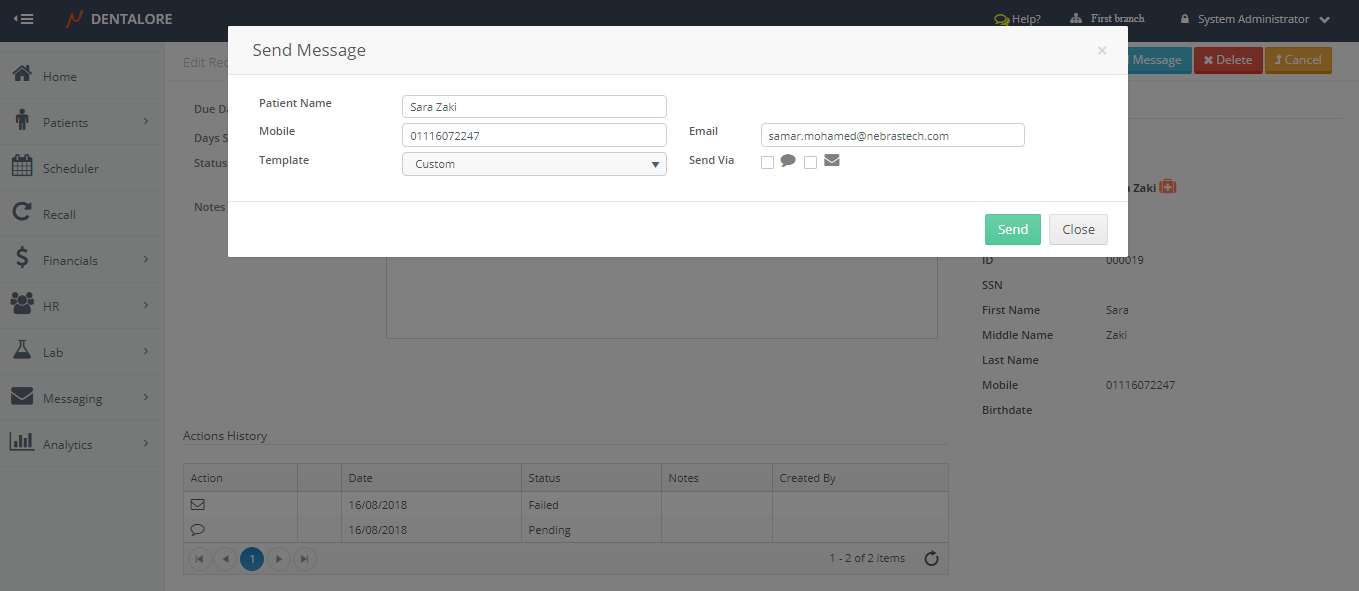
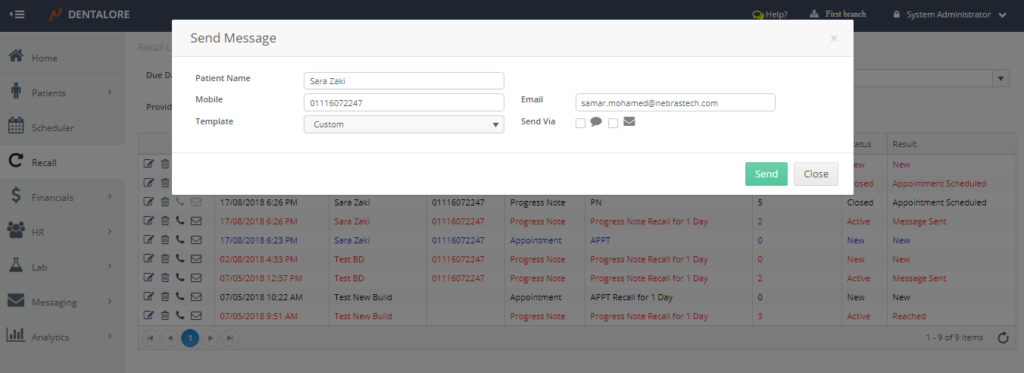
- Popup “Send Message” opens.
- Select messaging template or write custom message and check either Email or SMS or both and then Press Send.

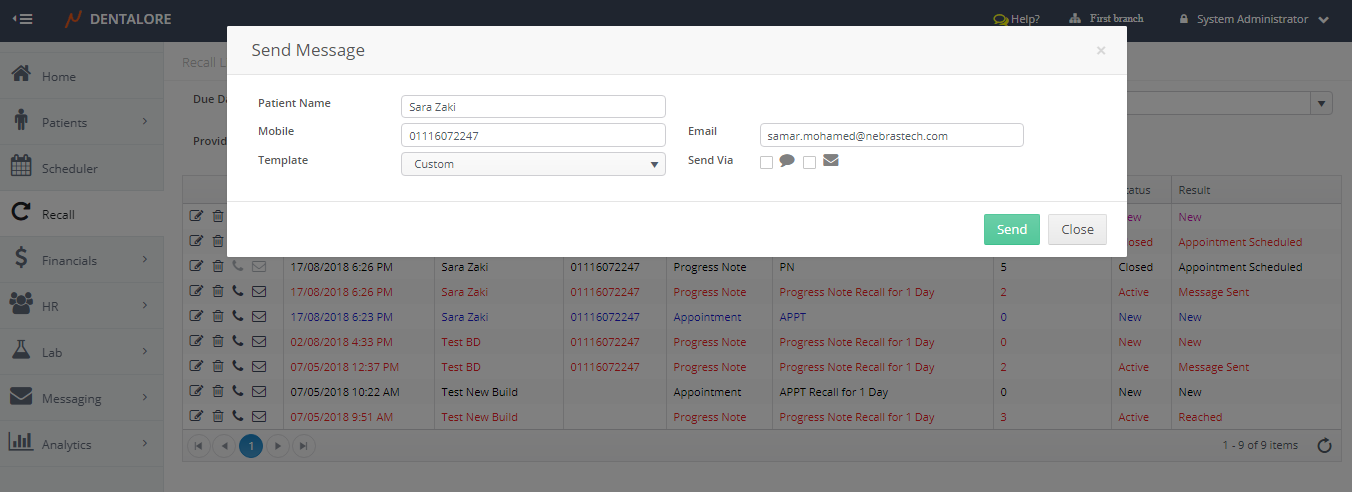
2- “Send Message” button in the ‘Edit Recall’ page
- Select Recall Module. Directly the Recall List View page opens.
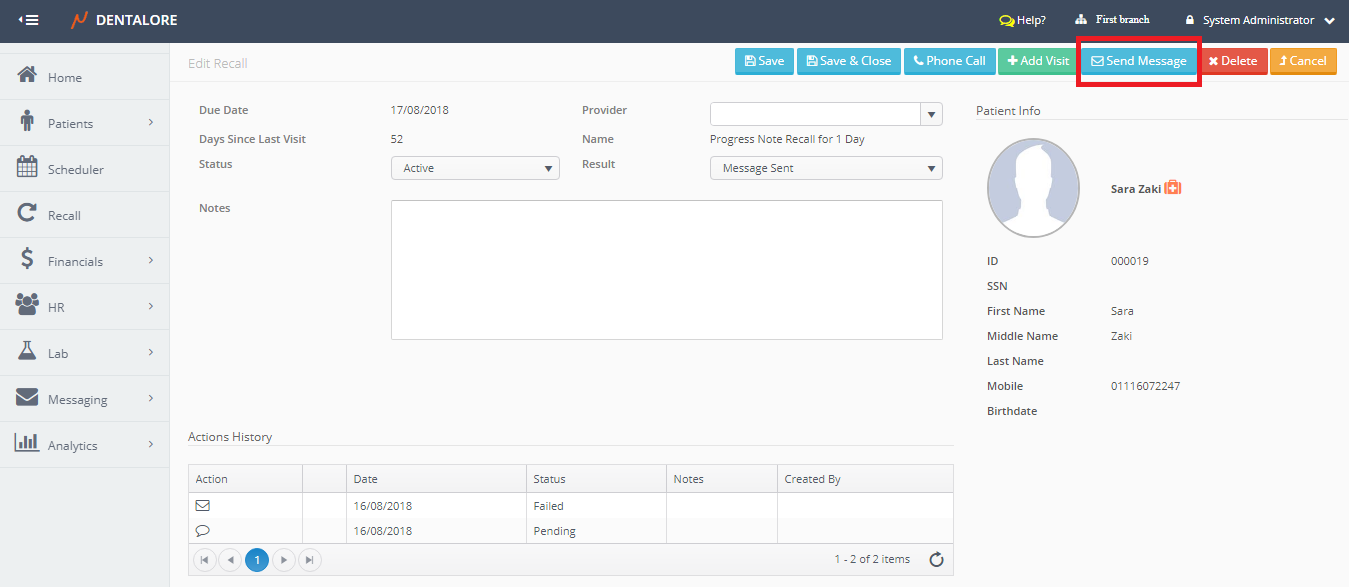
- Press the “View” icon beside required Recall record.
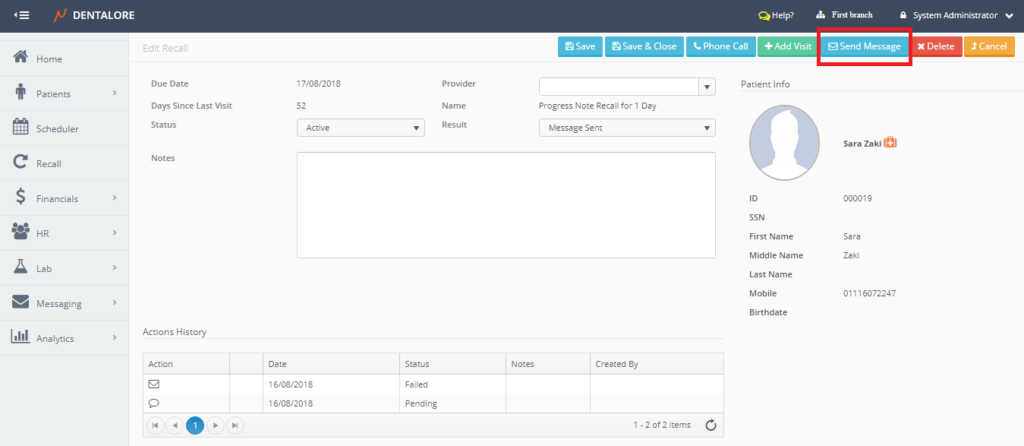
- New page “Edit Recall” opens.
- Press “Send Message” button.
- Popup “Send Message” opens.
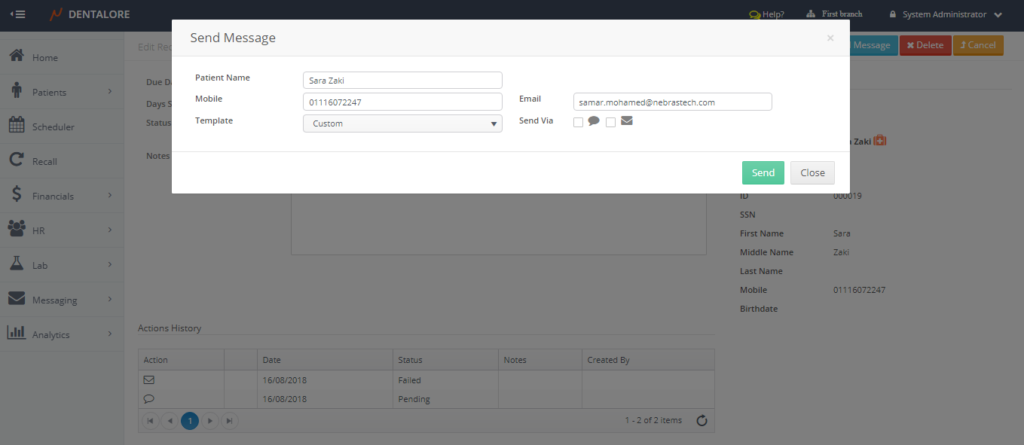
- From the “Send Message” Popup select required template and way of sending the message (Via SMS, Email or both) and press “Send” button to send the message or “Cancel” button to cancel. And for more information about sending manual messages, Check: Sending Manual Messages to patients.
- Note that when the “Send Message” action is performed it will be listed in the ‘Actions History’ table for each of the SMS and Email.
- Note that the “Send Message” action can’t be performed on a Closed Recall.