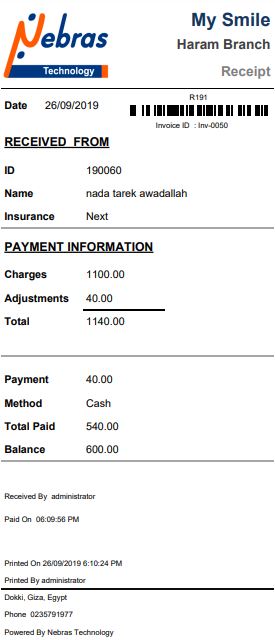
User who have the access rights to edit in the patient's payment, is able to print in the payment transactions for patients.
To Print the patient's Receipt, follow the following:
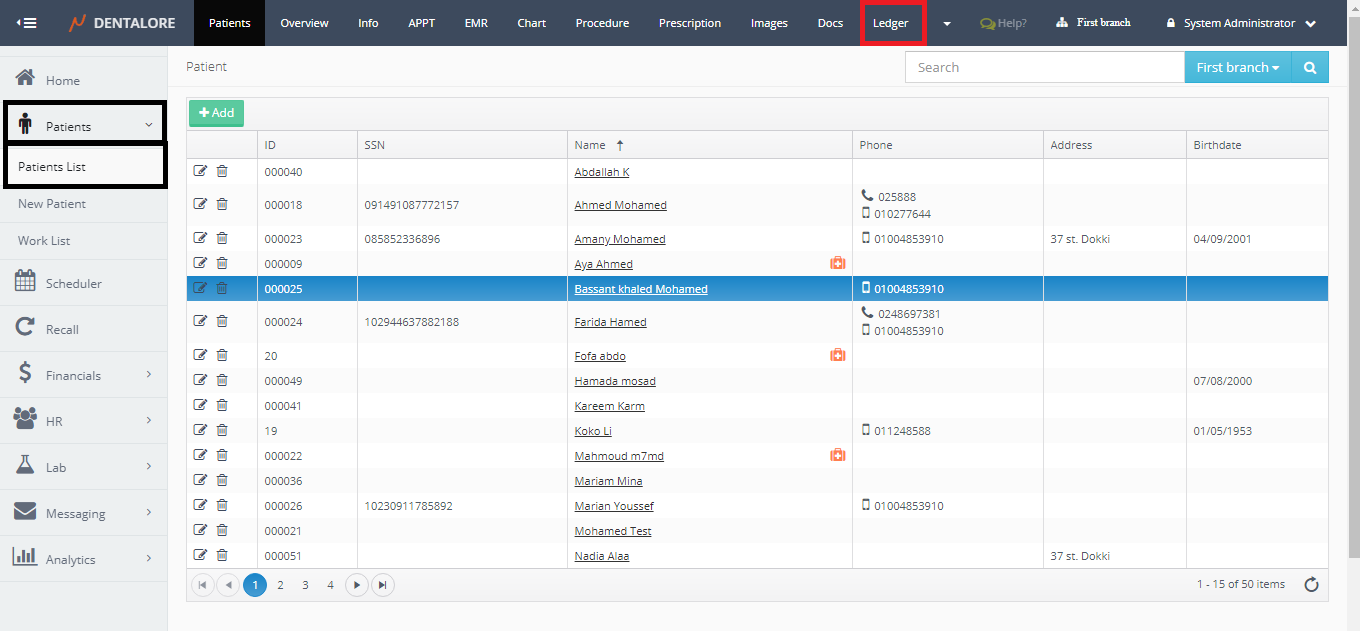
- Expand "Patients" menu and Select "Patient List".
- Select any of the existing patients and then Select "Ledger".
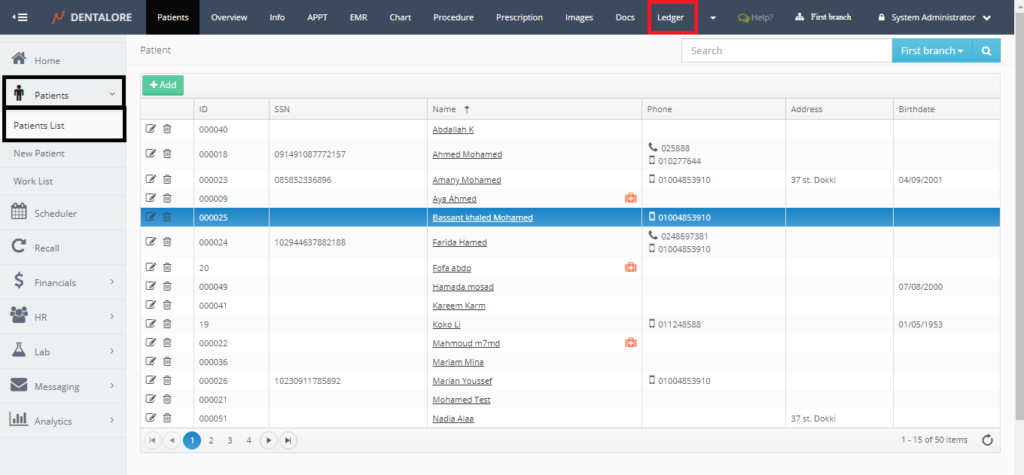
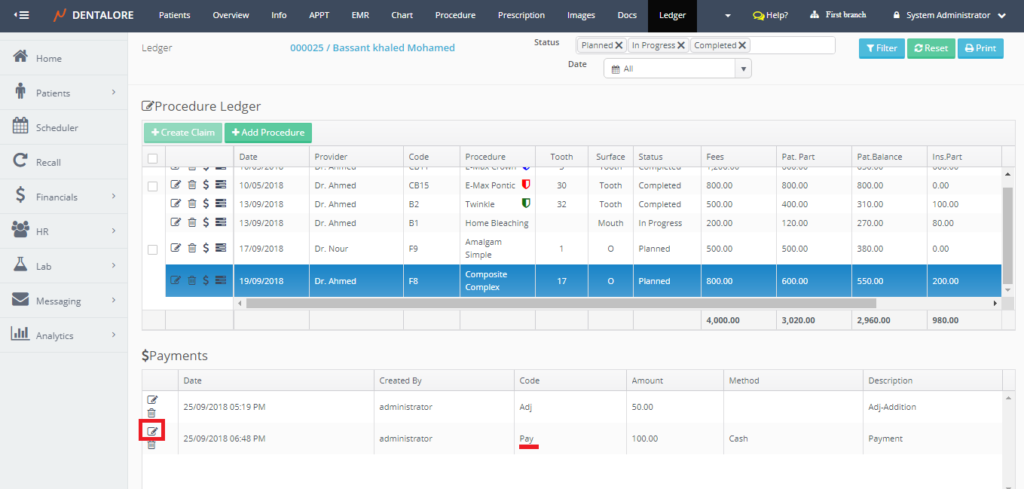
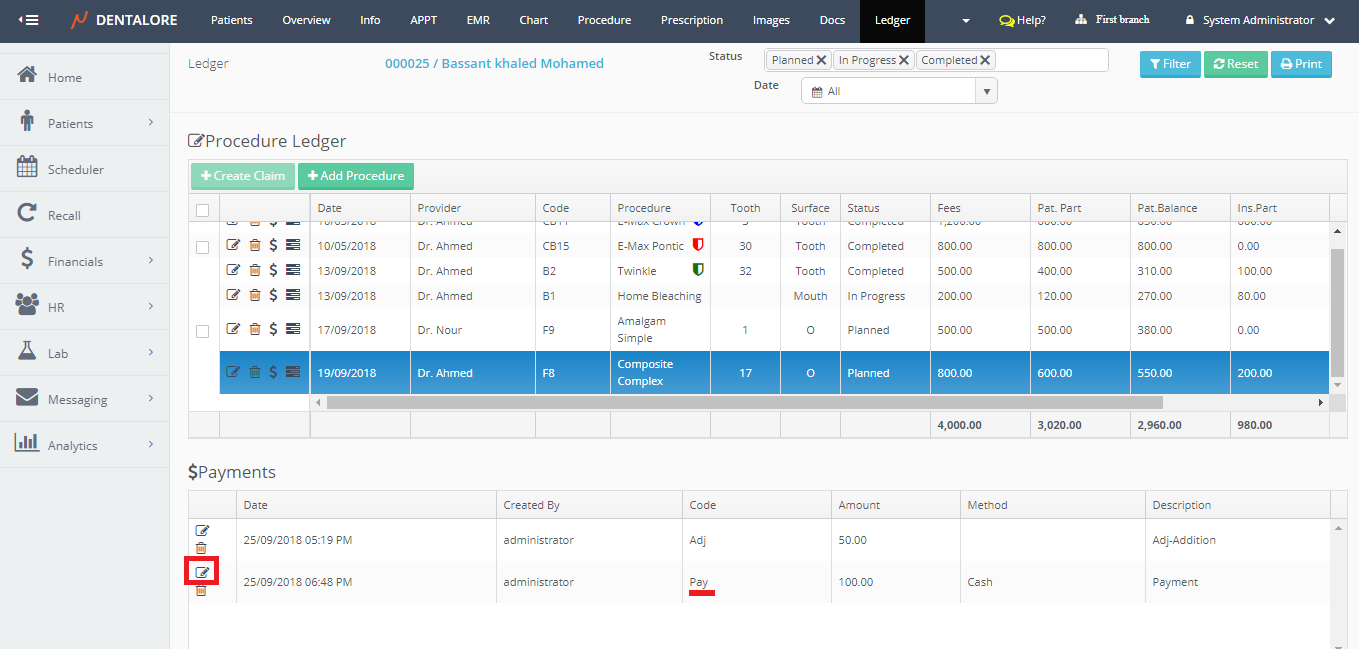
- Select the procedure that has the required payment transaction to be printed then;
- Press "View" icon for the required payment transaction.
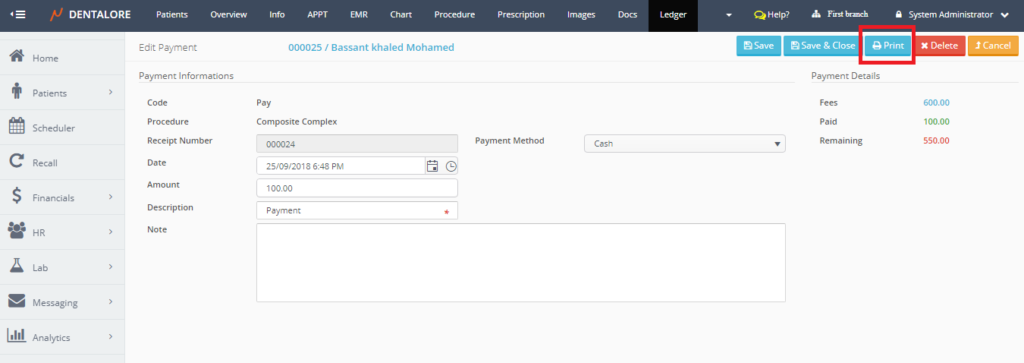
- New page "Edit Payment" opens. Press the "Print" button.
- New Window opens displaying the patient's receipt.
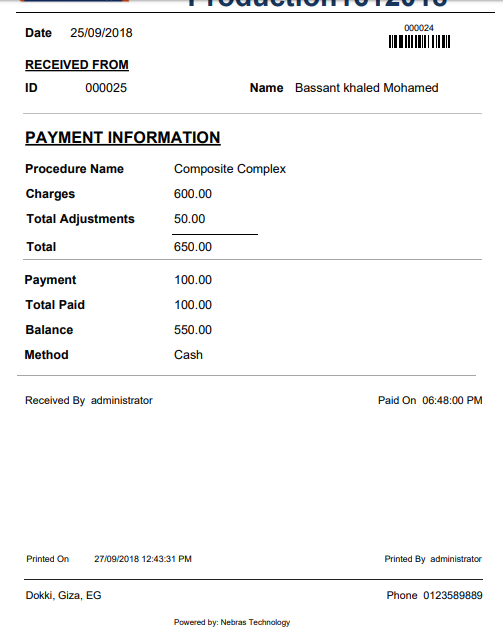
- When the payment transaction is linked to an invoice then the "Invoice ID" is displayed in the patient's receipt bellow the receipt's ID.
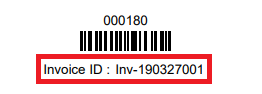
- Note that each receipt has a unique code that's created for each payment transaction. For more information about managing the receipt's format, Check: Configure Automatically Generated Codes.
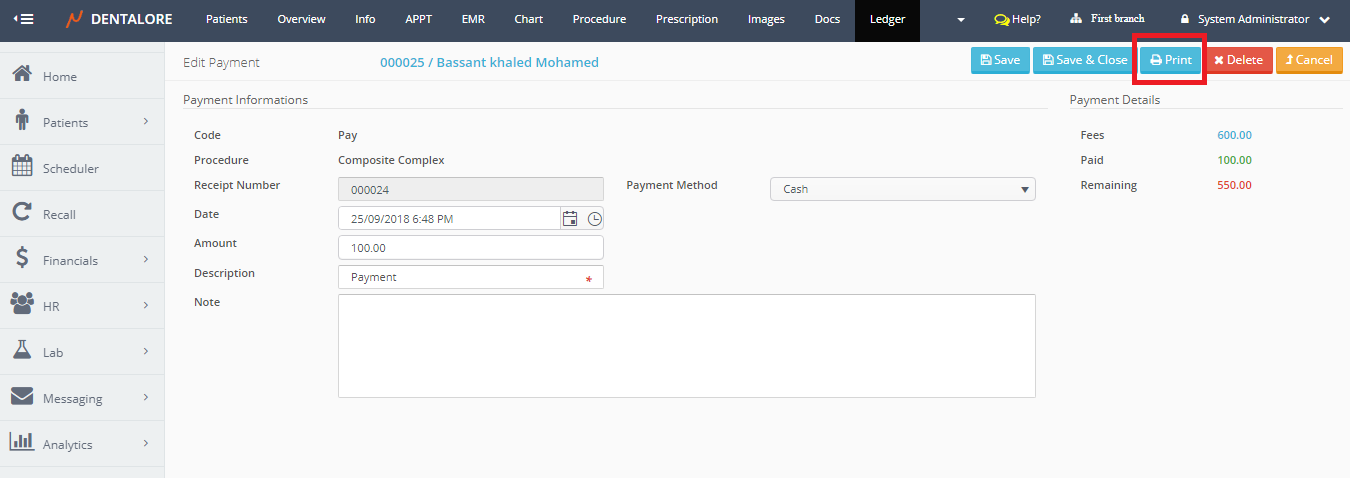
Print Receipt From Payment Section:
- Press "Procedure" for which you want to view payment transactions.
- Press "Print" icon for the required payment transaction.
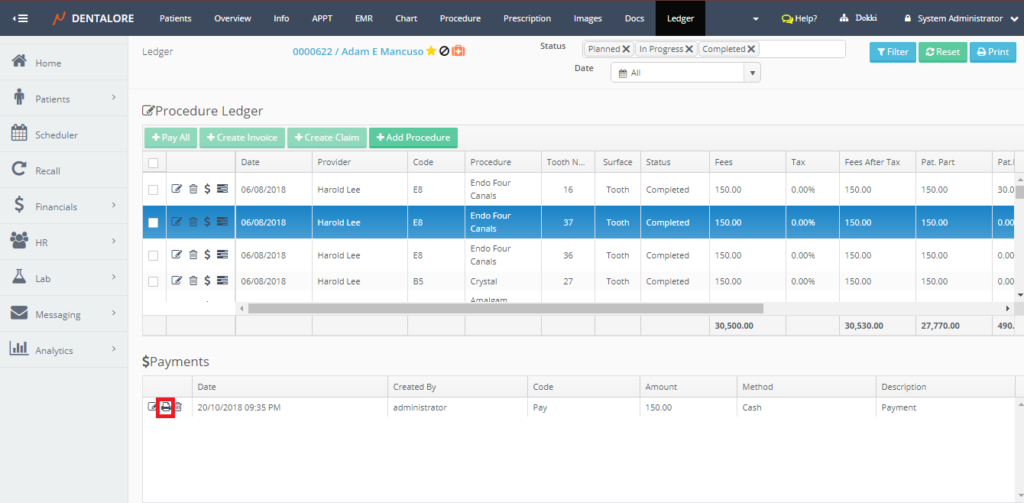
- New Window opens displaying the patient's receipt.