
Introduction
Patients Balance Report:
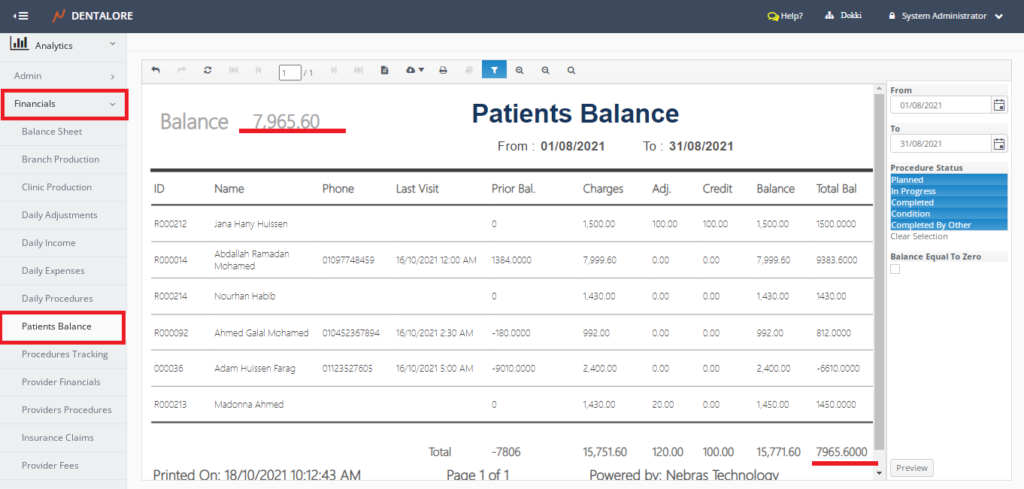
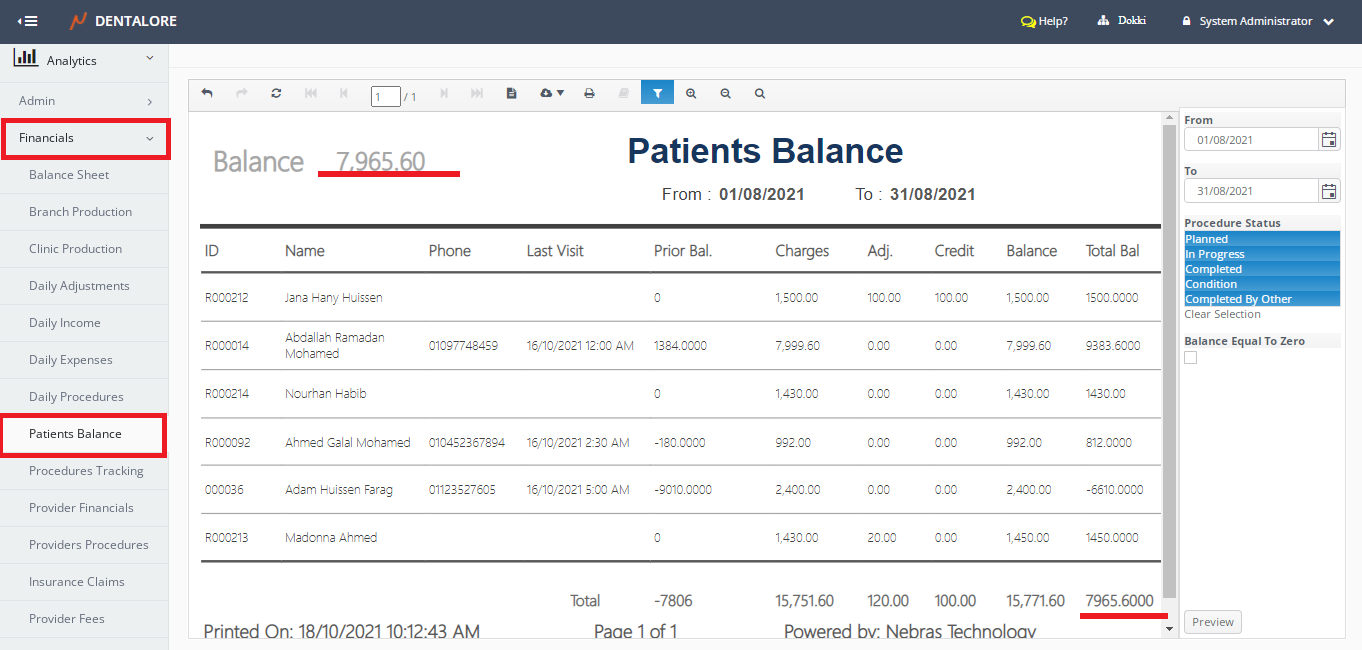
- Displays the patients’ balances within the selected date range and statuses of procedures.
- Data displayed in report per branch.
(Patients Balance) report could be accessed from:
- Analytics >> Financials >> Patients Balance.
Filtration
- Date Range
- (From) and (To) fields enables user to select the required date range.
- Date filtration depends on Creation Date of procedure.
- Default Selection: Today’s Date.
Note: The number of days between 'From' date and 'To' date can NOT exceed 31 Days.
- Procedure Status
- Is a Multi-selection box that enables user to select required status of procedures that could be: Planned, In progress, Completed, Condition, and Completed by other.
- Default selection: Planned, In Progress, Completed. - Balance equal to zero:
- When ‘Balance equal to Zero’ is checked, Patients whose Balance is Zero are displayed in report.
- When ‘Balance equal to Zero’ is NOT checked, Patients whose Balance is Zero aren’t displayed in report.
Content
Header
At the report’s header the following value is displayed:
– Label (Balance): Displays the total amount (value) of balance for all of the listed patients in report.
Body
Patients Balance data are displayed in a grid view whose columns are:
- ID
- Displays the patient’s ID. - Name
- Displays the patient’s Name. - Phone
- Displays the patient’s phone. - Last Visit
- Displays the last visit for the patient. - Prior Balance
- Displays the amount of money remained (Patient’s balance) on the patient before the selected data range. - Charges
- Displays the total amount that should be paid by patient within the selected date range. - Adj
- Displays the amount of adjustments performed on the patient’s’ procedures within the selected date range. - Credit
- Displays the actual payment performed by patient for all his/her procedures within the selected date range. - Balance
- Displays the patient's balance within the selected date range. - Total Balance
- Displays the total patient's balance within the selected date range and before the selected date range that:
>> Total Balance = Prior Balance + Balance
At the footer of grid view; The Total amount of each column of (Prior Bal, Charges, Adj., Charges, Balance, and Total Bal) is calculated and displayed.