Messaging log in DentaLore enables user to track the send messages (SMS and/or Email) to patients and providers via Messaging Log.
Messaging Log View
- Expand Messaging menu then select "Log".
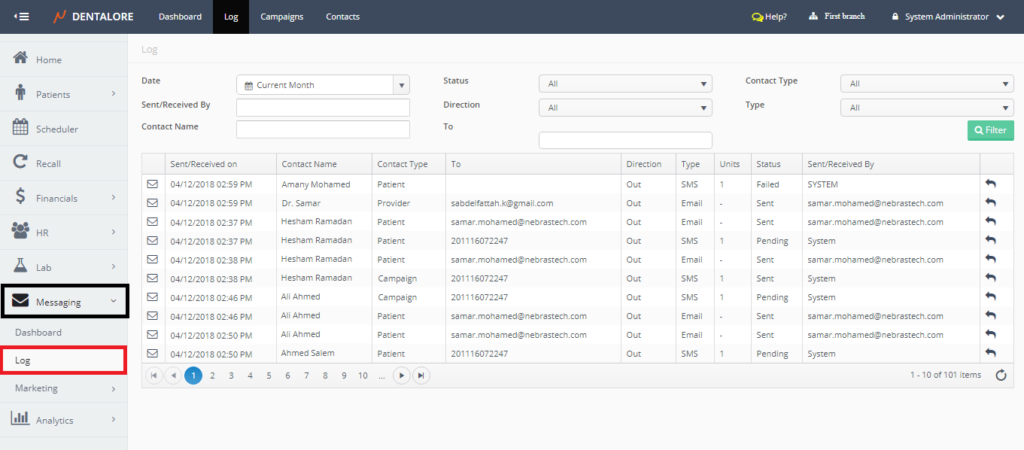
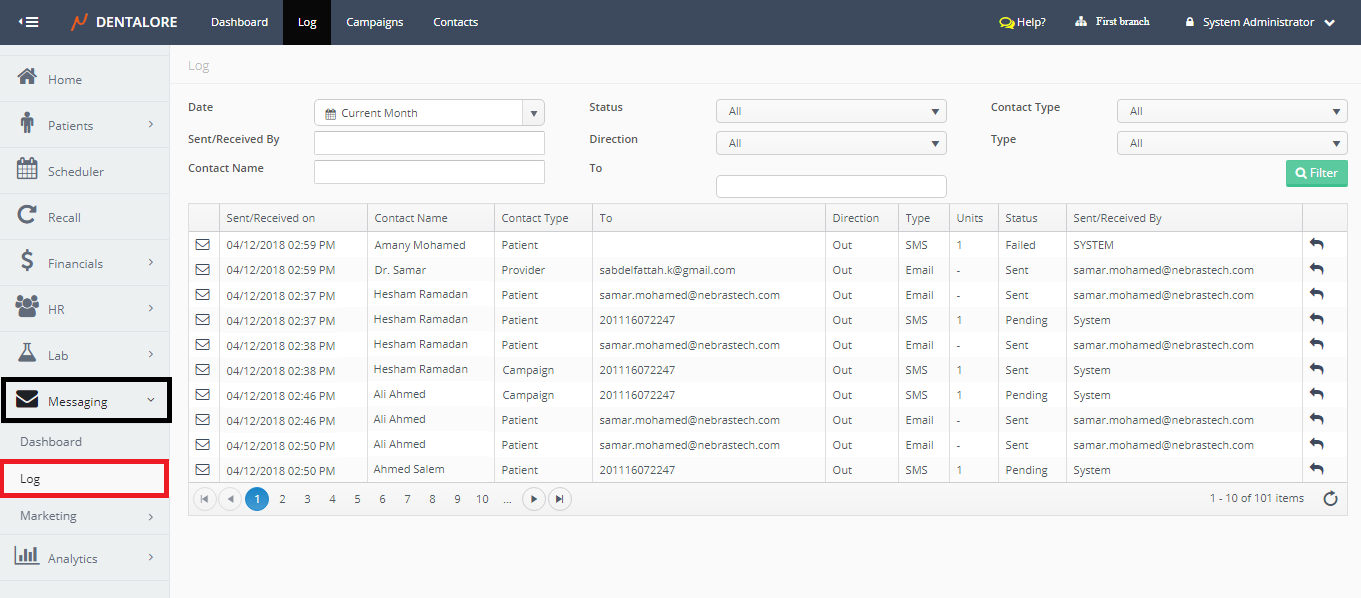
"Log" View is mainly divided in to sections:
1- Search Area
From Search Area, user could filter with the following:
- Date
- Is a drop down menu that enables user to search for messages listed in log within a specific date range, Date ranges are: (All, Tomorrow, Today, Yesterday, Current Week, Last Week, Current Month, Last Month, Current Year, Last Year, and Custom range).
- Default selection: Today. - Status
- Is a drop down menu that contains all of the available status for a messages that could be: (Queued, Pending, Sent, Failed, Rejected, or Received).
- Default Selection is: All. - Contact Type
- Is a drop down menu that contains different types of contacts that messages could be sent to; Contact types: (Patient, Provider, and Campaign).
- Default Selection is: All. - Sent/Received By
- Is a field to search for messages sent or received by a specific user. - Direction
- Is a drop down menu that enables user to select the display of (In or Out) messages.
- Default Selection is: All. - Type
- Is a drop down menu that lists the different types of messages that are sent to patients and/or providers. Types are: (Auto, SMS, and Email).
- Default Selection is: All. - Contact Name
- Is a field to search for messages sent for a specific patient and/or User using their name. - To
- Is a field to for messages sent for a specific patient and/or User using their phone number. - "Filter" button
- When pressed, data equivalent to filtration data in search boxes are displayed in the Messages grid view.
2- Log Messaging Grid View
Columns of grid view are respectively as follows:
- Transactions column
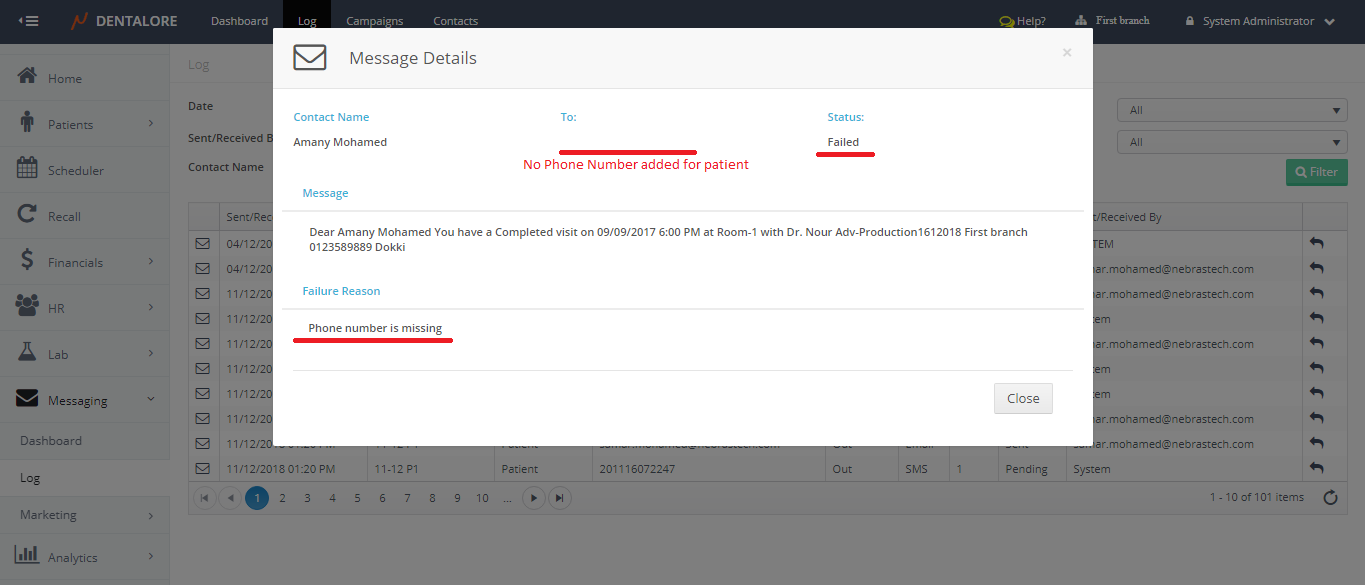
Contains 1 Icon which is the "Message View" icon that once pressed a Popup "Message Details" opens displaying the Contacts info, messages sent and failure reason if message failed.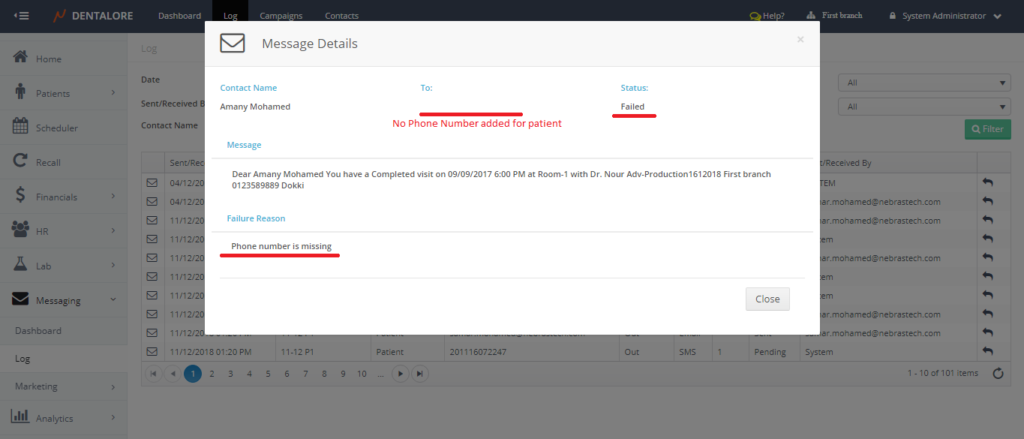
- Sent/Received On
- Column displays the date and time when the messages (SMS and/or Email) has been listed in the messaging log. - Contact Name
- Is the column lists the name of patient or user whom the message sent for. - Contact Type
- Column that displays the different types of contacts that messages could be sent to: Patient, Provider and/or Campaign. - To
- Column displays the phone number and/or Email that messages is being sent to. - Direction
- Column displays if the message is received to the clinic or sent out from the clinic. - Type
- Column displays the type of sent messages: Auto, SMS or Email. - Units
- Column displays the number of messages that the sent message took for being sent. (For Ex.: SMS Sent divided on 2 messages) that helps in calculating the remaining quota of your messages. - Status
- Column displays the status of messages listed in the Messaging Log. - Sent/Received By
- Column displays the name of user who sent or received the listed messages. - Transaction Column
- Contains 1 action "Resend" icon; that when pressed for a selected message then this message will be resend.