From Lab Module, the user has the ability to manage and set every thing related to Labs. One of the most important actions performed from Lab Module is linking a lab product with many different labs each has its own settings.
In order to link a lab product with different labs, follow the following steps:
- Press on your name at the upper right side, & select “Settings”

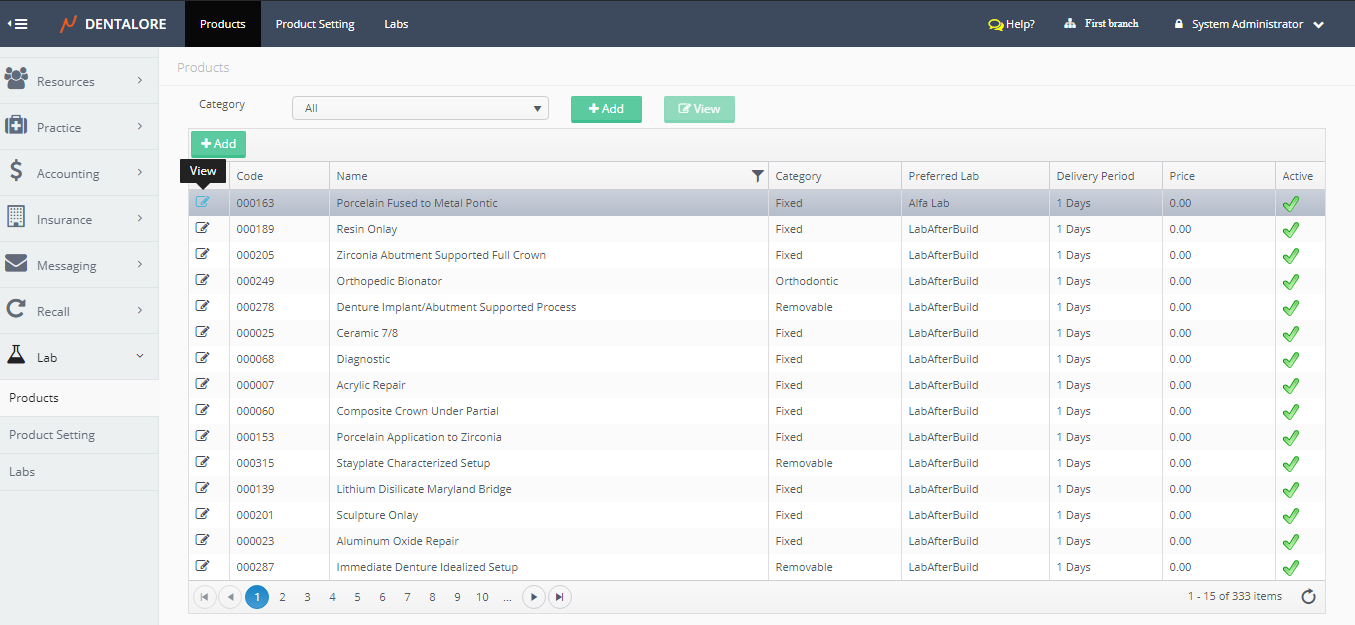
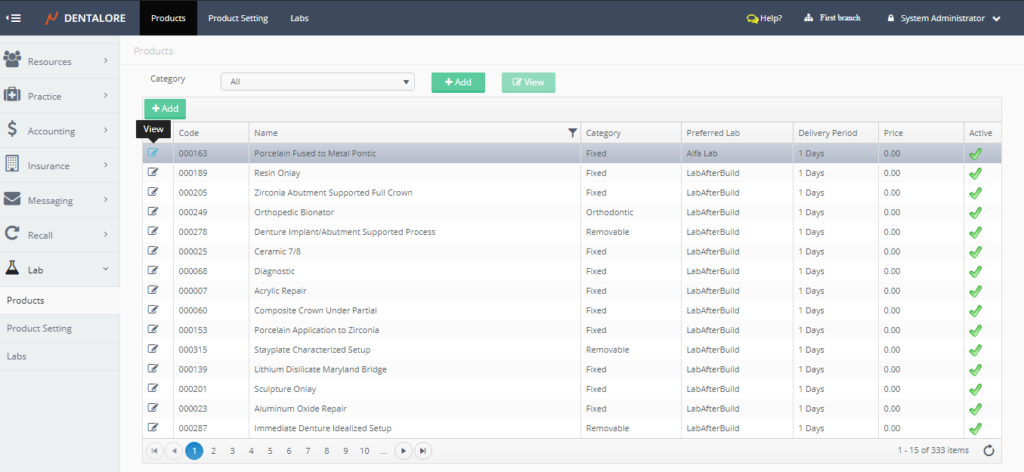
- Expand “Lab” Menu and select “Products”, Select any of the existing lab products to add labs to it.
- Press on the “View” icon to open the product.
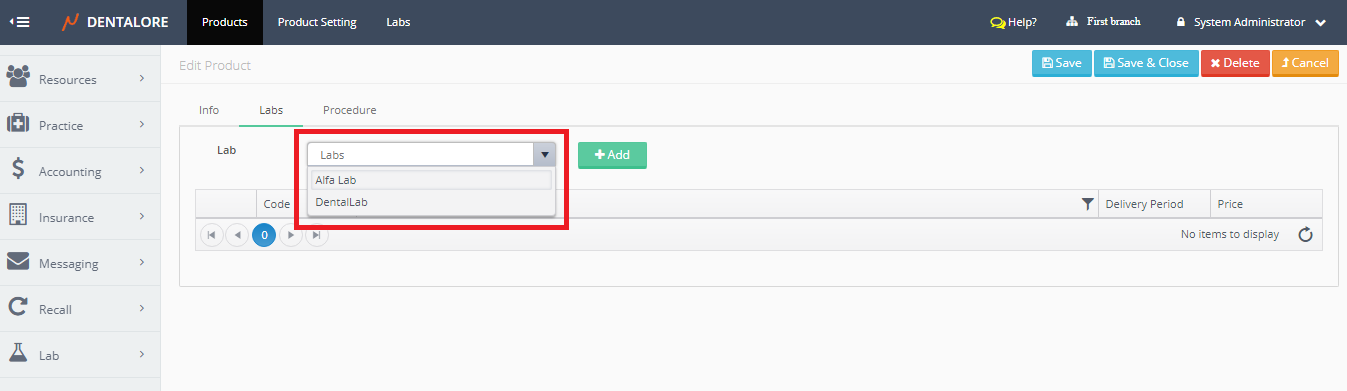
- New Page “Edit Product” opens; Select “Labs” tab.
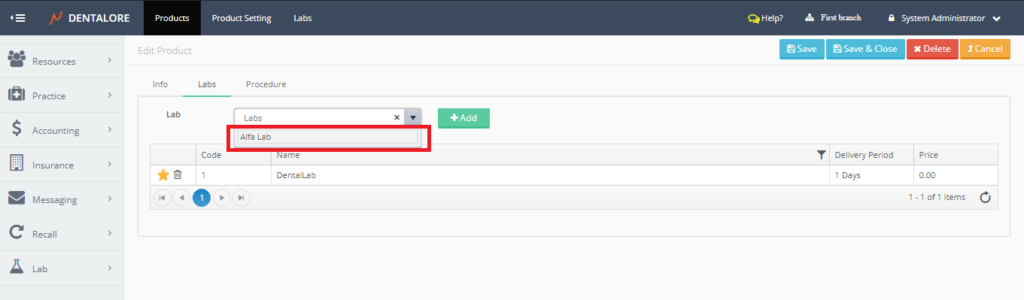
– (Labs) tab contains a drop down menu that includes all of the defined active labs in your clinic in order to select the required labs and assign selected product to them.
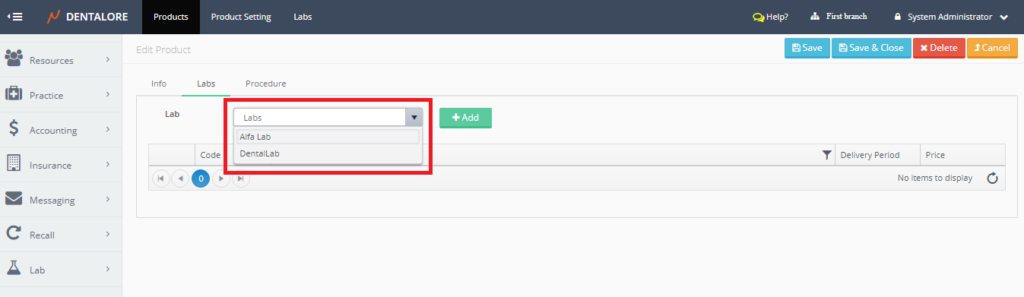
- From “Labs” tab, you can select the required labs to add the product to them & Press (Add).
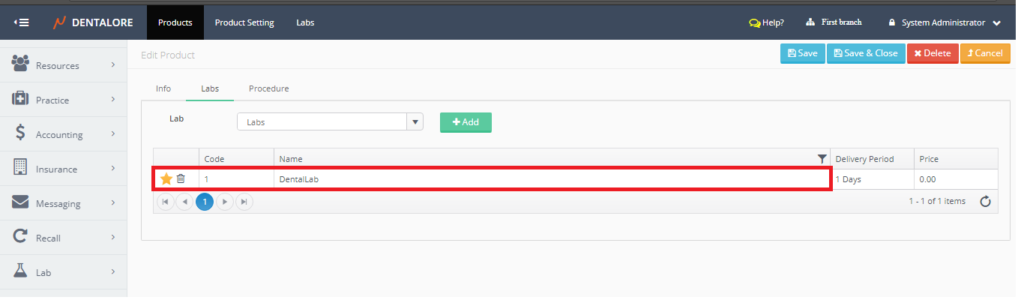
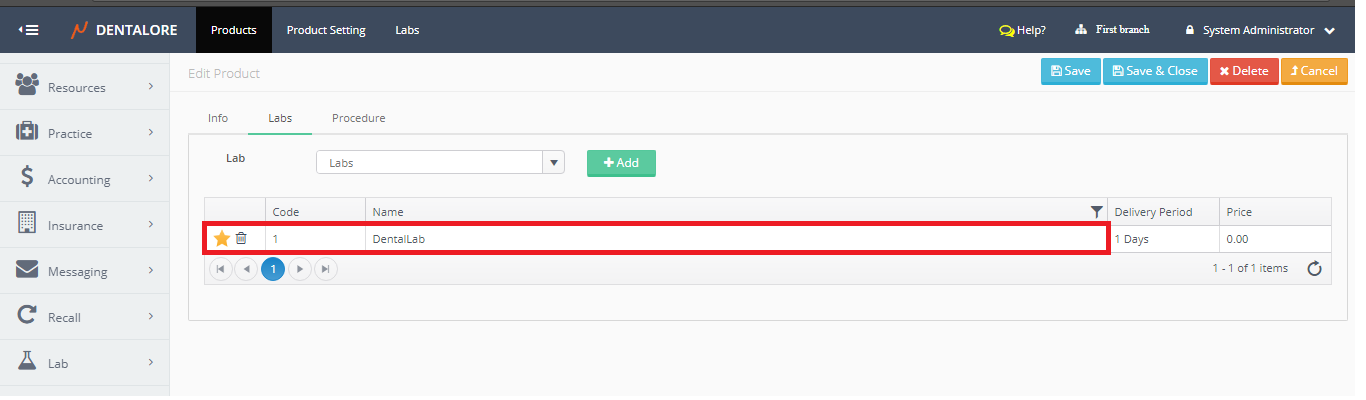
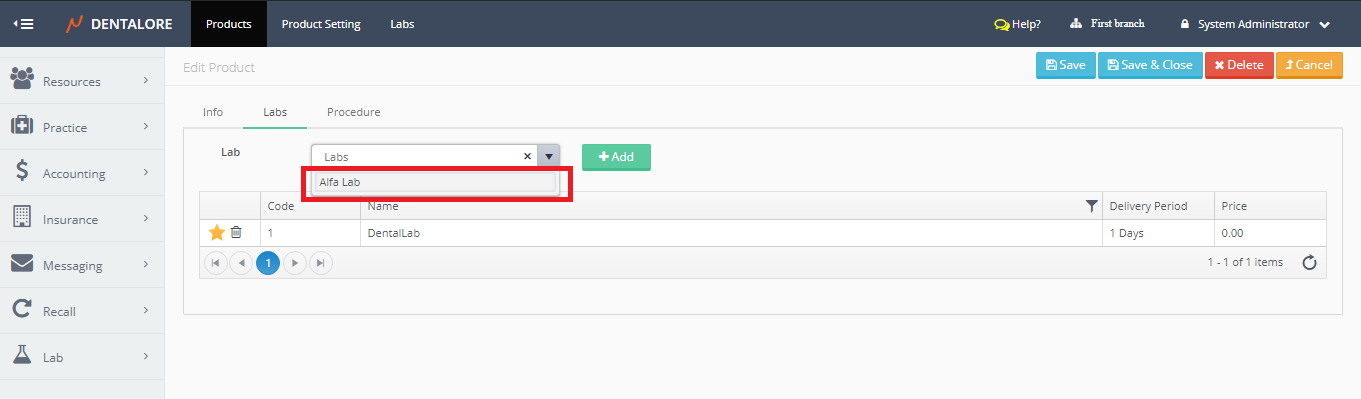
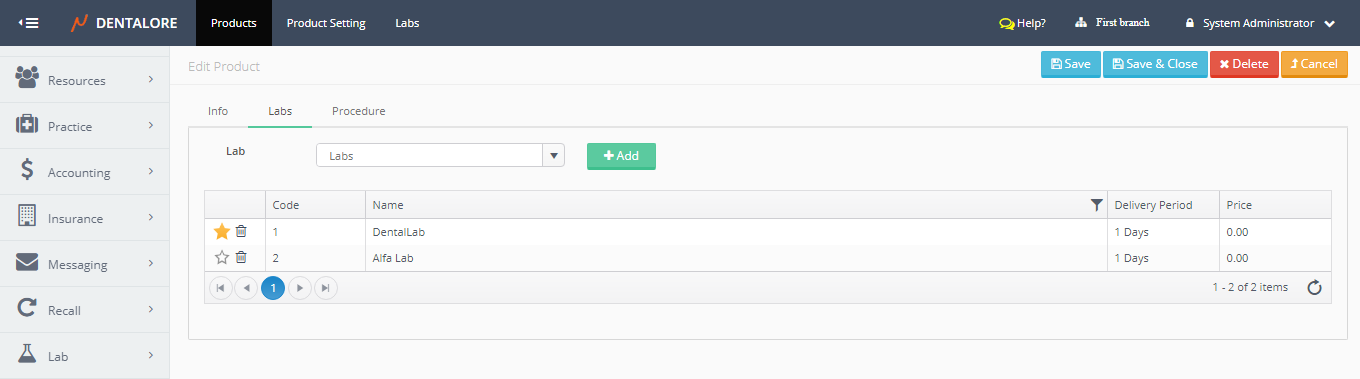
Note that the first added lab has a star beside it’s name colored in orange which means that this lab is selected to be the preferred lab for this product; that once this product is used, it’s preferred lab will be assigned to it by default. - And to assign the selected product to more labs, repeat the above steps.
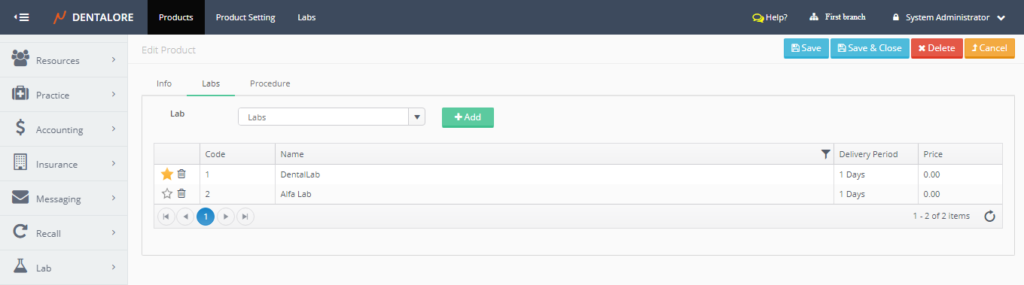
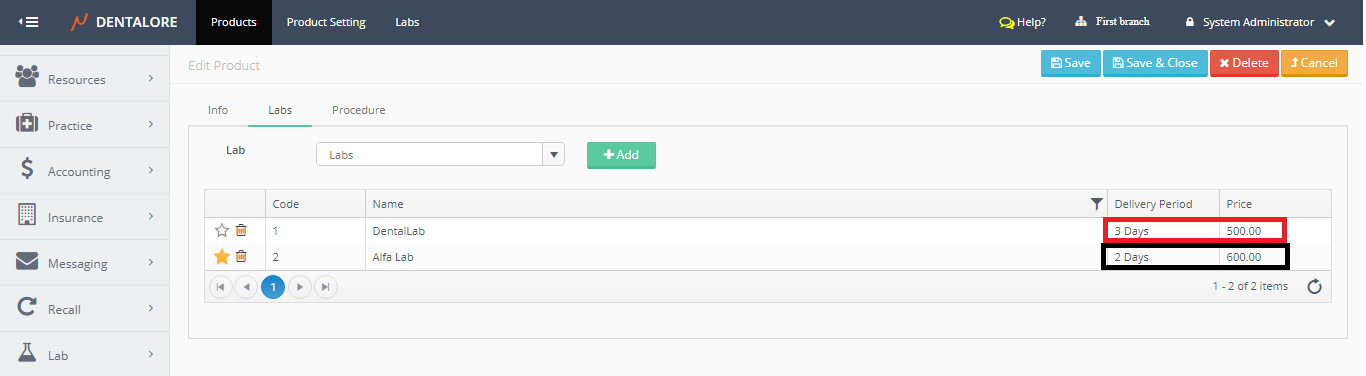
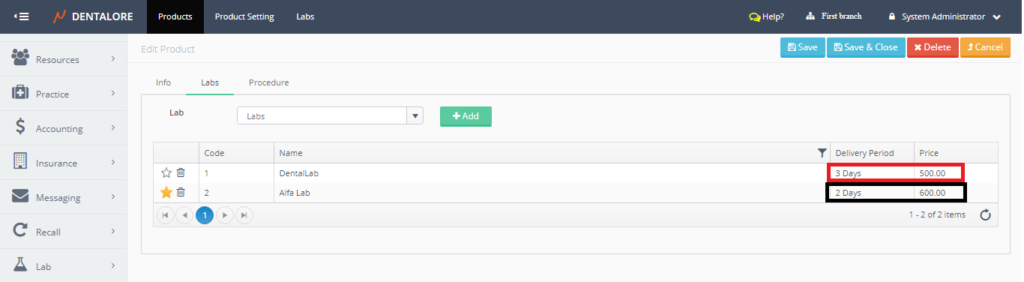
You can change the preferred lab as you want, just click on the star and it will save the clicked on star as a preferred lab for the product. - Moreover, you have the ability to change both of the delivery period and price regarding each lab separately by double click it and update the data and then press Save.
- Note that the selected product that’s assigned to different labs will be added and listed in the (Products) tab in the “Edit Lab” page.