Lab Module is the place where you could manage the adding, editing & deleting settings of any action belongs to the lab; products, products settings and labs that you deal with them.
Products Main Page
- Press on your name at the upper right side, & select “Settings”

- Expand “Labs” Menu and select “Products”.

- “Products” main page is divided in sections which are:
1- Category Section
– That enables user to view the existing lab products categories and add new categories. For more information, Check: Configure Lab Products Category.
2- Products Section
– That contains a grid view that displays all of the defined Lab Products and an “Add” button to add new Lab Products. For more information, Check: Configure New Lab product.– Grid View displays the following columns: - Actions Column: Contains only 1 “View” icon that enables user to update in the existing products.
- Name: Is the Name of Product.
– From “Name” column user has the ability to search for a specific Lab Product from the (Filter) icon.
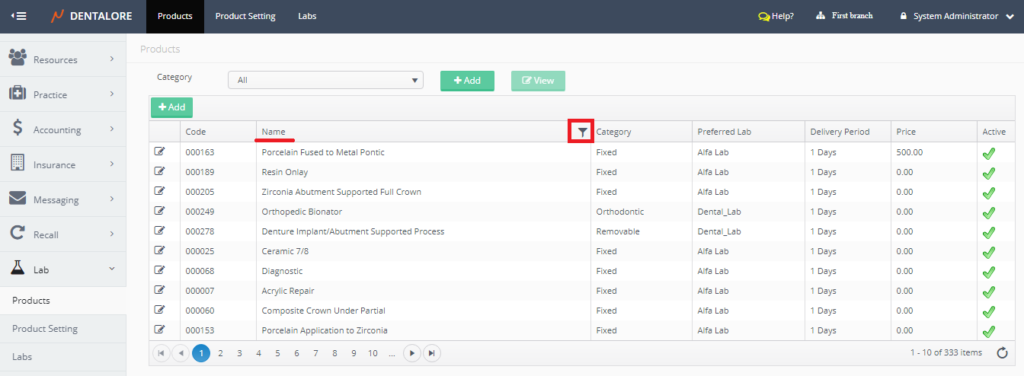
– Type the name of required Lab Product in the search field and press “Filter” button.
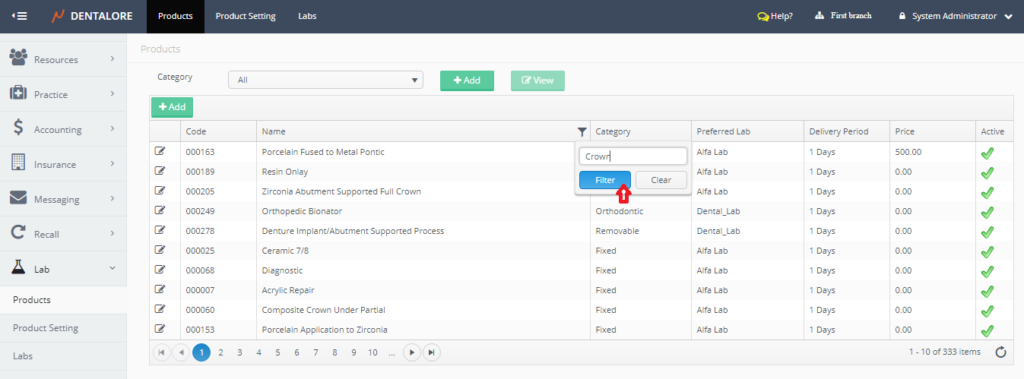
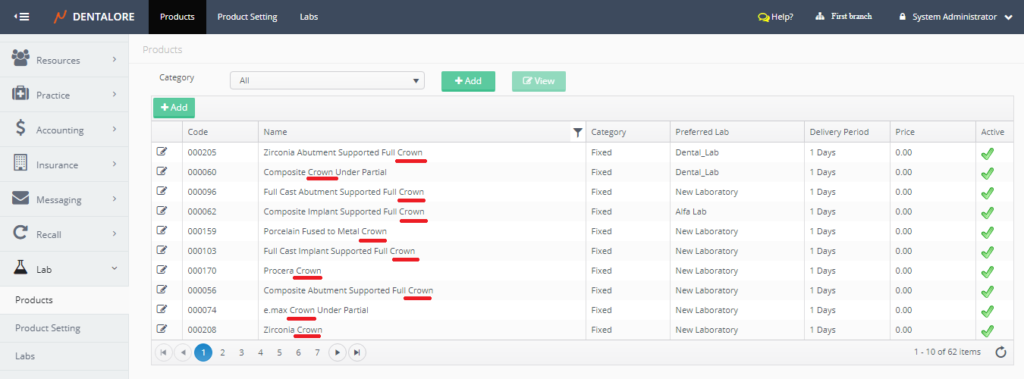
- Category: Is the Name of Lab Product Category in which the product belongs to.
- Preferred Lab: Is the Name of the Lab that’s selected to be Preferred Lab for the product.
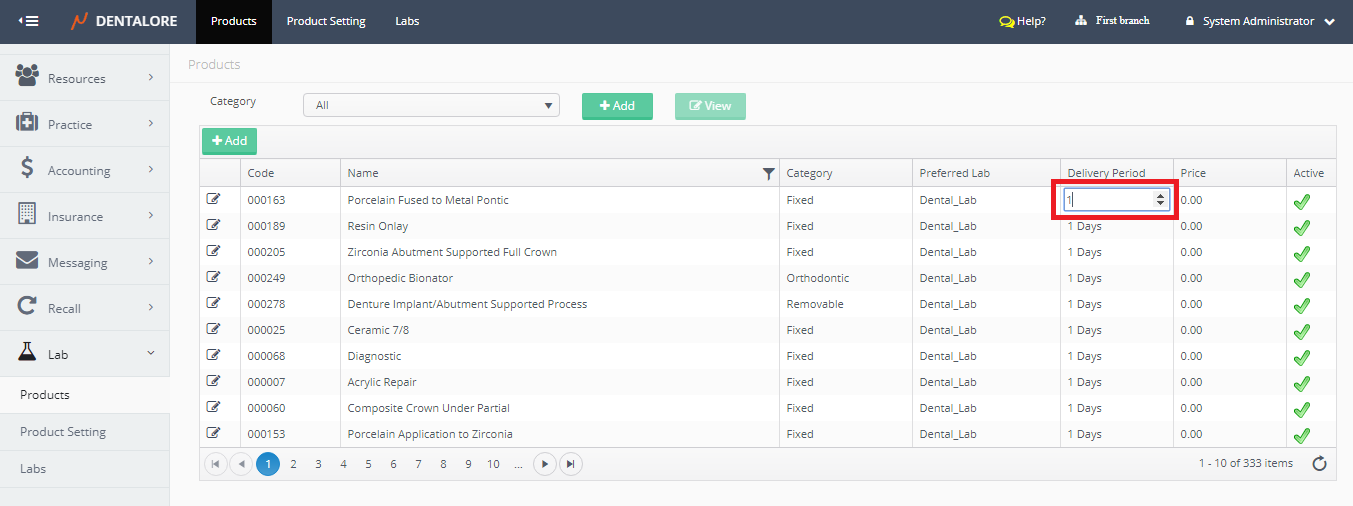
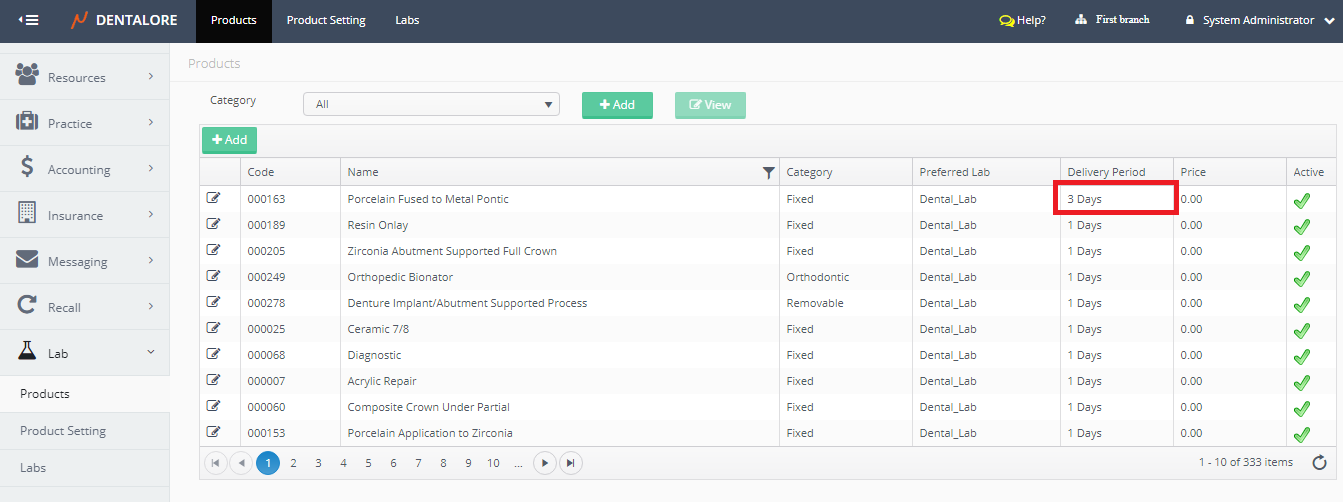
- Delivery Period: Is the period of how long the Lab Product will take to be delivered to your clinic and the user is able to edit this field from “Products” main page.
-> Double click on the (Delivery Period) field and write new required period then it will automatically saved.
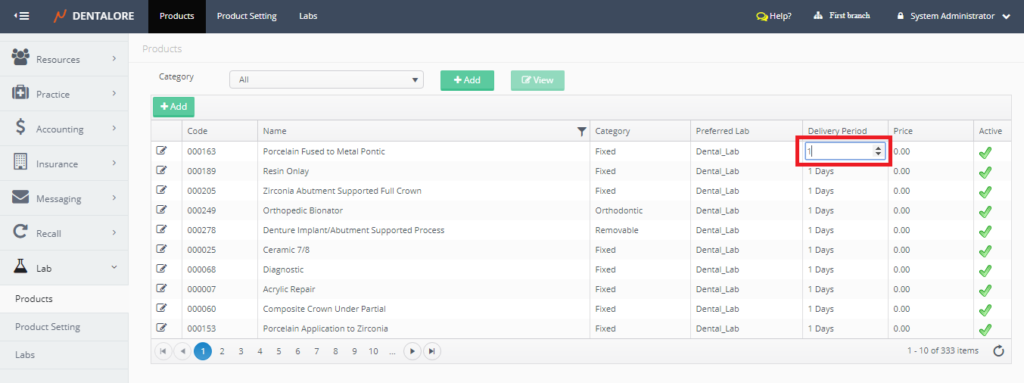
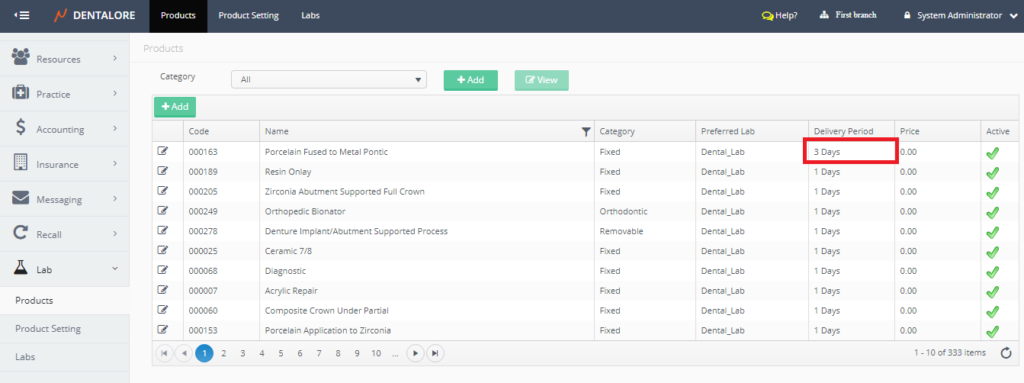
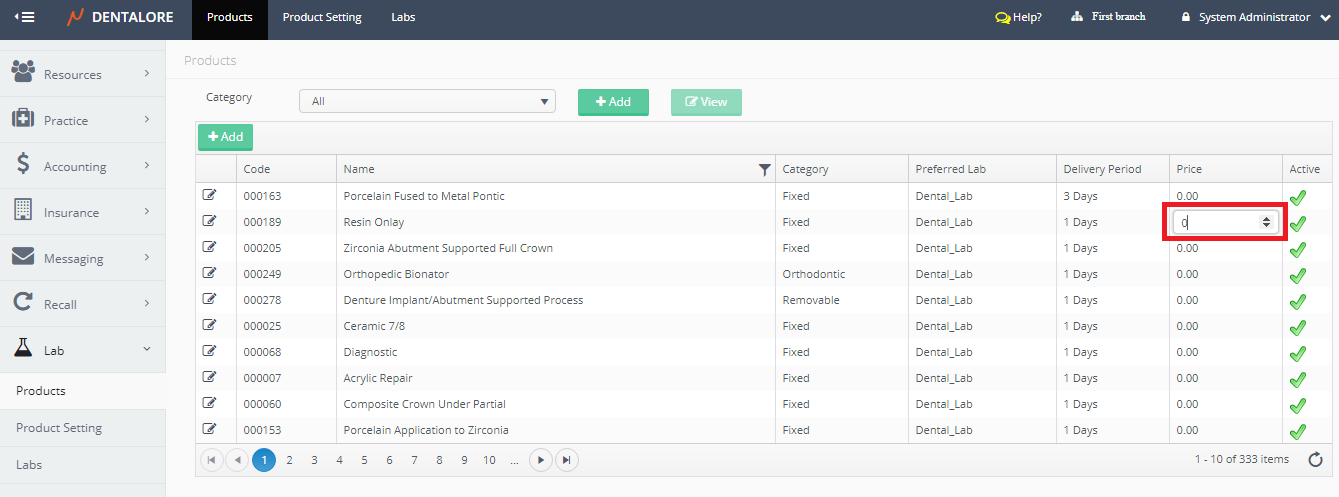
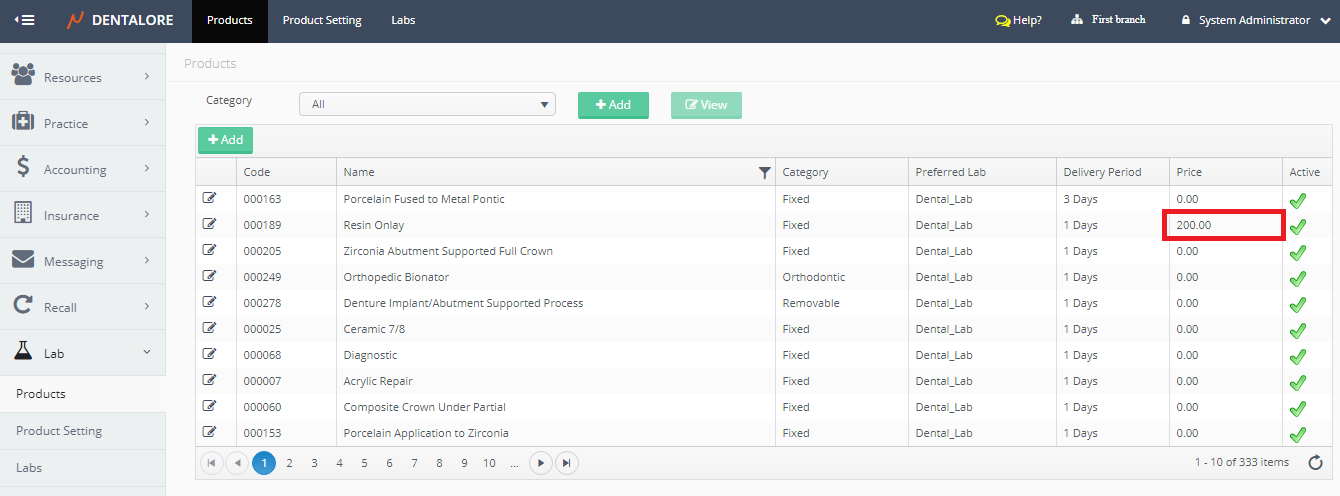
— Note that the displayed delivery period here is the period taken by the selected preferred Lab. In which each Lab has it’s own delivery period that differs from one lab to other. - Price: Is the price of Lab Product that your clinic should pay to the Lab to make this product. You have the ability to edit this field from “Products” main page.
-> Double click on the (Price) field and write new required price then it will automatically saved.
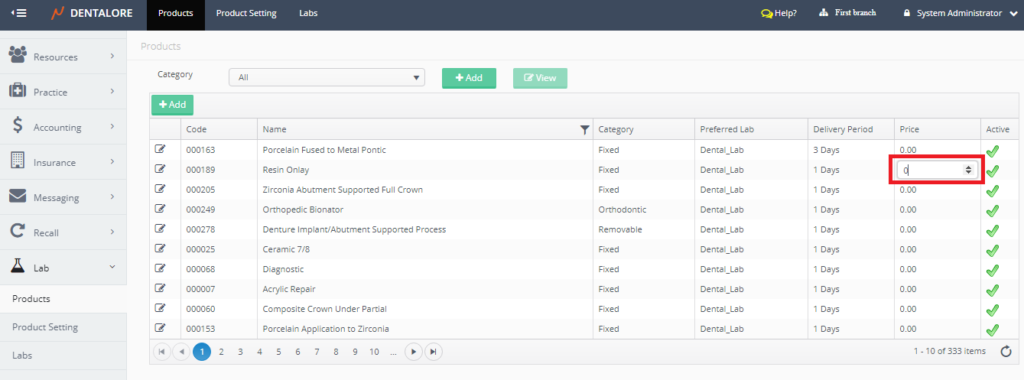
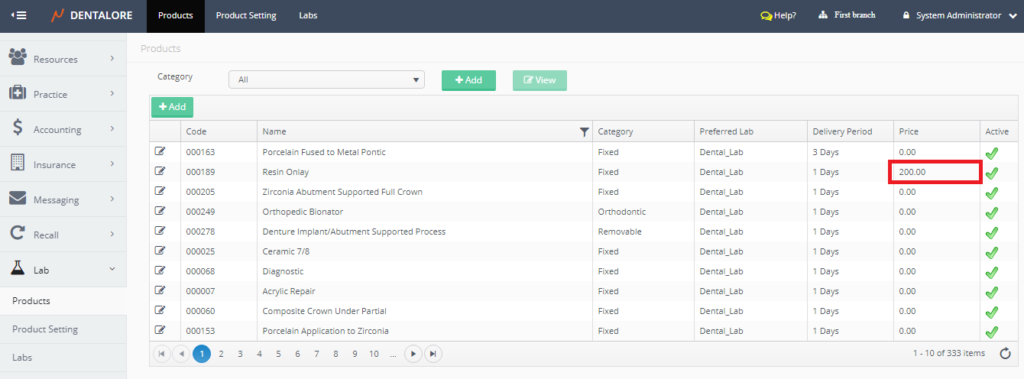
— Note that the displayed price here is the price of the selected preferred Lab. In which each Lab has it’s own prices that differs from one lab to other. - Active: column that displays the status of Lab product that could be: (Active or Inactive).