
To Access the Scheduler Settings, follow the following steps:
- Press on your name at the upper right side and select “Settings”.

- Expand "Practice" menu and Select "Scheduler".
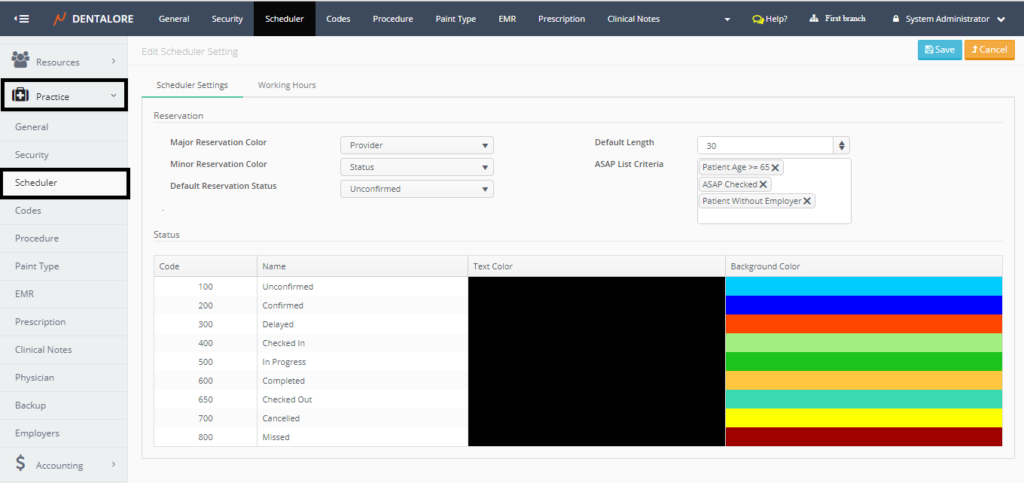
- Scheduler Settings contains 2 main tabs (Scheduler Settings and Working hours), by default it opens on the "Scheduler Settings" tab.

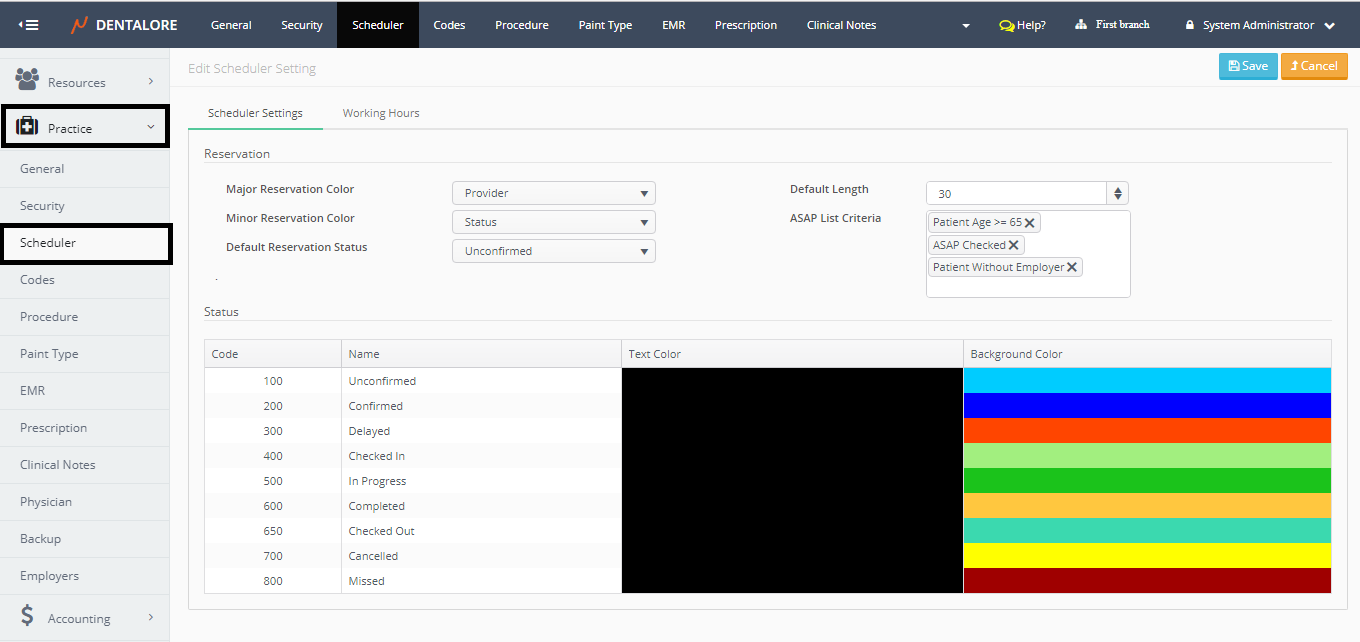
Scheduler settings configuration
- Major Reservation Color
Is a drop down menu that contains 2 options (Provider and Status) to select one of them to be the major color of the visit card displayed in "Scheduler" module. - Minor Reservation Color
Is a drop down menu that contains 2 options (Provider and Status) to select one of them to be the minorr color of the visit card displayed in "Scheduler" module. - Default Reservation Status
Is a drop down menu that contains all of the possible status of a visit that could be: (Unconfirmed, Confirmed, Delayed, Checked In, In Progress, Completed, Checked Out, Cancelled, or Missed) to select the default status that will be displayed in the field of "Status" field in "Add Visit" page in Denatlore system. - Default Length
Is a numeric box of minimum allowed value = 15 min. and maximum value = 180 min. That user set the required default length of the visit to be displayed in the field of "Length" in the "Add Visit" page in Dentalore System. - ASAP List Criteria
Is an auto-complete box to configure the required conditions that the ASAP visits will be based on.
>> For more information, Check: Configure ASAP Conditions.