Plan View is the place that enables user to define insurance plans related to the exiting carriers (Insurance Companies).
In order to access the Insurance Plan View, follow the following:
- Press on your name at the upper right side and select “Settings”.

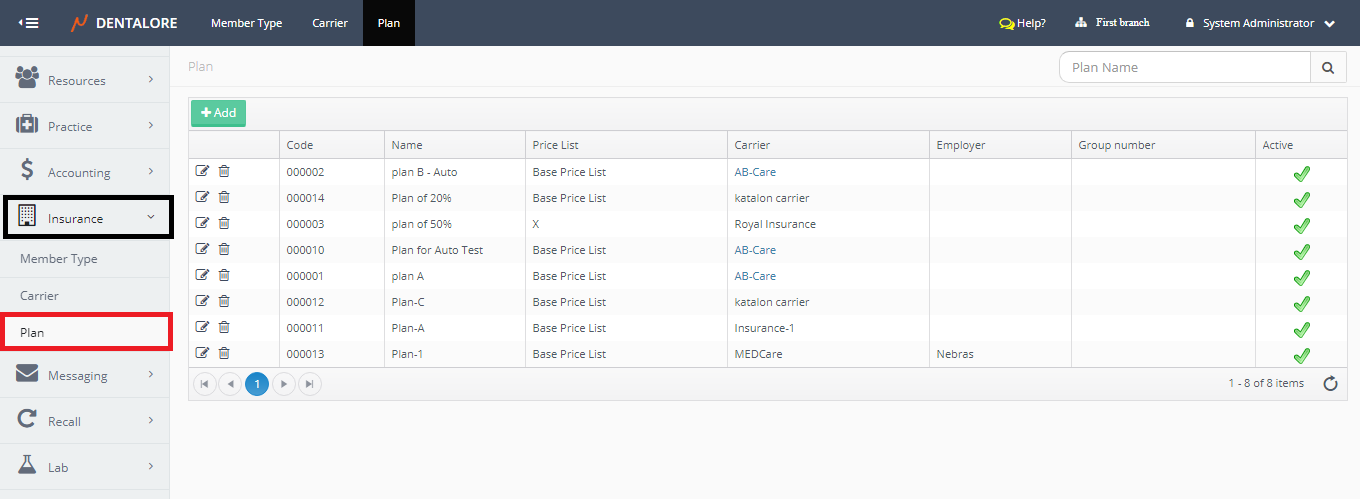
- Expand "Insurance" menu and select "Plan"
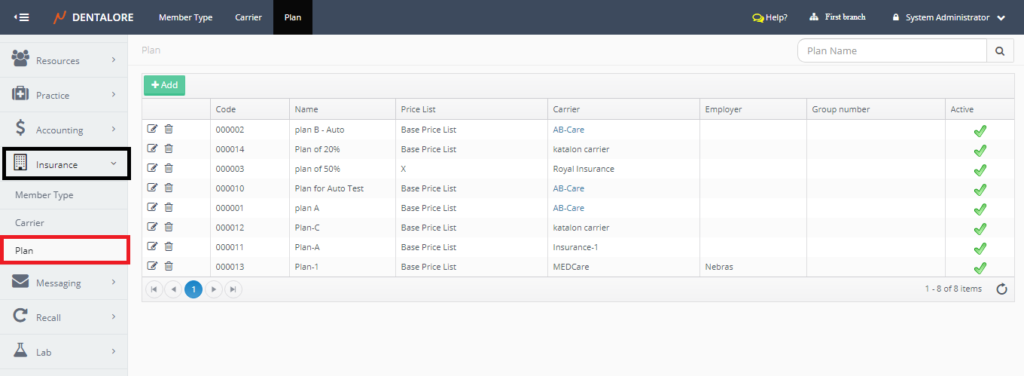
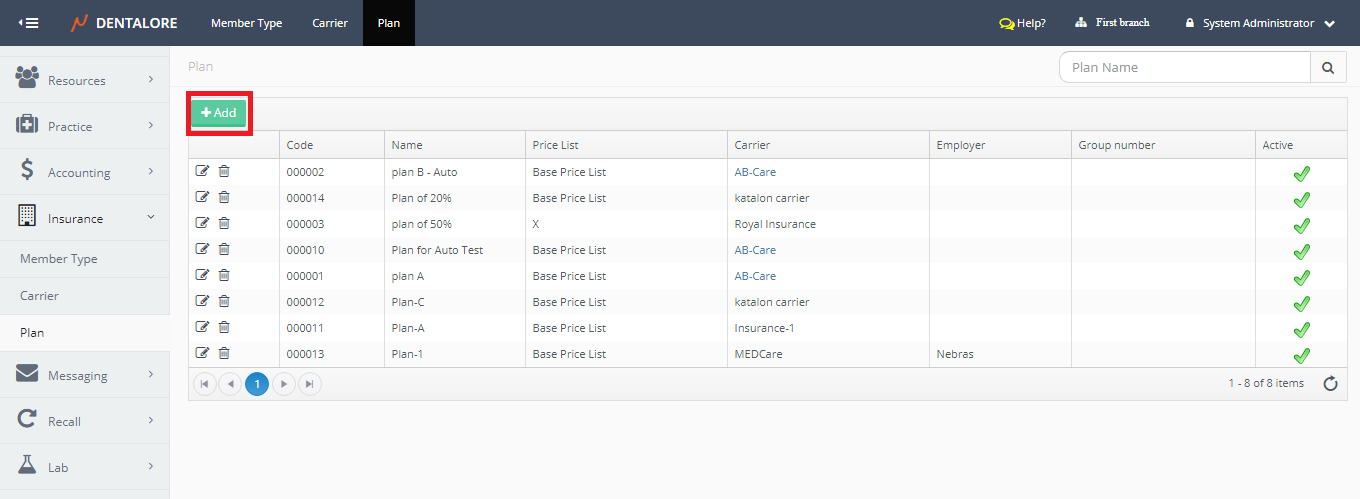
- 'Plan' main view displays all of the defined plans in a grid view and an "Add" button to add new plans.

1) Add Plan
- Press "Add" button.
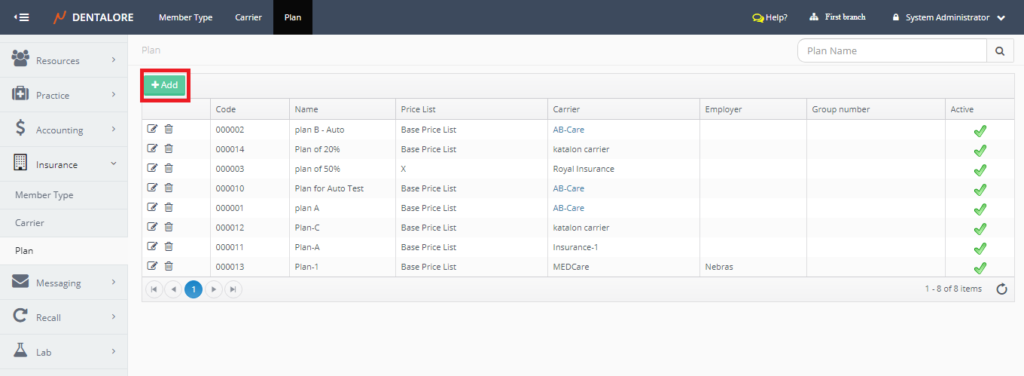
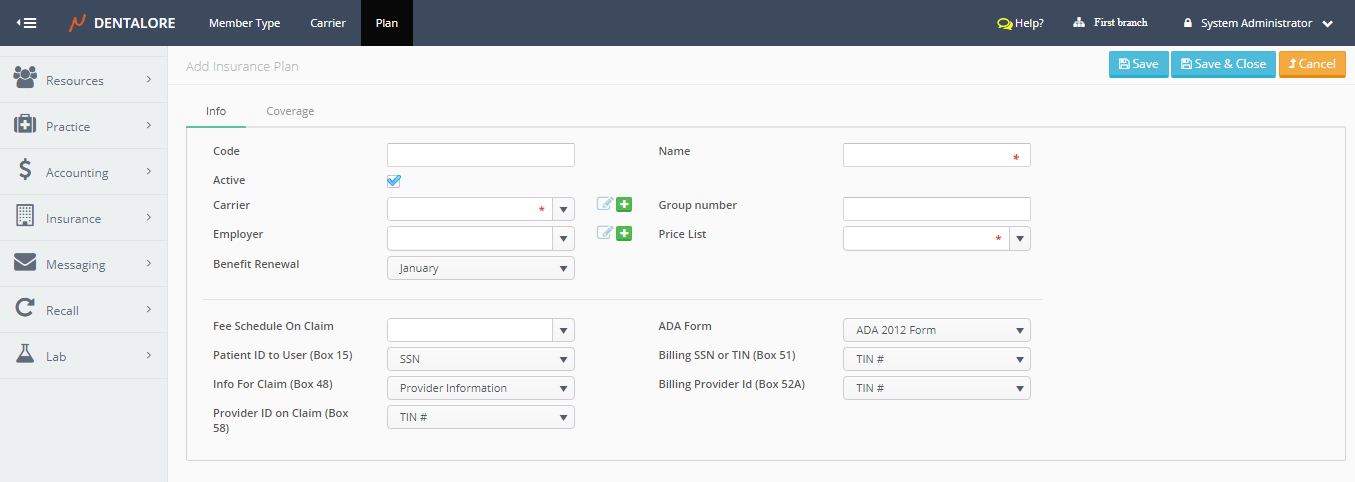
- User directed to new Page "Add Insurance Plan".
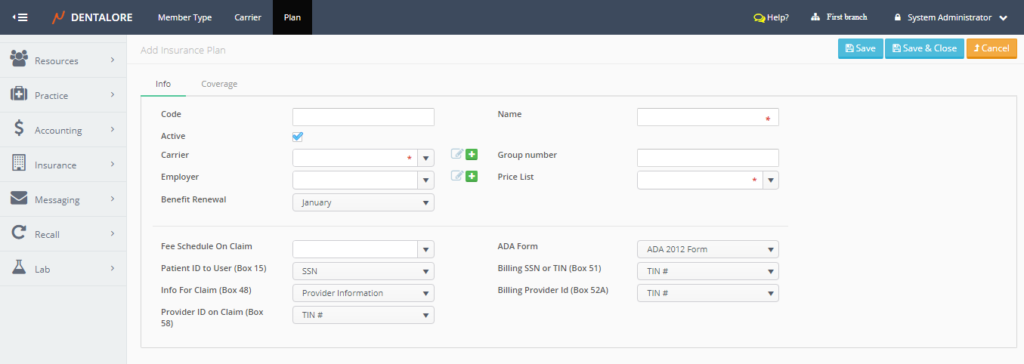
- The "Add Insurance Plan" page mainly has 2 tabs: Info and Coverage to manage the coverage ratio for each procedure. The Coverage tab is disabled until the plan is created.
For more information about Coverage, Check: Insurance Plan Coverage. - And for the "Info" tab, it contains the following fields:
- Code
-- Is the unique code (ID) for each insurance plan.- Name
-- Is the Insurance Plan's Name. And it's a mandatory field that user must fill-in in order to be able to save the plan.- Active
-- Is a check box that's ticked by default, which means that the plan is active and could be selected for usage for patients. While when check box is Not ticked that means the plan can't be used.- Carrier
-- Is a drop down menu that contains all of the defined insurance companies (Carriers) in order to select which carrier relates to this plan. It's a mandatory field that user must select the carrier to be able to save the plan.
>> Note that: User has the ability to Edit in the selected carrier and as well to add new carrier from the 2 icons in 'Add Insurance Plan' page.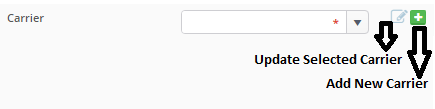
- Employer
-- Is a drop down menu that contains all of the defined employers in order to select which employer relates to this plan.
>> Note that: User has the ability to Edit in the selected employer and as well to add new employer from the 2 icons in 'Add Insurance Plan' page.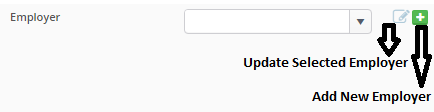
>> For more information about updating and/or adding new Carrier and Employer from the 'Insurance Plan' page, Check: Manage Carriers and Employers from Insurance Plan View.
- Price List
-- Is a drop down menu that contains all of the defined active price lists in order to select the price list that the plan will work on. It's a mandatory field that user must fill-in to be able to save the plan.
For more information about price lists, Check: Price Lists or Watch Video: Insurance Price Lists- Benefit Renewal
-- Is a drop down menu that contains the months of year in order to select the month of renewing the Benefit of plan for patients related to it.
Default Selection is: January. - Control buttons:
- "Save": Will save the new insurance plan and user directed to the 'Edit Insurance Plan' page.
- "Save&Close": Will save the new insurance plan and user directed to the 'Plans' main page.
- "Cancel": Will Not save the new insurance plan and user directed to the 'Plans' main page. - Fill-in required data and save the new insurance plan.
2) Update an existing Plan
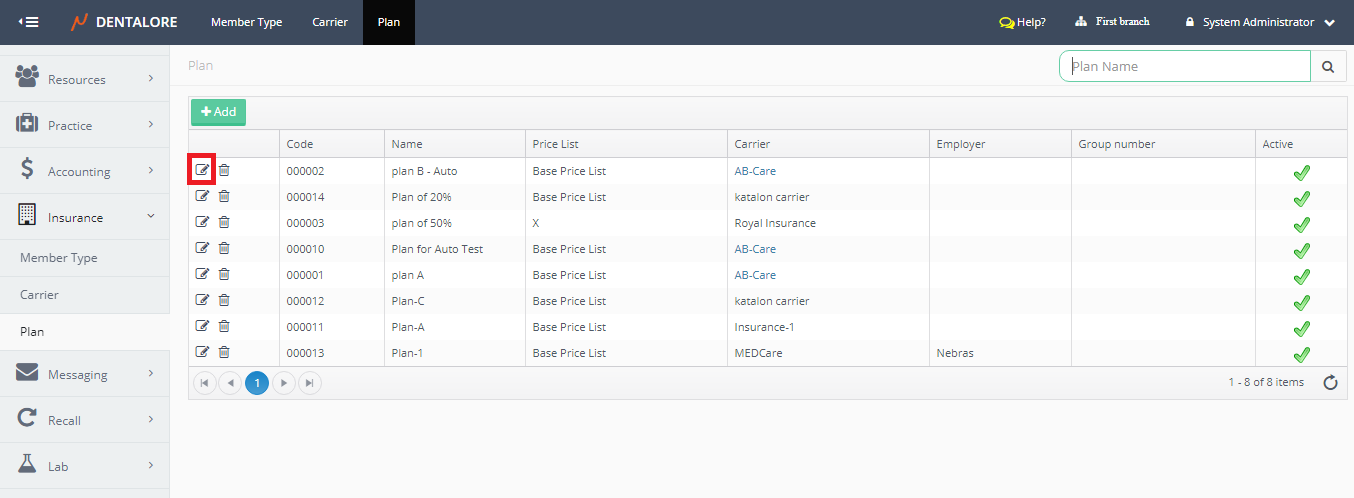
- Press the "View" icon beside required plan.
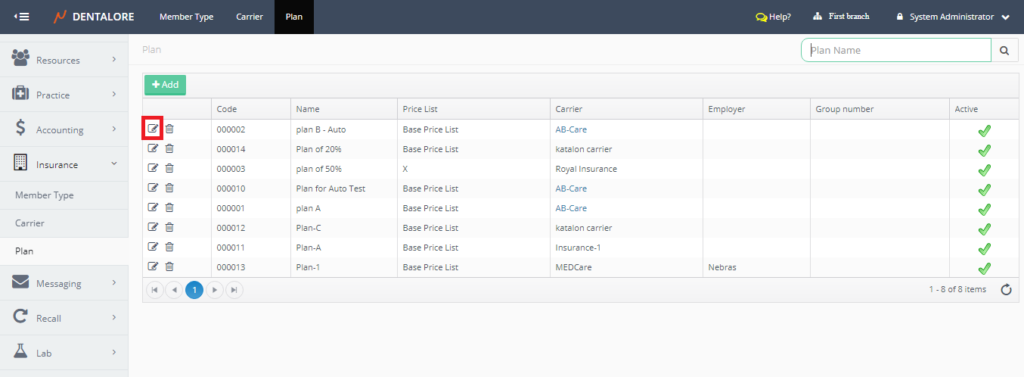
- User will be directed to the 'Edit Insurance Plan' page.
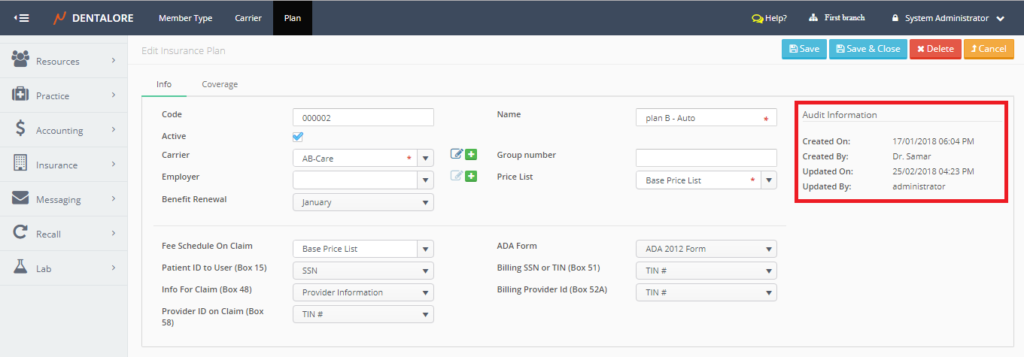
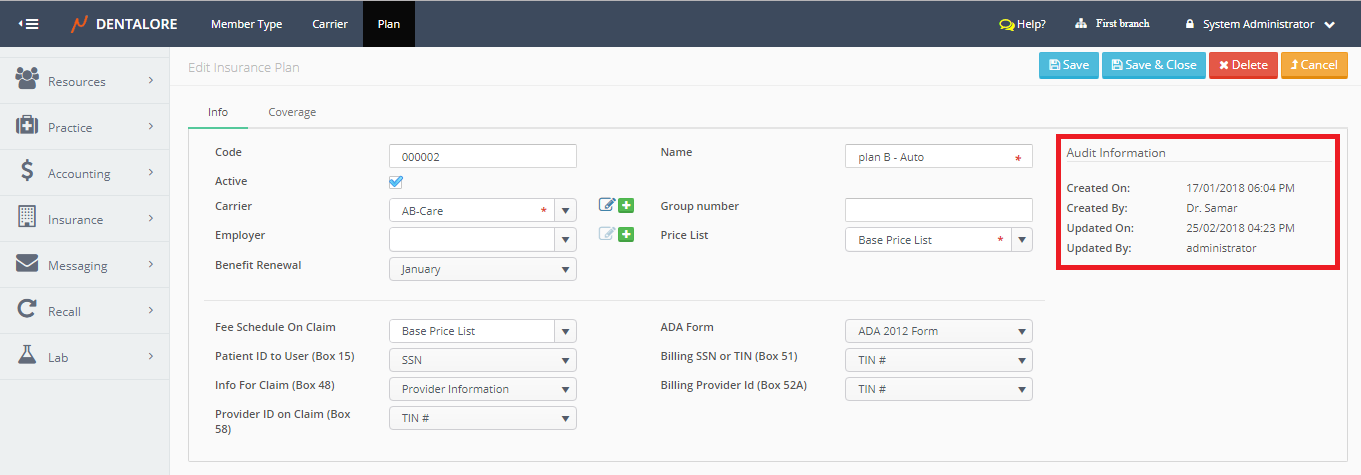
- After saving the Plan, The (Coverage) tab becomes enabled and New Section "Audit Information" section displayed in the 'Edit Insurance Plan' page that displays the following:
- Created On: Date and Time when the plan has been created for the first time.
- Created By: Name of user who first created the plan.
- Updated On: Date and Time when the plan has last updated.
- Updated By: Name of user who last updated the plan.
3) Delete Plan
User has 2 ways to delete the insurance plan, which are:
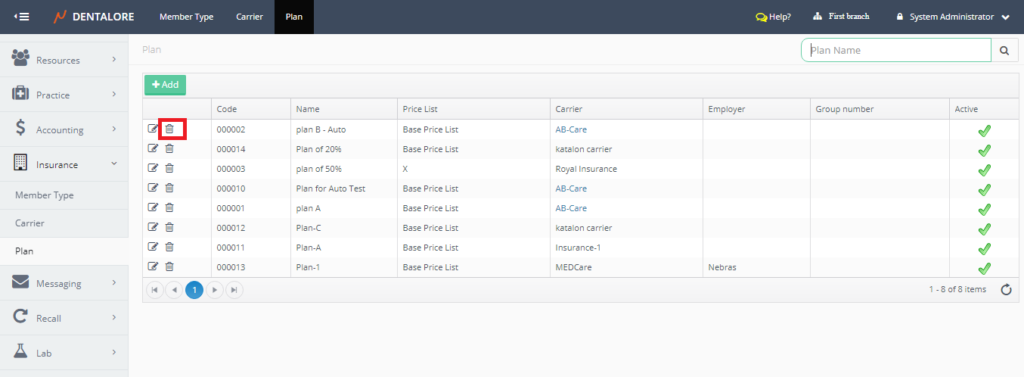
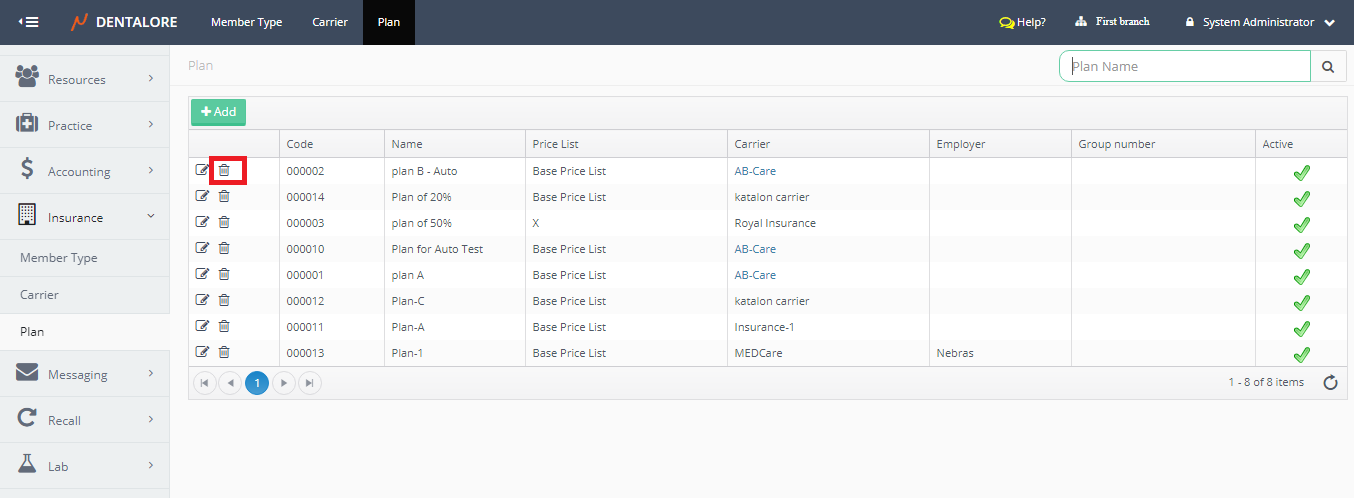
1- "Delete" icon in 'Plans' main page
- Press "Delete" icon beside the required plan.
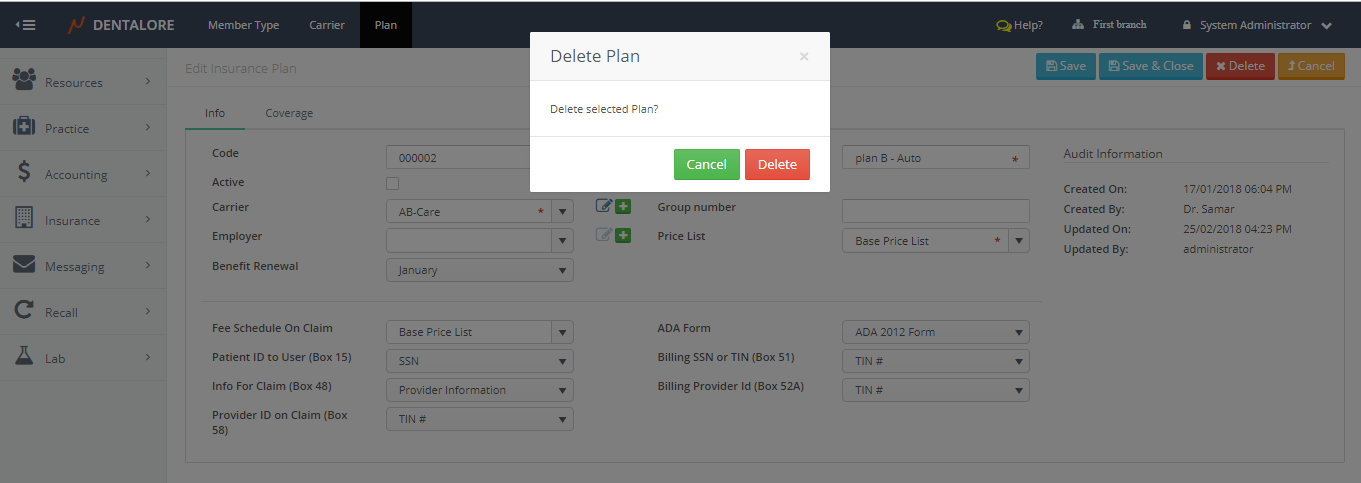
- Popup "Delete Plan" opens to confirm or cancel the deletion of selected plan.
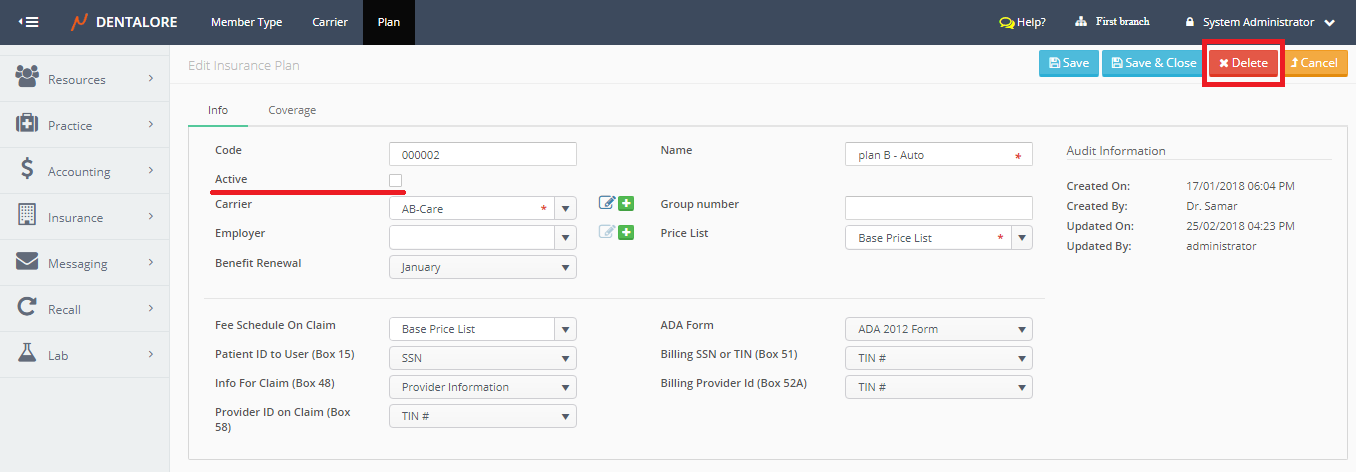
2- "Delete" button in 'Edit Insurance Plan' page
- Press "View" icon beside required plan.
- Press "Delete" button in the 'Edit Insurance Plan' page.
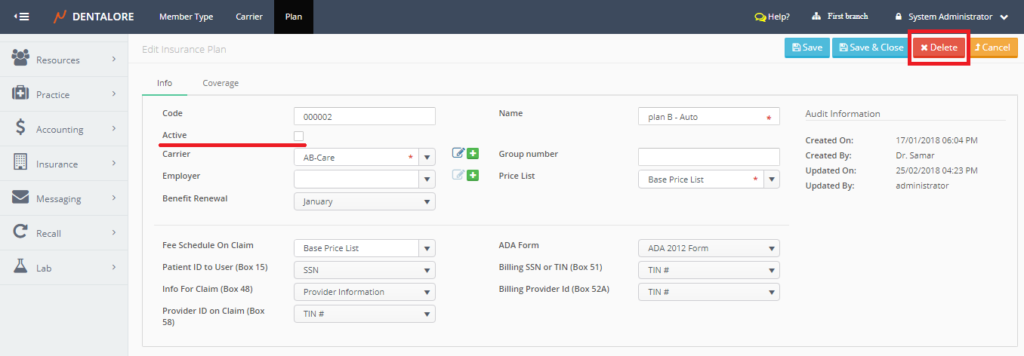
- Popup "Delete Plan" opens to confirm or cancel the deletion of selected plan.
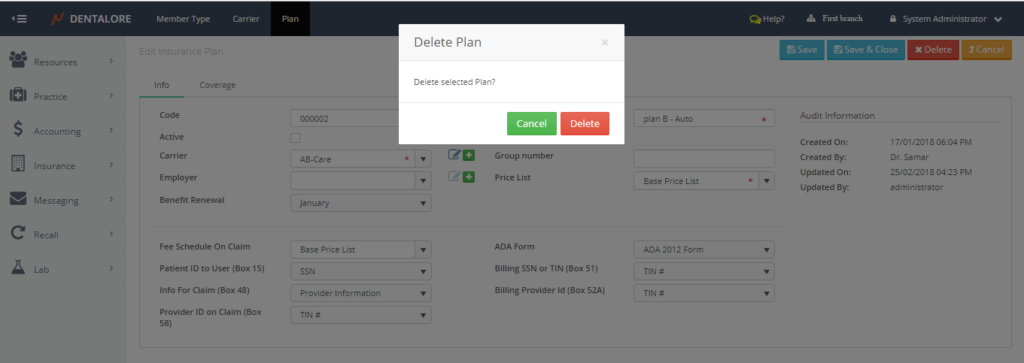
- If user press "Cancel" then the plan will not be deleted and still displayed in plan grid view.
- If user press "Delete" then the plan will be deleted and removed from the plan grid view.>> Note that in order to be able to delete an insurance plan then this plan must be "Inactive". Otherwise it will not be deleted.