
DentaLore System offers one of the most important features in any cloud software system which is the ability to take a backup of your data, downloading it on your computer and also importing new data to the system.
To Access the Backup View, follow the following:
- Press your name at the top right corner and Select "Settings".

- Expand Practice Menu and select “Backup”.
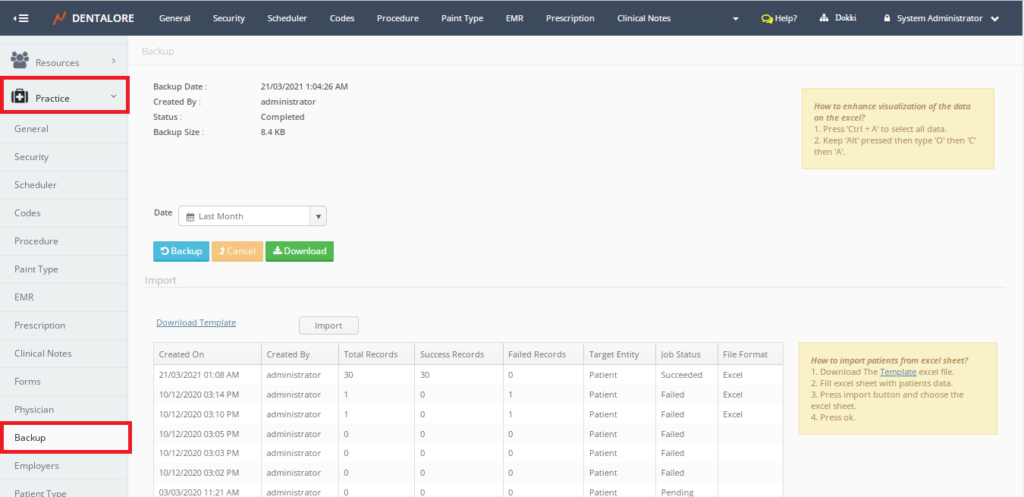
- The "Backup" view is mainly divided in to 2 sections: (Backup) and (Import) with sticky notes in each section illustrates how perform both tasks.

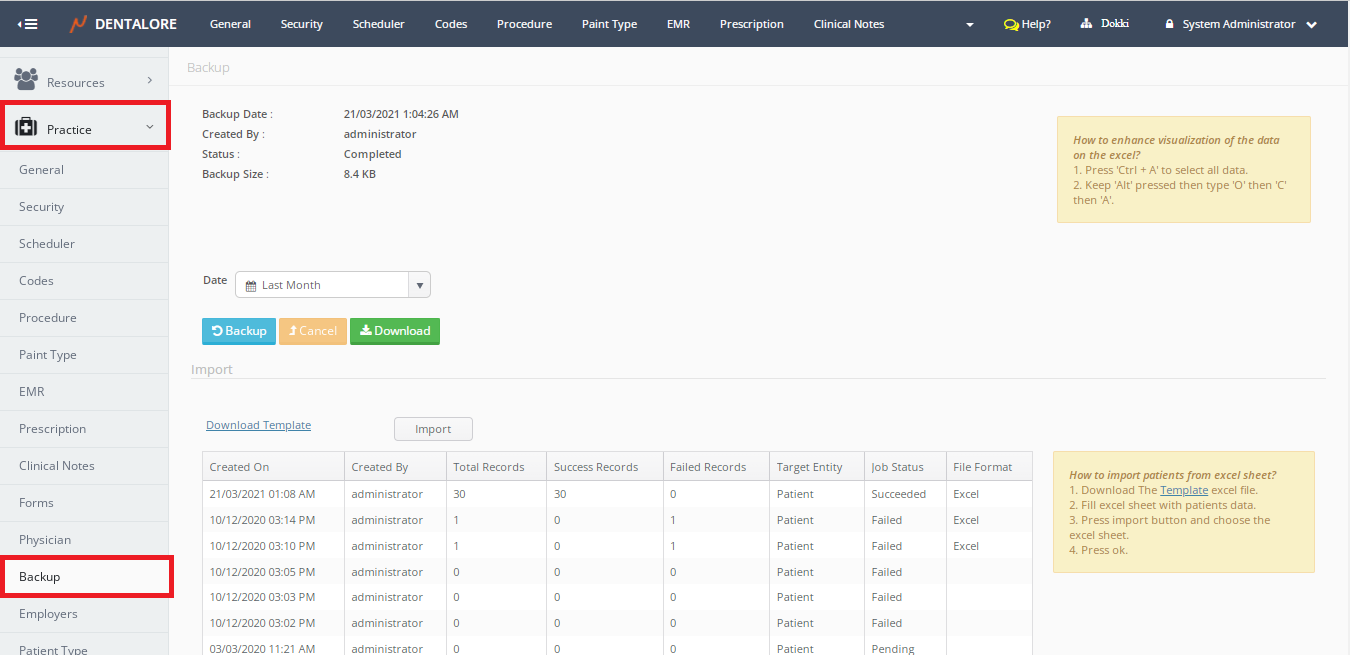
1- Backup Section
This section used to backup and download the data in your clinic through the following fields:
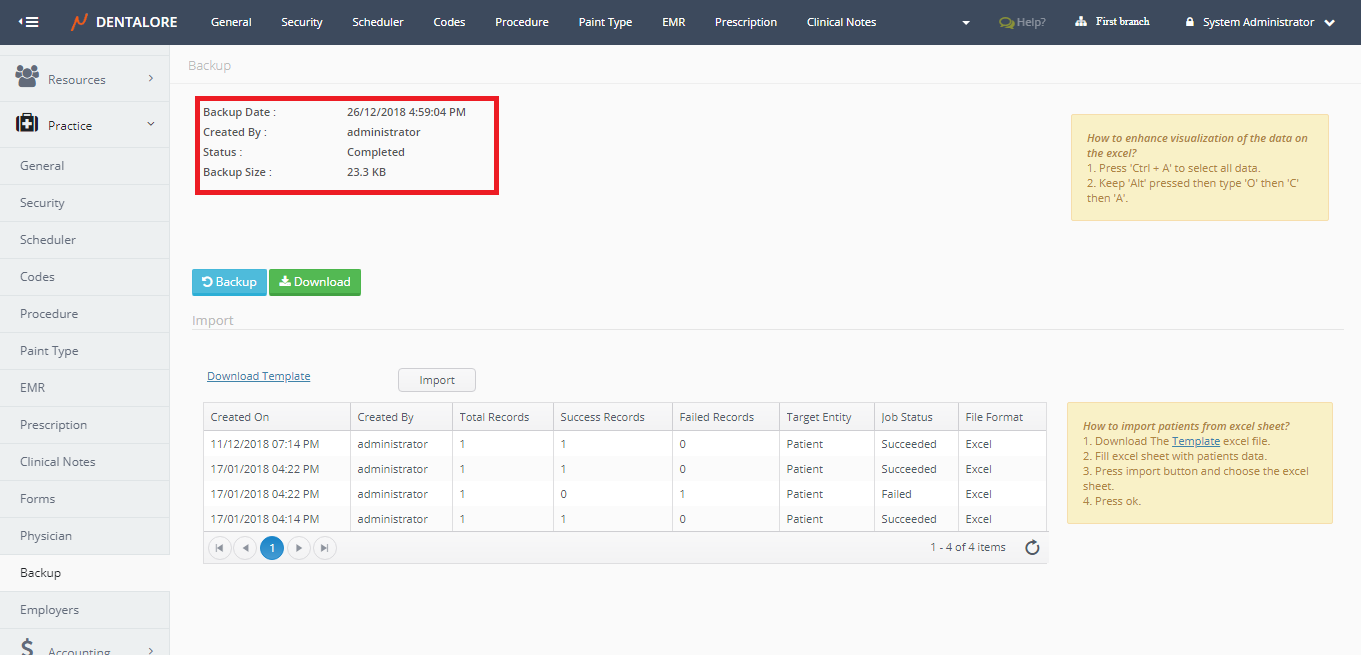
- Backup Date
- Field displays date and time of the last backup done for your data. - Created By
- Field displays the name of user who last backup the data. - Status
- Field displays the status of last backup. - Backup Size
- Field displays the size of last backup of data. - Date
- Date picker field from which user can select a date to backup the data in.
Note: Custom Range accepts maximum of 31 days.
- "Backup" button
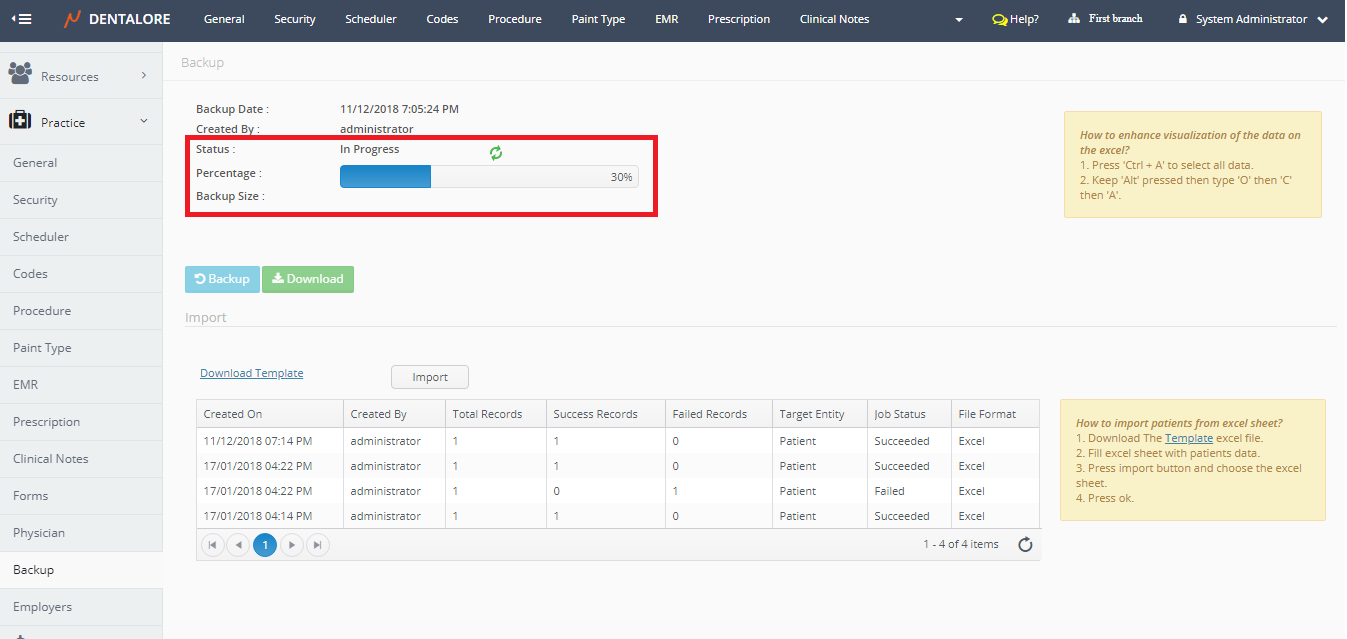
- Once pressed the system starts to backup data showing a progress bar in new field (percentage) that appears only during the backup process and Status field becomes in progress.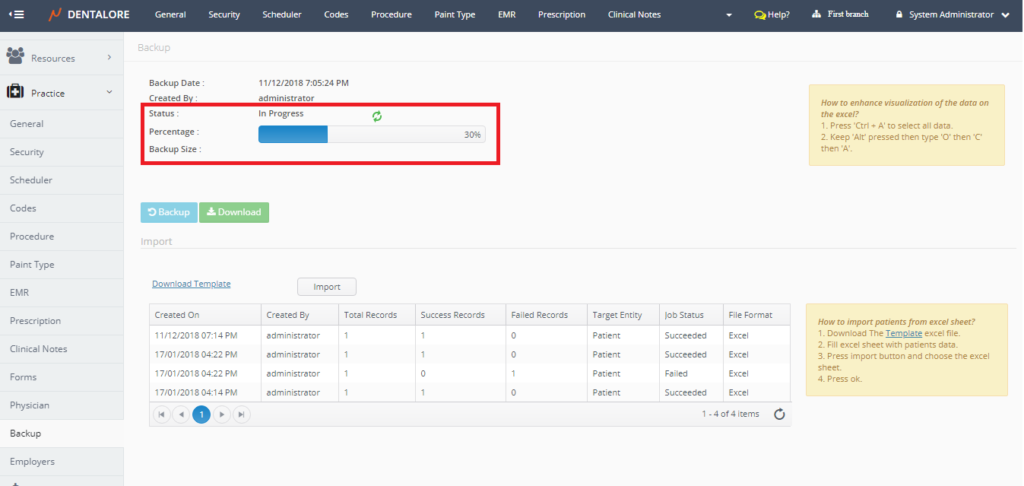
- "Cancel" button
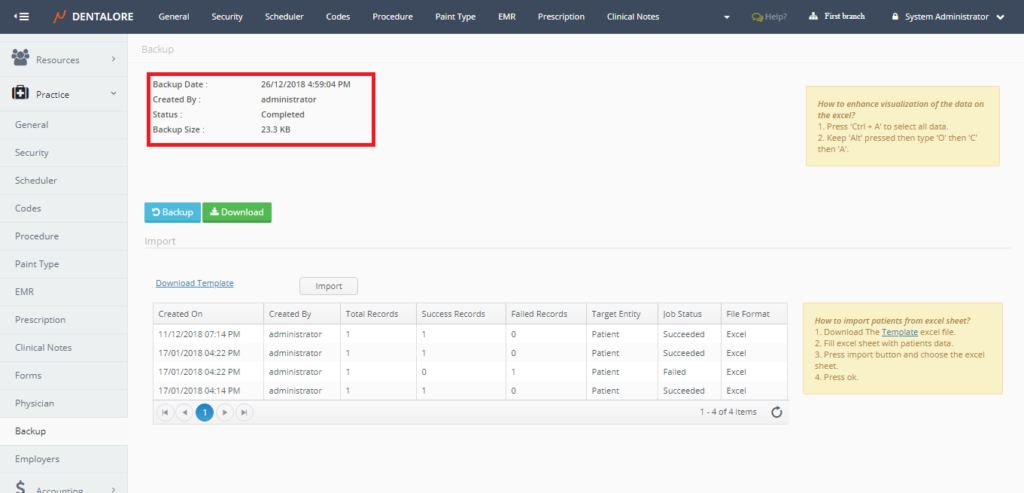
- Once pressed the system stops the back up,activated only during the backup process. - After backup is done; Status becomes completed and backup information got updated.
- "Download" button
- Once pressed, the system starts to download a version of the last backup data in an Excel sheet.
-- N.B.: The name of excel sheet is by Today's date.
2- Import Section
For more information about "Importing", Check: Importing Patients’ Data.