In Dentalore system you have the ability to organize the Clinical Notes upon your need and classification, that you can add, edit and delete Clinical Note categories and Clinical Notes included in each category.
Clinical Note Category
1) Add Clinical Note Category
- Press your name at the top right corner and Select Settings, new window will open.

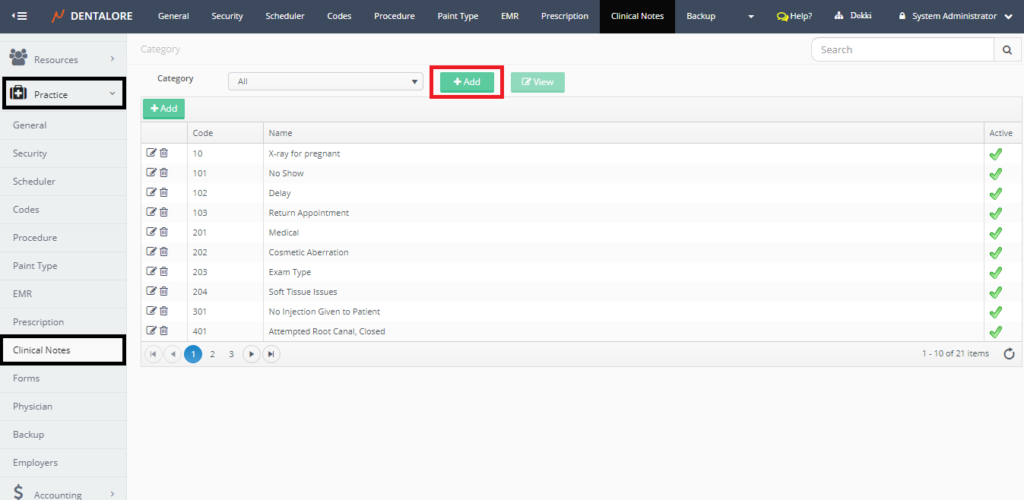
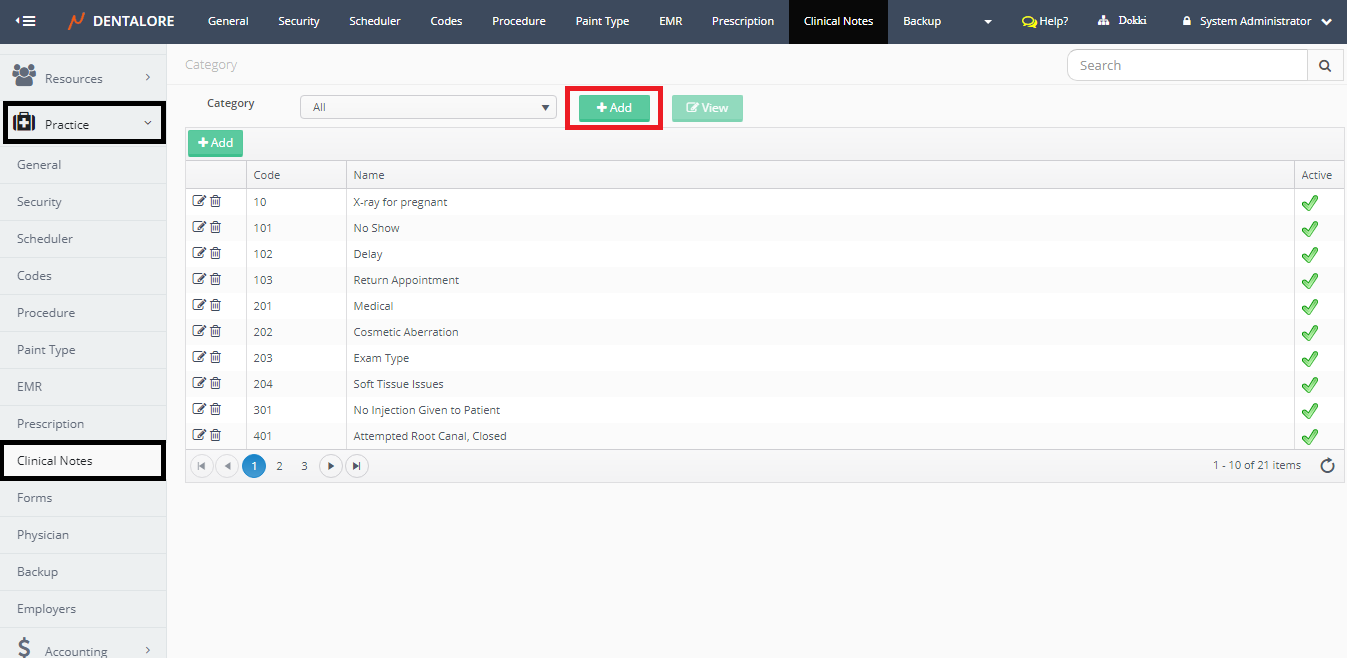
- Expand Practice Menu and select “Clinical Notes”.
- Press “Add” button beside the category drop down menu to add new ‘s category.
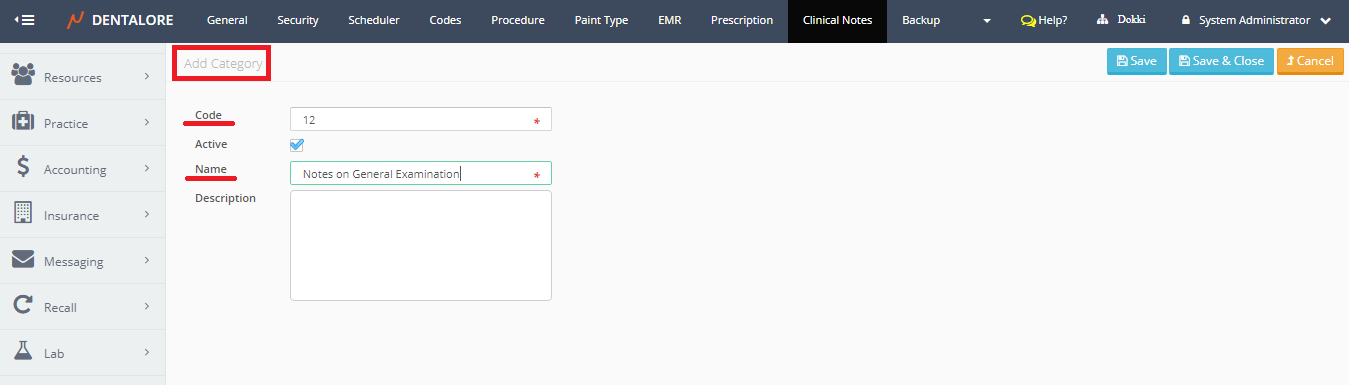
- New page “Add Category” opens, where you should insert required info and save the new created category.
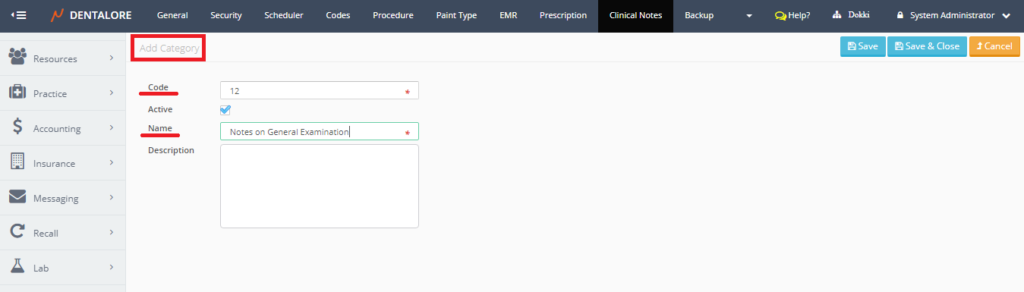
- After saving the new created category, Check that it is successfully added and listed in the category drop down menu.
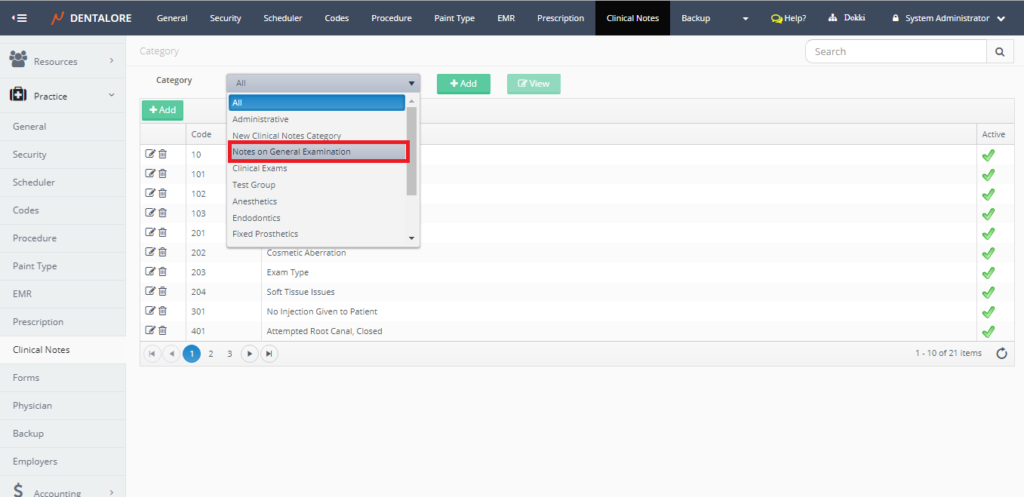
Clinical Note new category successfully added and listed in the Category drop down menu.

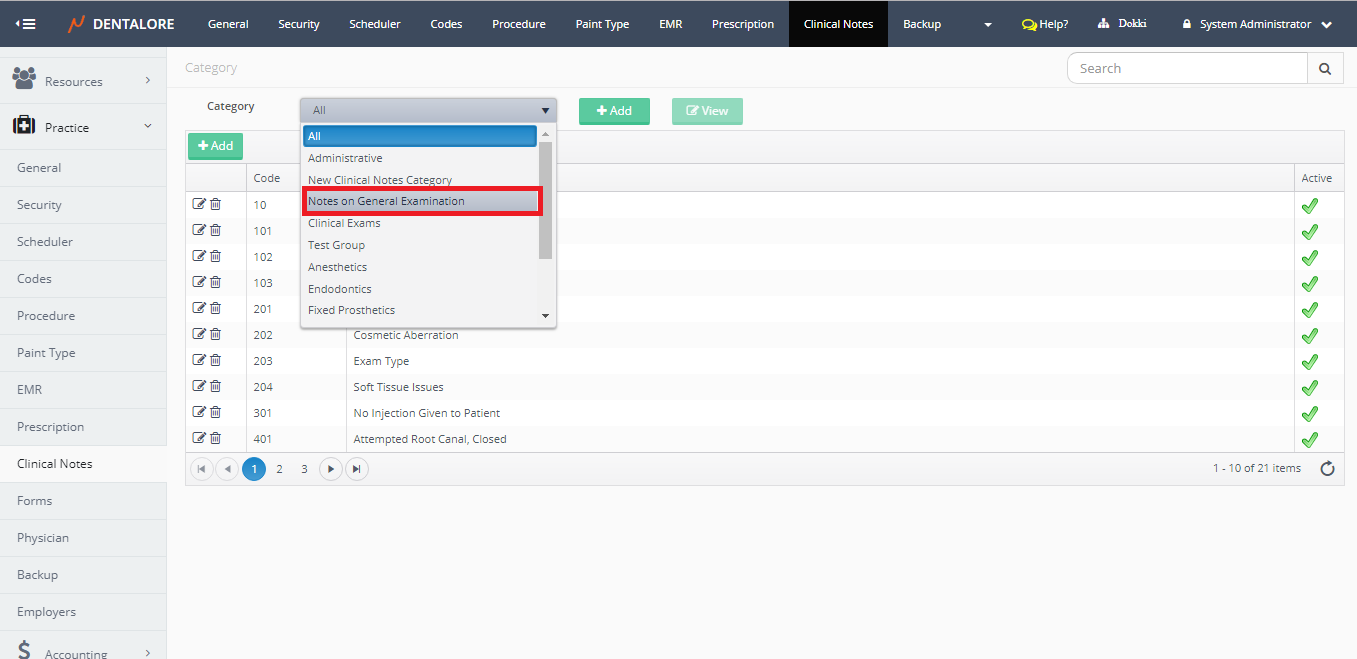
2) View Clinical Note Category
In order to view a Clinical Note category:
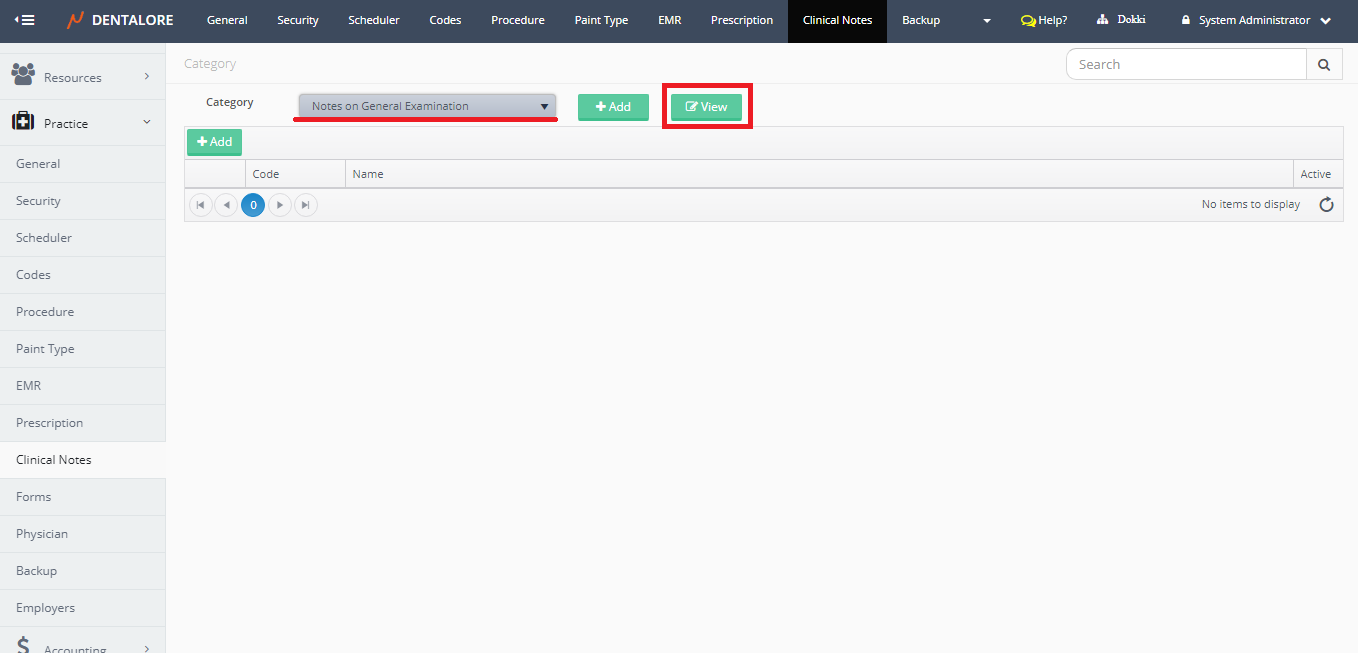
- Select the category you need to view from the “Category” drop down menu, then the “View” button becomes enabled.
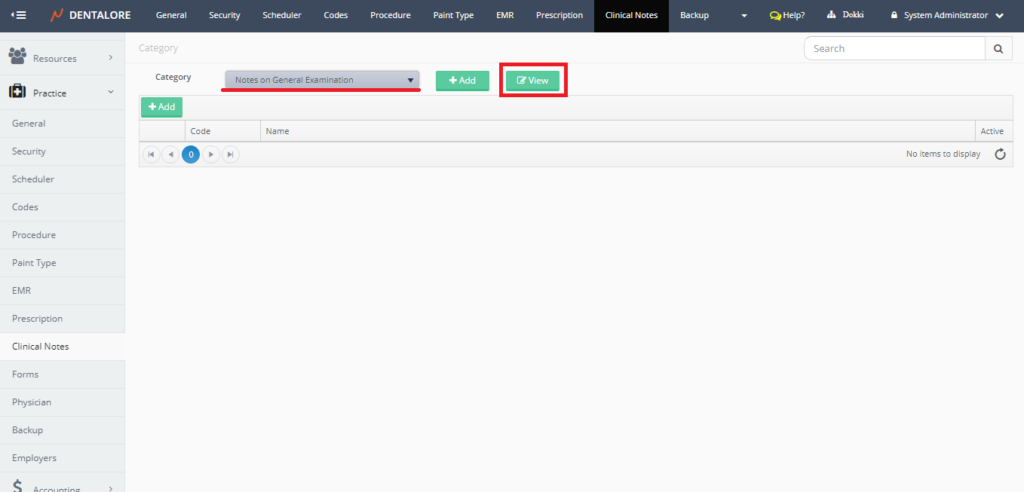
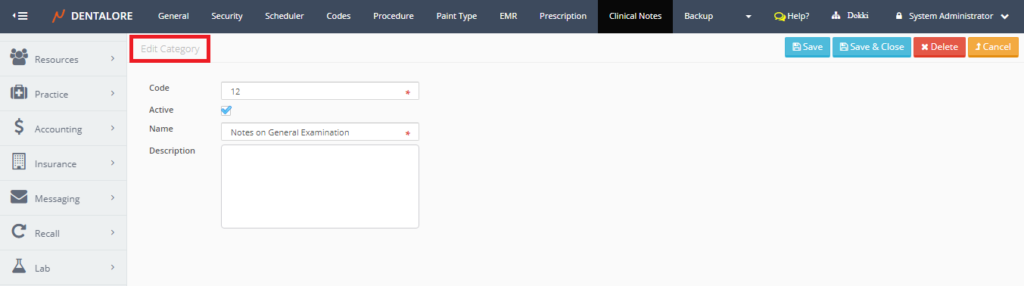
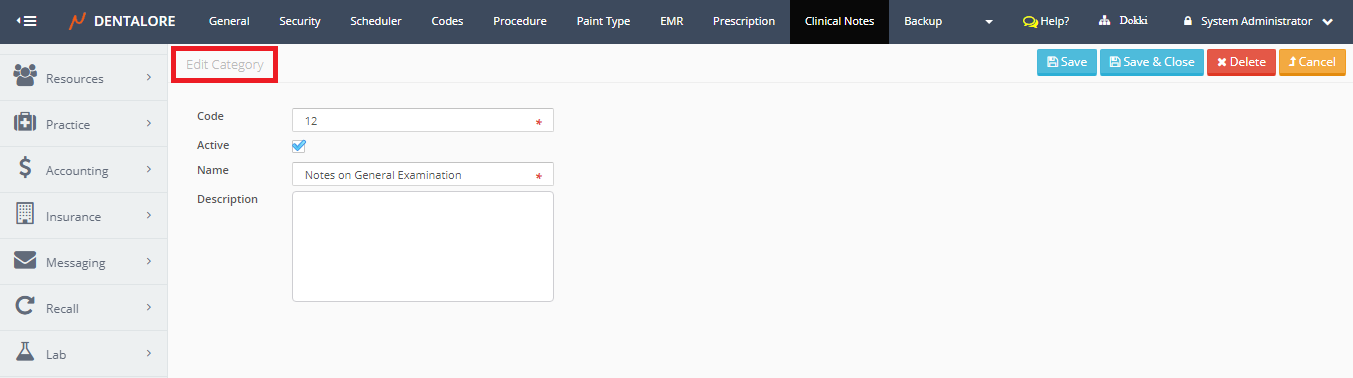
You can notice that once you select a specific category then the Clinical Notes included in this category will be displayed in the Clinical Notes grid view. For the above image, the grid view is empty as the category is new and no Clinical Notes added to it yet. - Press “View” button, new page “Edit Category” opens, where you could check the category’s info or edit any field of the Clinical Note’s category.
3) Delete Clinical Note Category
From the “Edit Category” page, you could delete the category; to delete category follow the following steps:
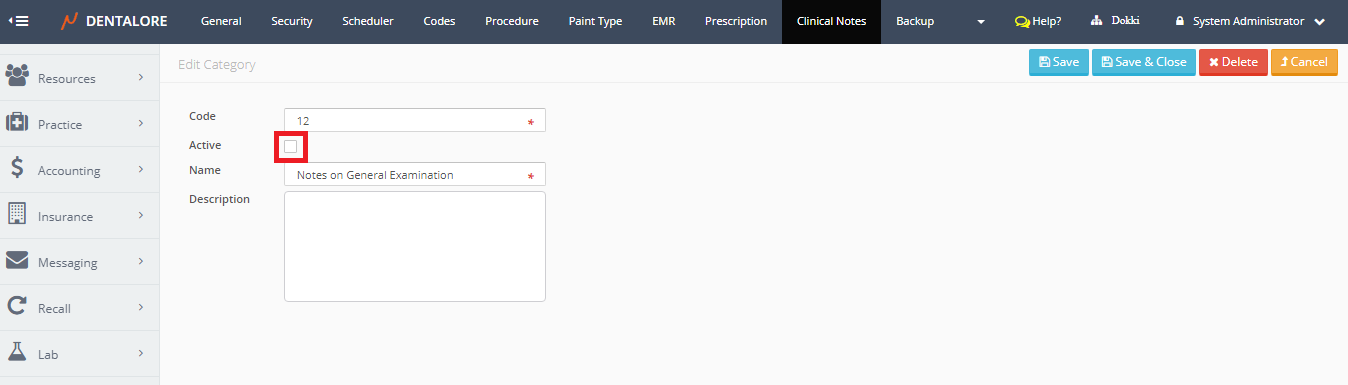
- Remove the check mark of the “Active” checkbox.
- Press “Save” button, then;
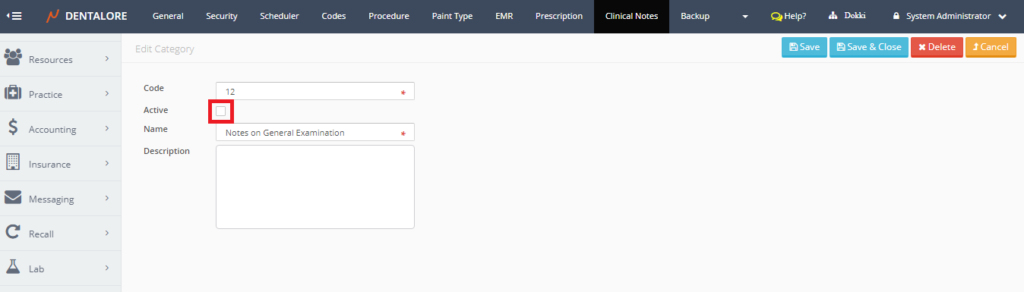
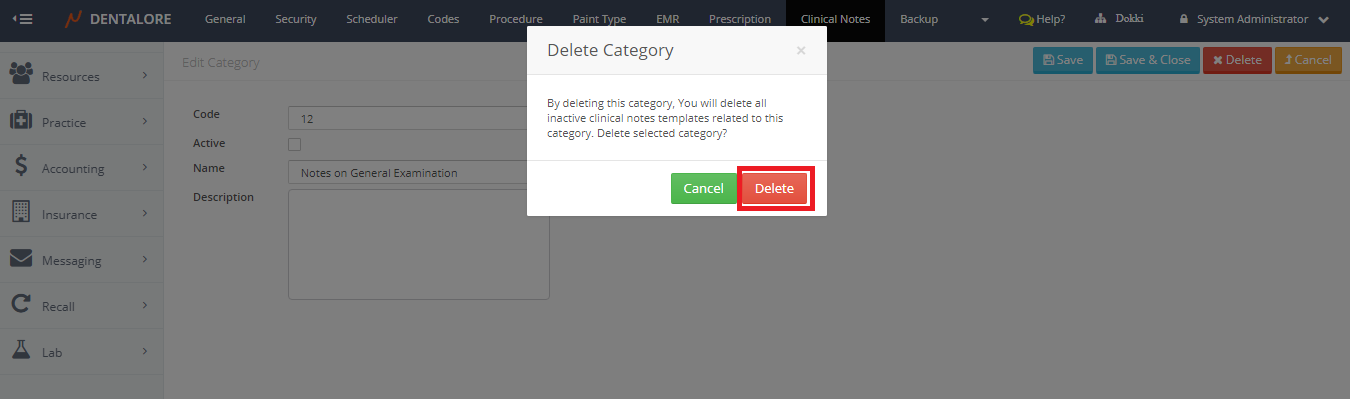
- Press “Delete” button, Popup “Delete Category” opens, Press “Delete” button in the popup.
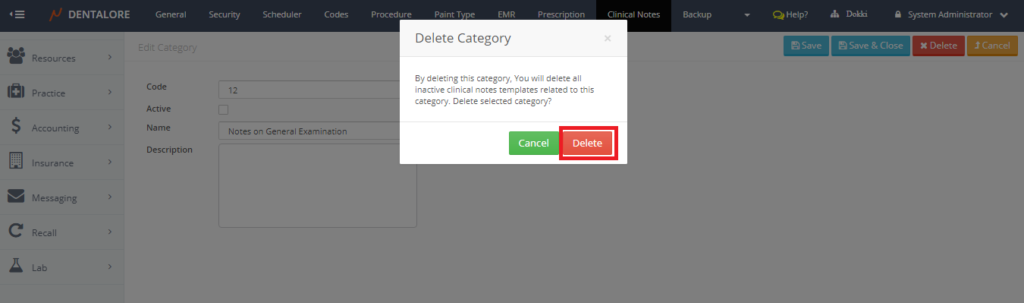
- Note the following while deleting a clinical Note category:
— If the Clinical Note Category is Empty (Has no clinical note Templates), then the category will directly deleted once user press “Delete” button in the “Delete Category” popup.
— If the Clinical Note Category includes clinical note templates, all are of Inactive Status, then the category will directly deleted with the items included under it.
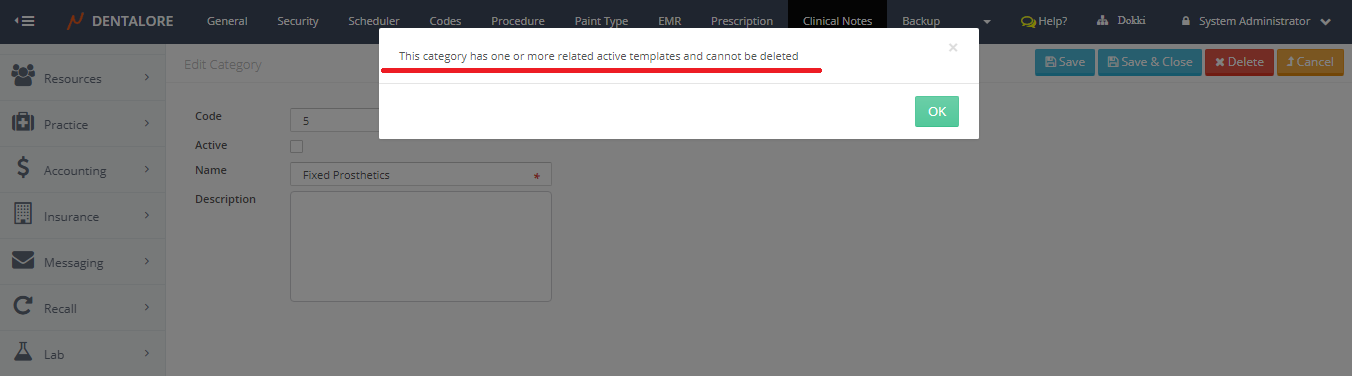
— If the Clinical Note Category includes clinical note templates that some of them are of Active Status, then you can’t delete the category.
The following Message displayed when you press “Delete” for a category that contains active clinical note templates:
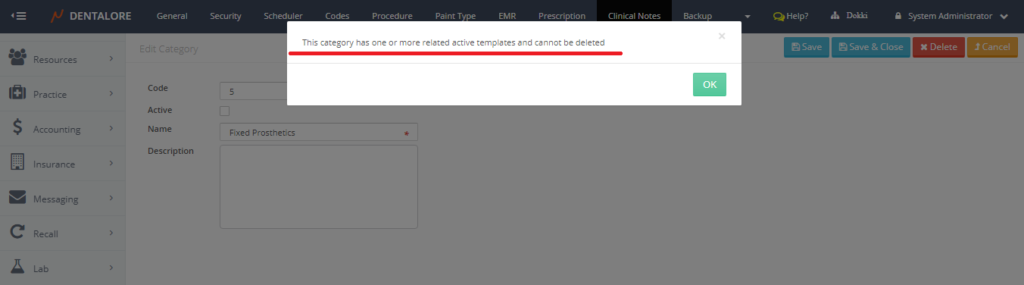
So, You must first delete the active clinical note templates or change their status to be inactive. - For more details about the management of clinical note templates, check: Configure Template for Clinical Notes