
Introduction
Provider Procedures Report:
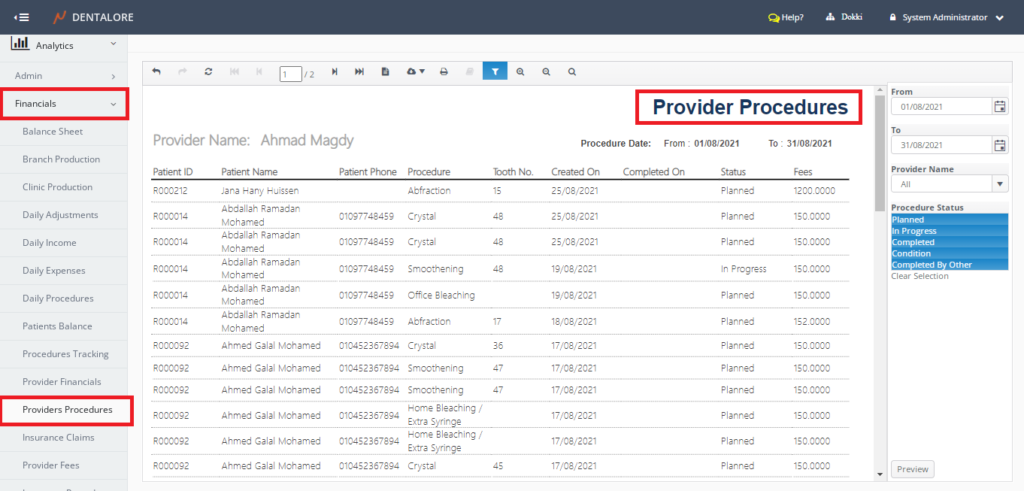
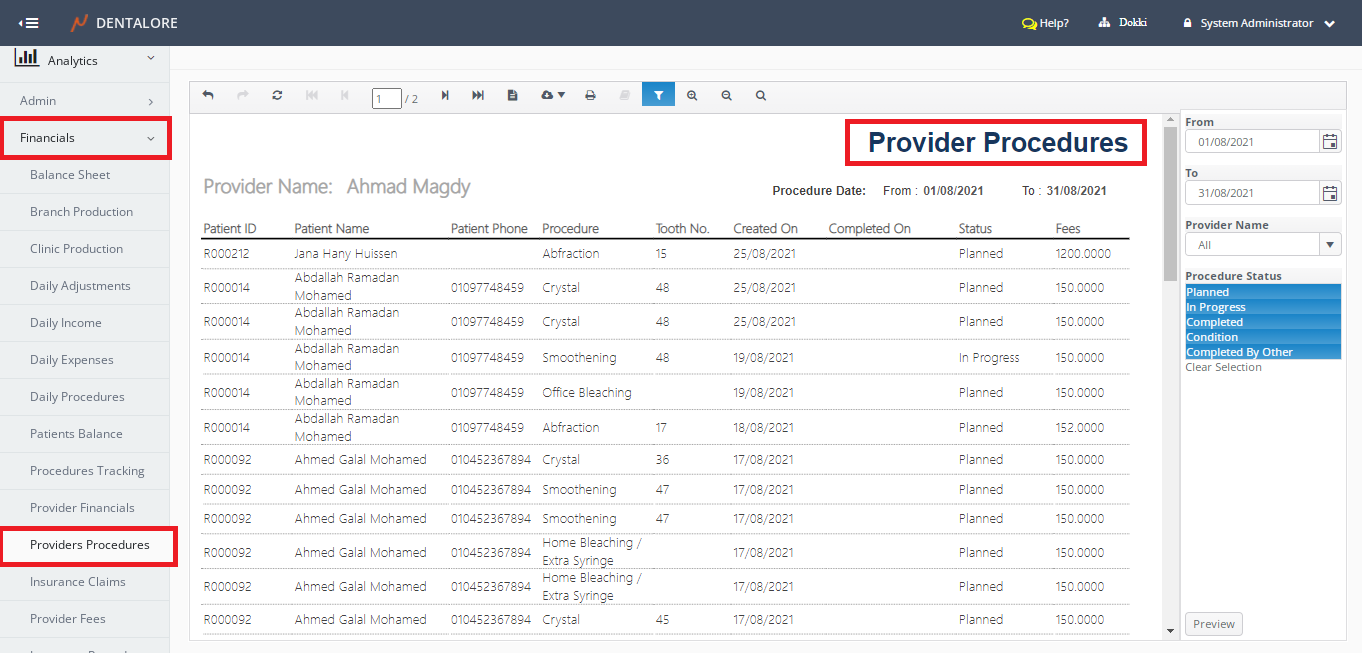
- Displays procedures (With selected Procedure’s Status) performed by the selected provider within the selected date range.
- Data displayed in report per branch.
(Provider Procedures) report could be accessed from:
- Analytics >> Financials >> Provider Procedures.
Filtration
- Date Range
- (From) and (To) fields enables user to select the required date range.
- Date filtration depends on Creation date and Completion date of procedure according to selected producer’s status.
- Default Selection: Last Month.
Note: The number of days between 'From' date and 'To' date can NOT exceed 31 Days.
- Provider Name
- Is a drop down menu that contains all of the active providers assigned to the selected branch from navigation bar.
- Default Selection: First Provider’s Name in the menu. - Procedure Status
- Is a Multi-selection box that enables user to select required status of procedures that could be: Planned, In progress, Completed, Condition, and Completed by other.
- Default selection: Completed.
Content
Header
At the report’s header the following value is displayed:
– Label (Provider): Displays the name of provider selected from the filtration section.
Body
Provider Procedures contains data of procedures and patients who did these procedures as follow:
- Patient ID
- Patient Name
- Patient Phone
- Procedure
- Displays procedure’s name. - Tooth No.
- Displays tooth number on which procedure has been performed. - Created On
- Displays the (Created On) date of procedure.
Completed On
- Displays the (Completed On) date of procedure.
Status
- Displays the current status of procedure.
- Fees
- Displays the fees of procedure.
- The (Total) amount of fees column is summed up and displayed at the grid view’s footer.