Scheduler is the module in which you could handle your patients’ visits, apply changes on each visit record, organize appointments upon working shifts. Scheduler has 4 different views for displaying appointments and reserved slots.
1- Scheduler Day View
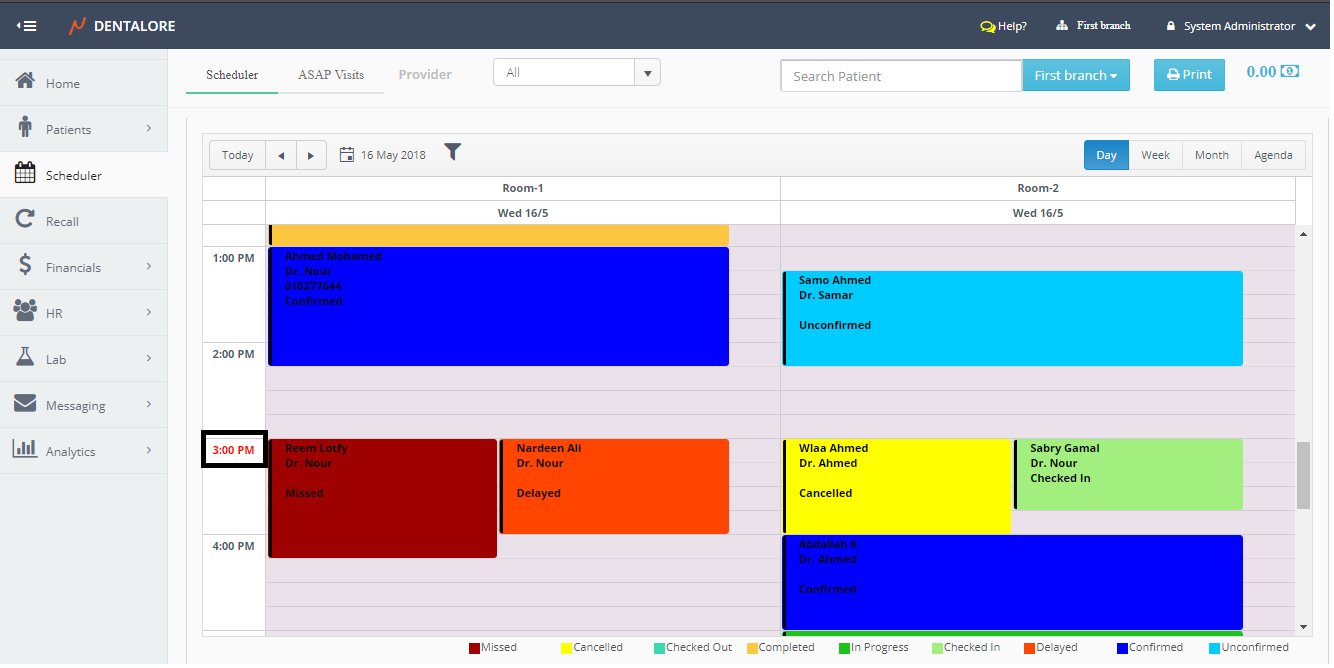
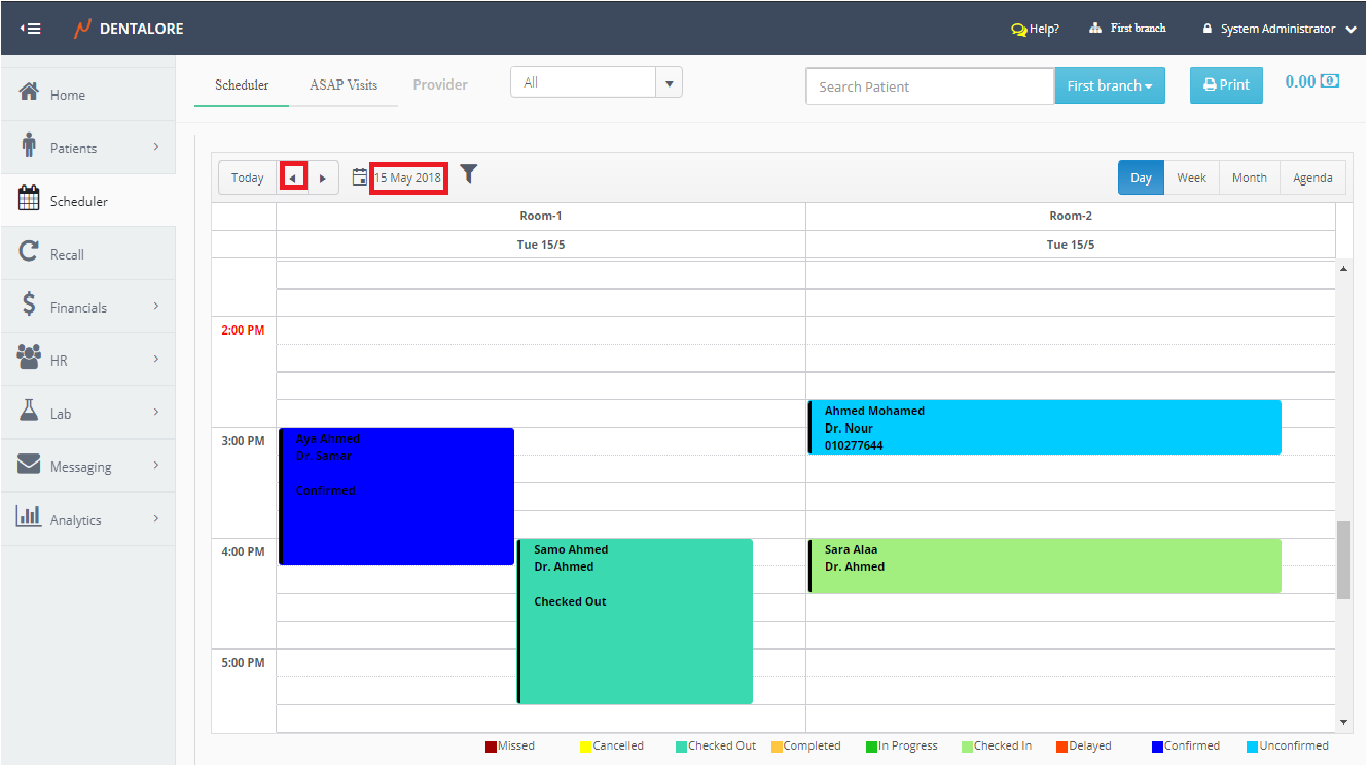
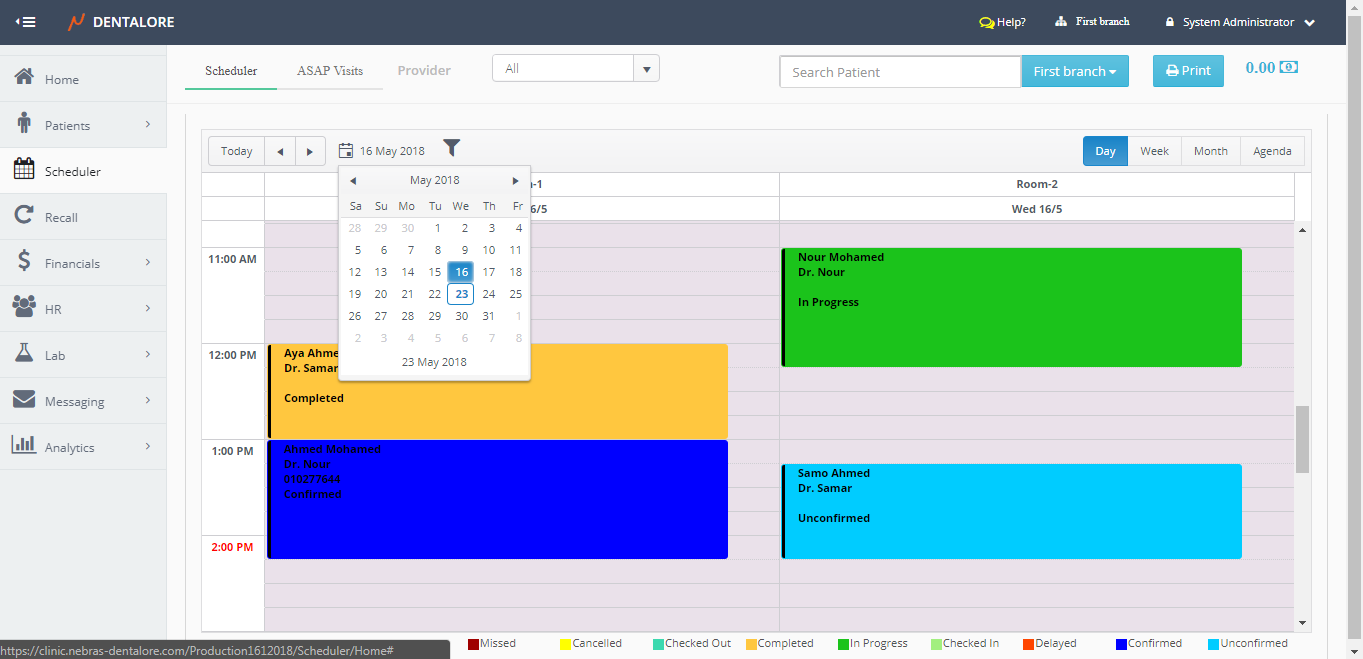
Day view used to display your clinic appointments in specific day. Each column represent one room and on the left is the time and the current time will be displayed in red color.
- Select the Scheduler module, it will directly open on the day view .
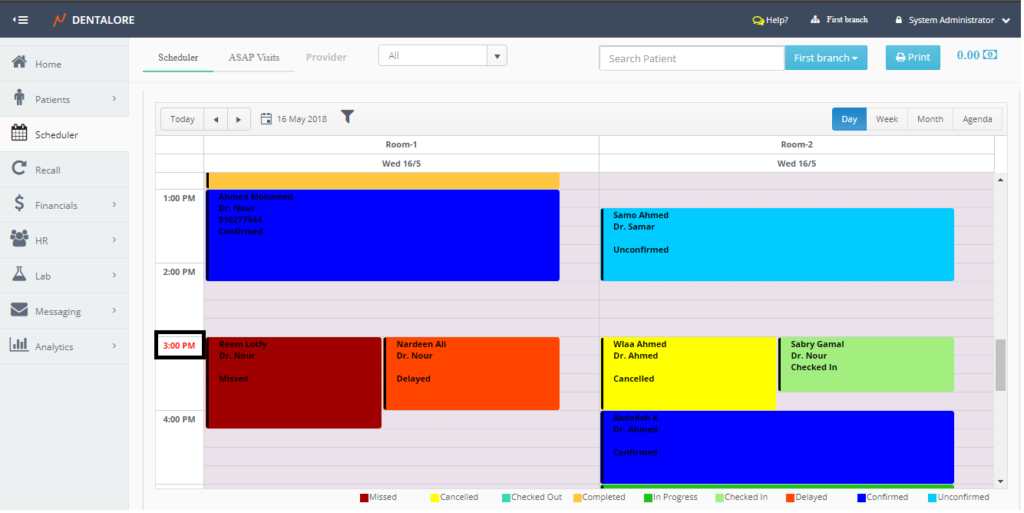
>> You can select a specific date or move between next or previous day:
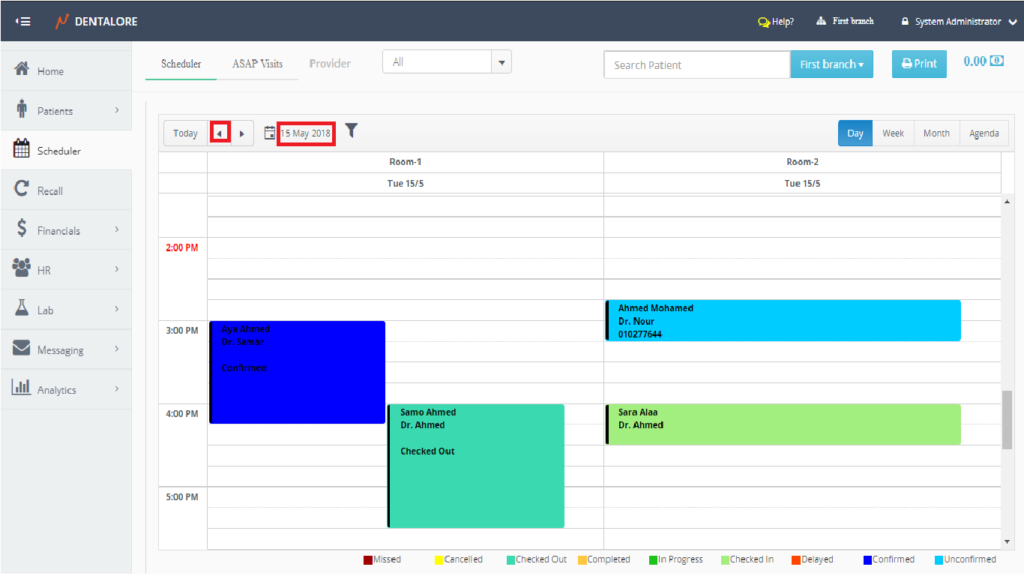
1- The 2 buttons of “Previous” and “Next” used to move your day by one day.
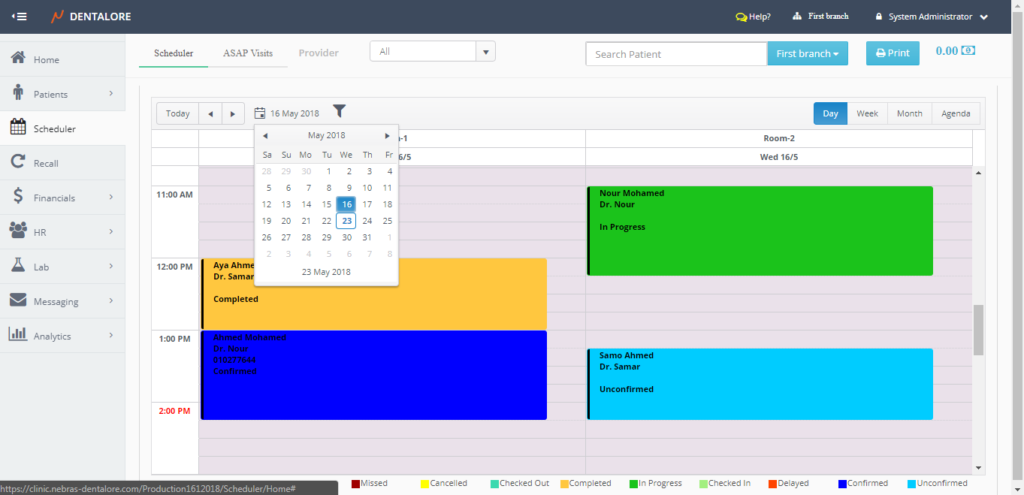
2- The Calendar icon used to select specific day
2- Scheduler Week View
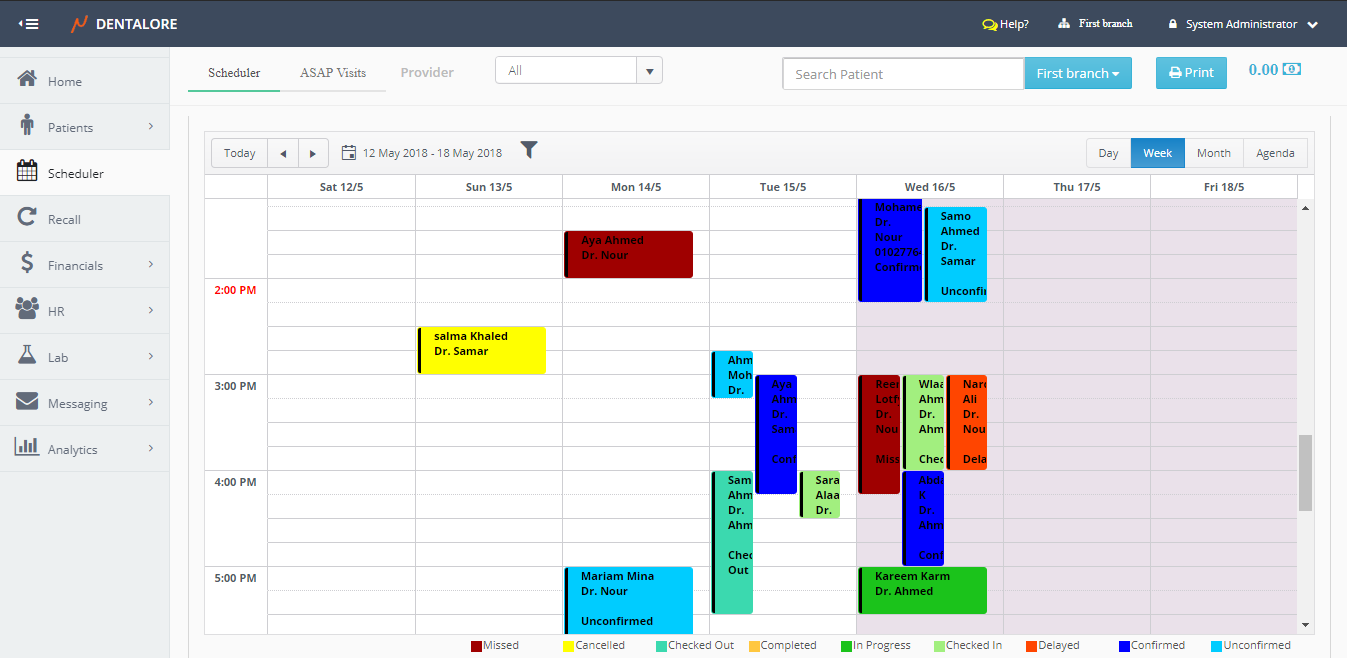
Week view used to display your clinic appointments in specific week.
- Select the Scheduler module
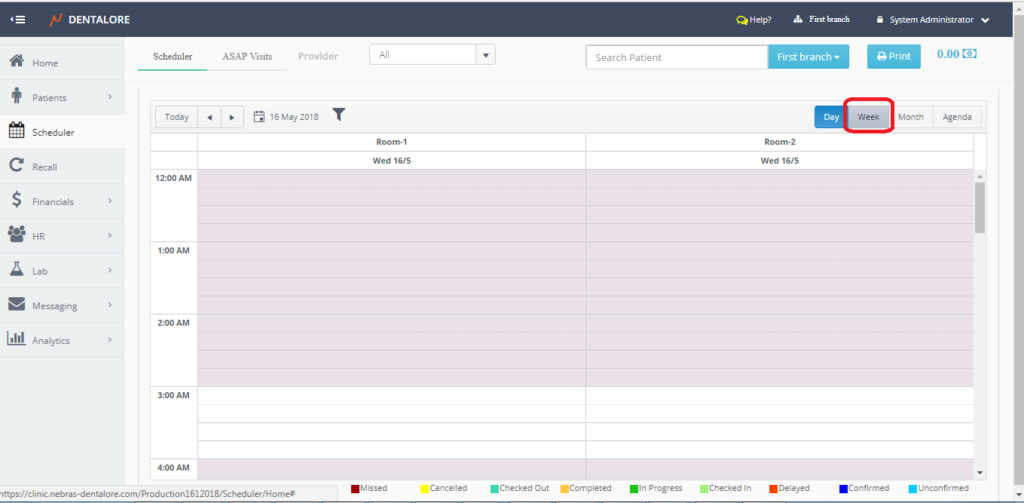
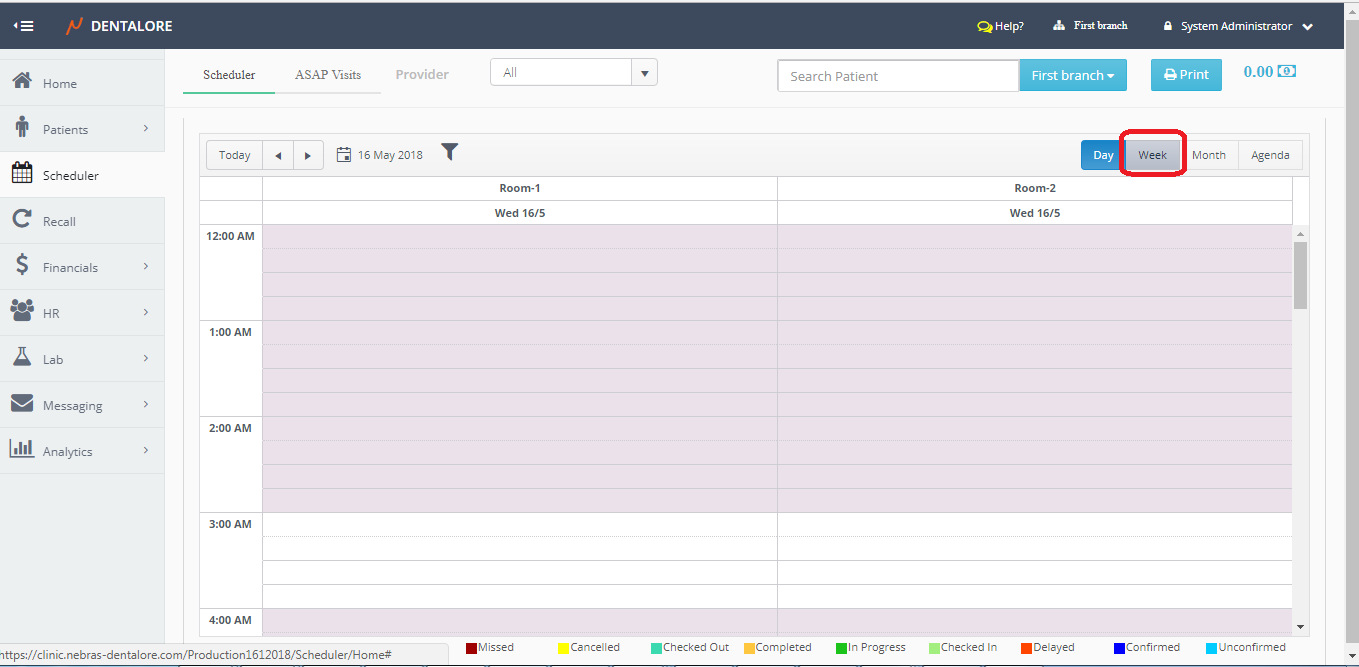
- Press on the Week button on the upper right side of scheduler
- Scroll to show all visits in Week
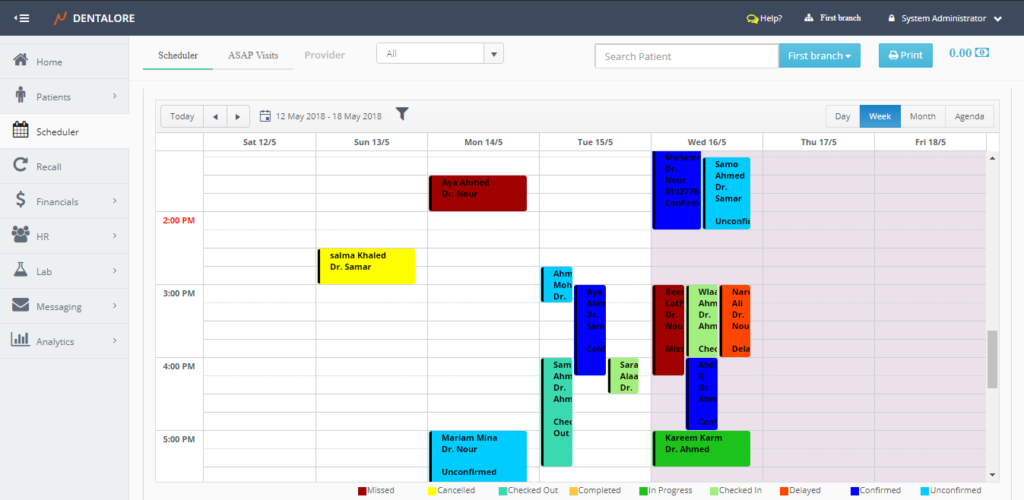
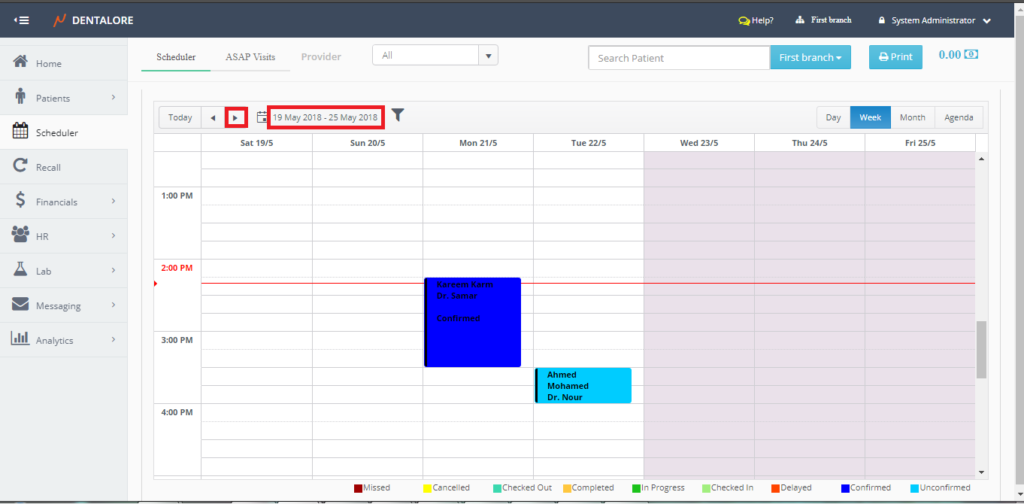
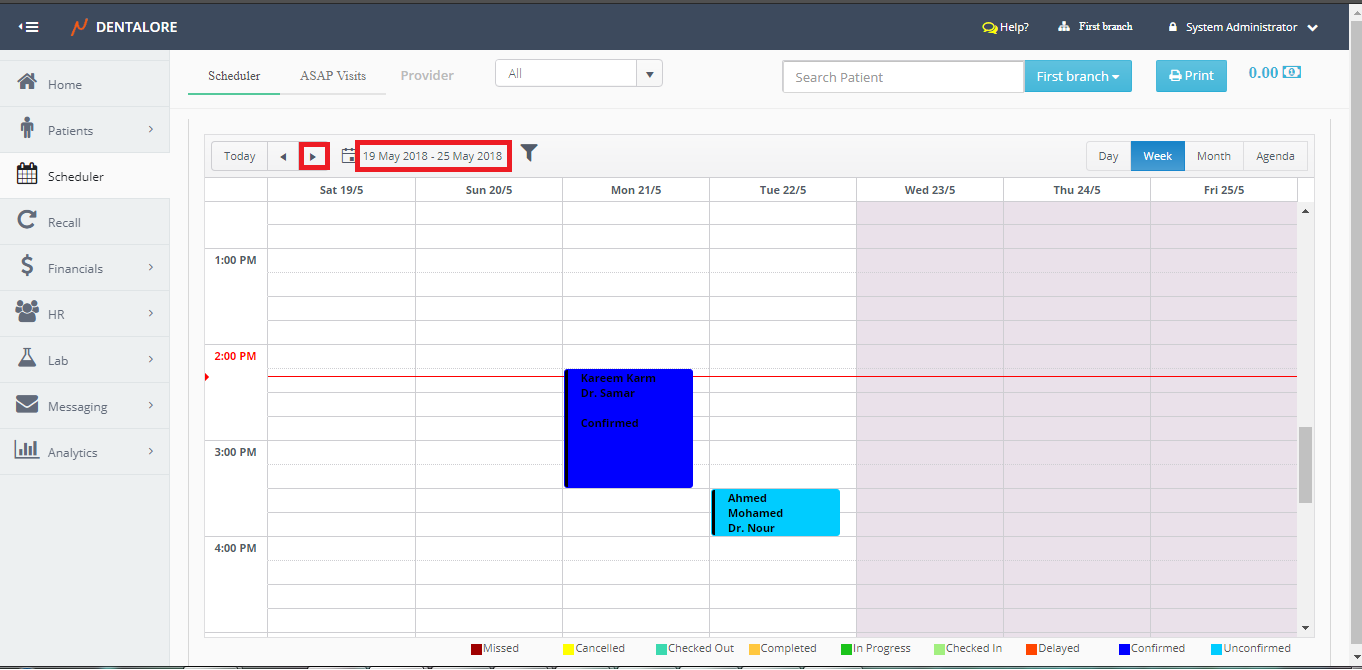
>> Similarly you could change the current week date or move to next or previous week:
1- The 2 buttons of “Previous” and “Next“
2- The Calendar icon used to select specific week.
3- Scheduler Month View
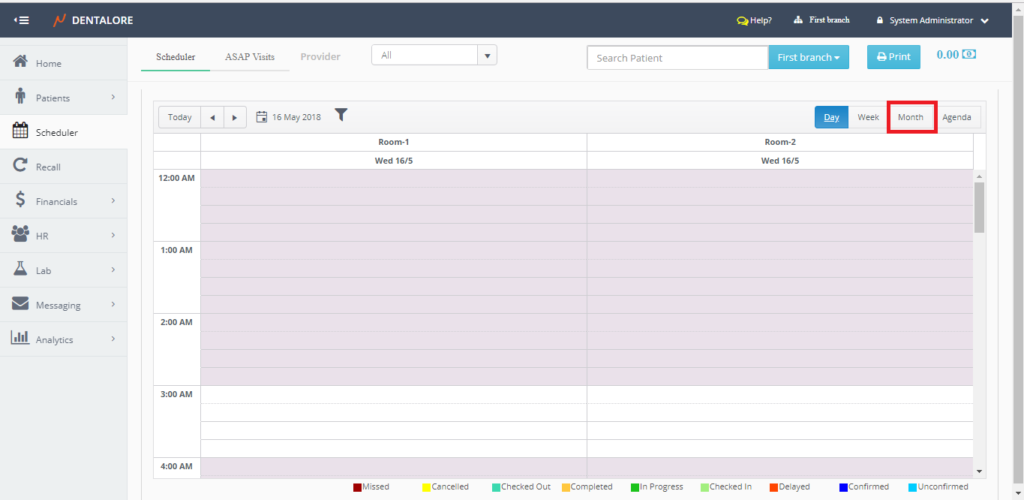
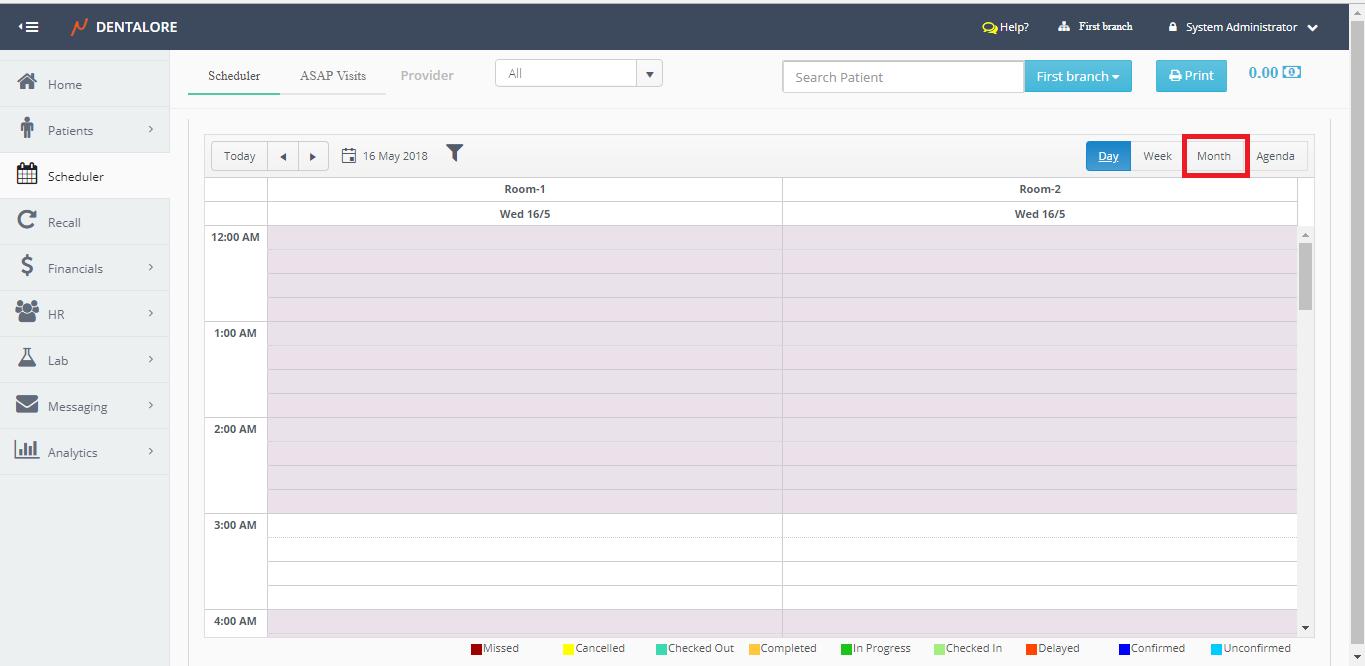
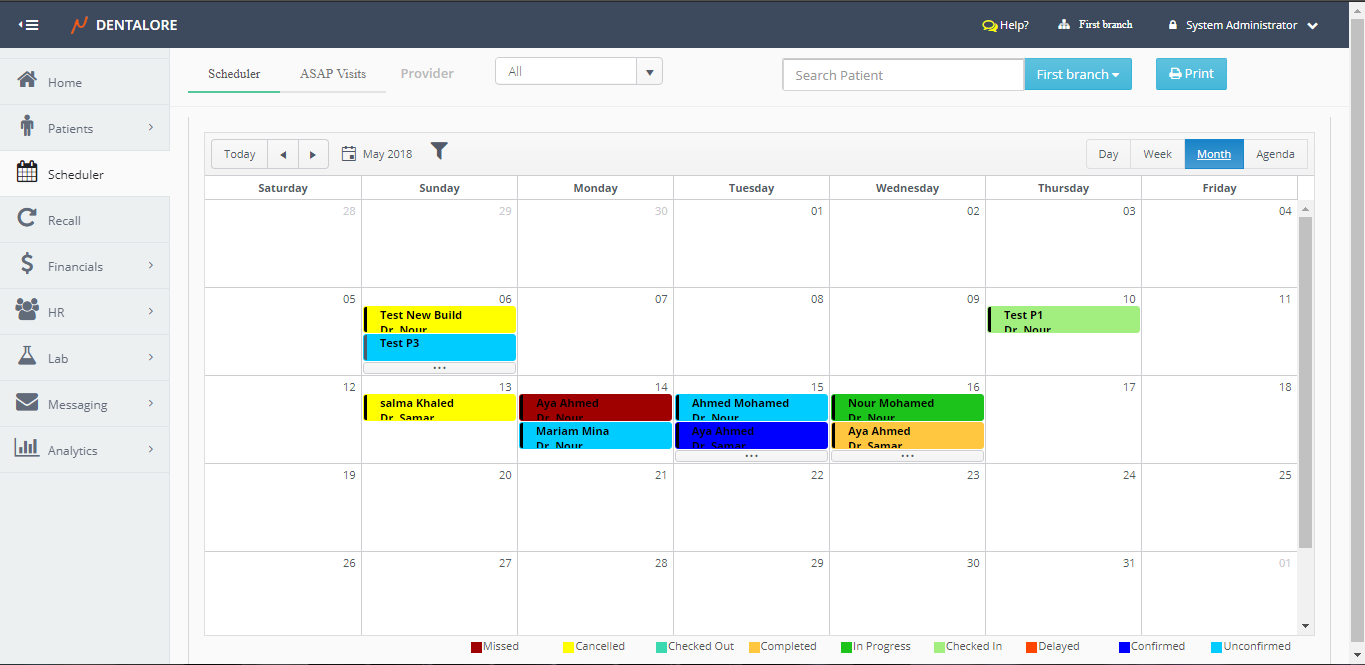
Month view used to display your clinic appointments in specific month.
- Select the Scheduler module
- Press on the Month button on the upper right side of scheduler
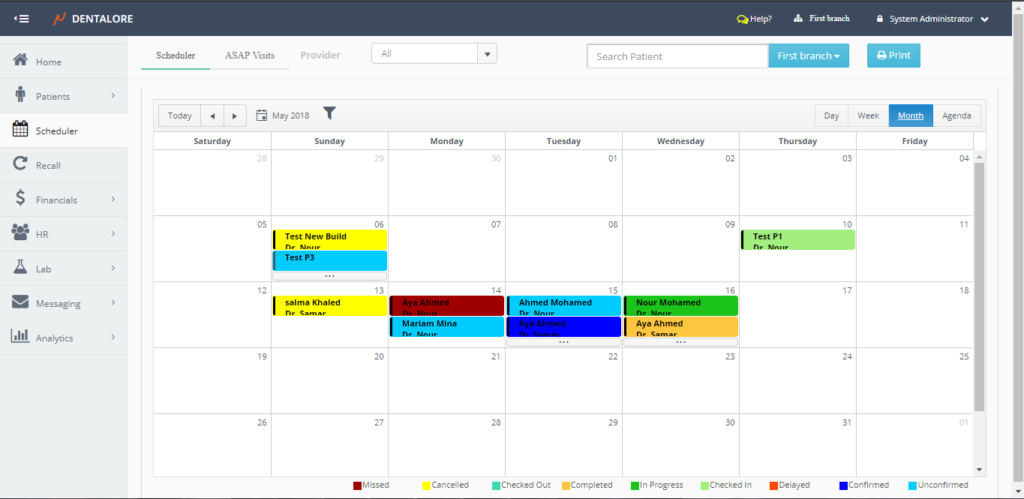
>> Similarly you can select specific month or move to next or previous month:
1- The 2 buttons of “Previous” and “Next“
2- The Calendar icon used to select specific month.
4- Scheduler Agenda View
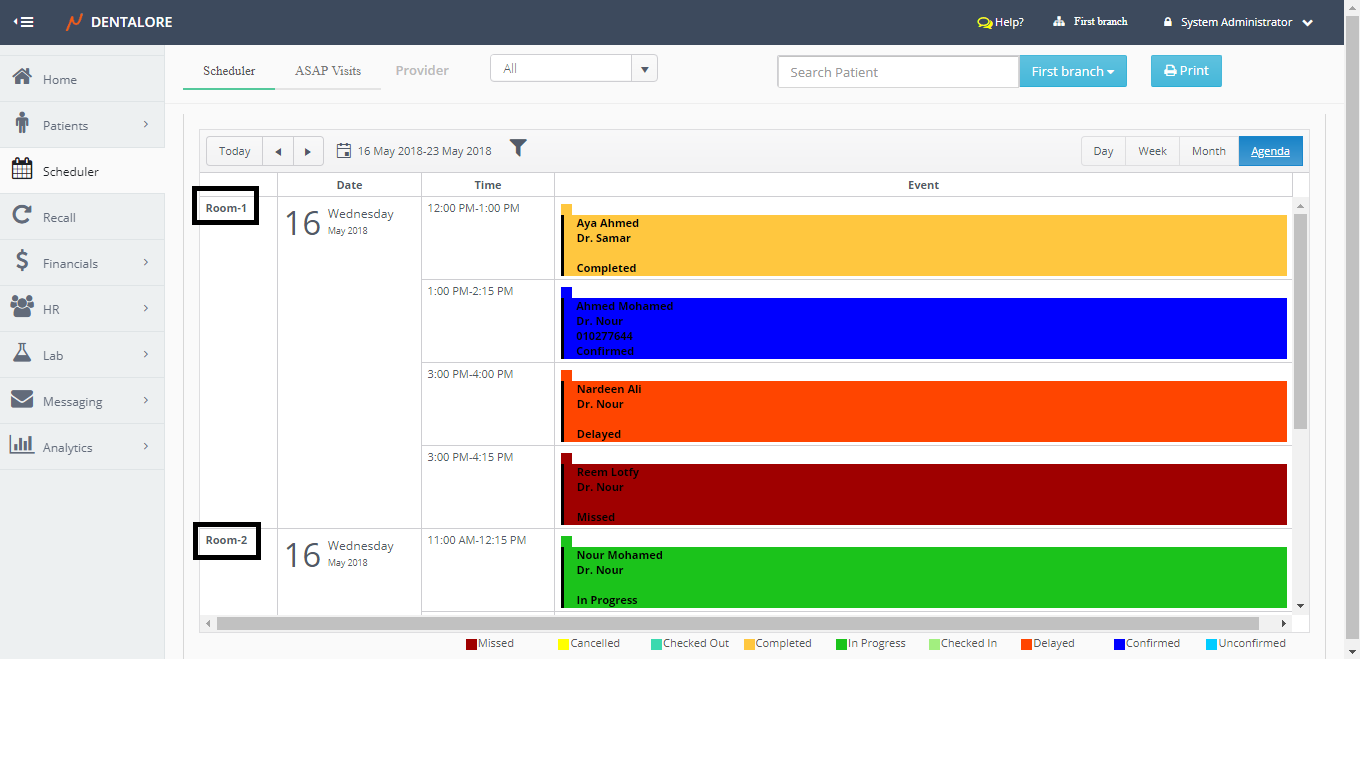
Agenda view used to display your clinic appointments in list.
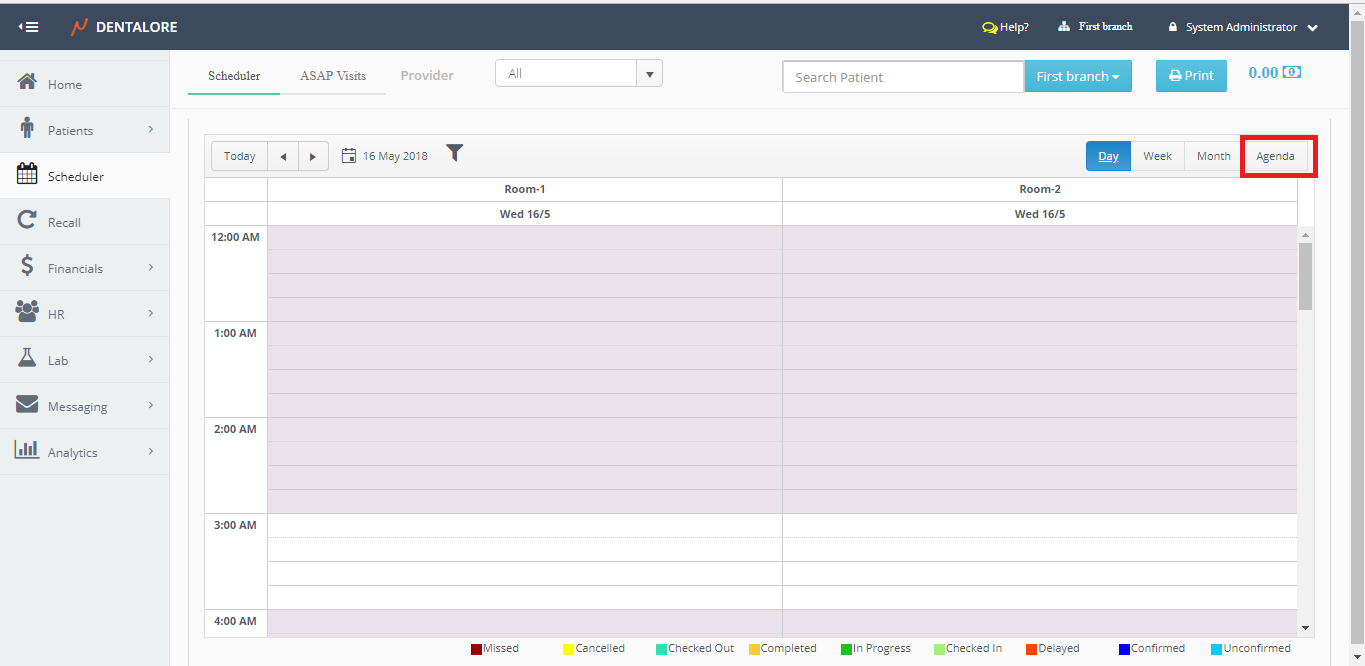
- Select the Scheduler module
- Press on the Agenda button on the upper right side of scheduler
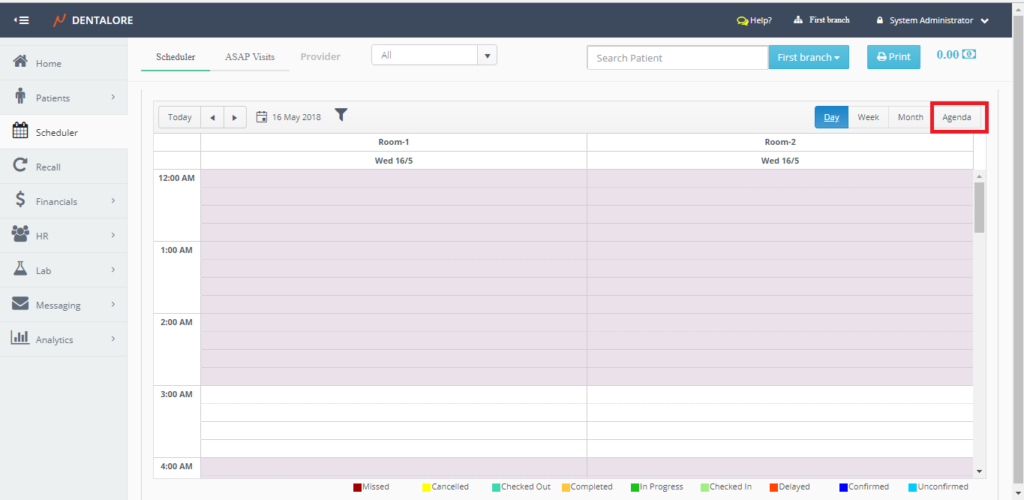
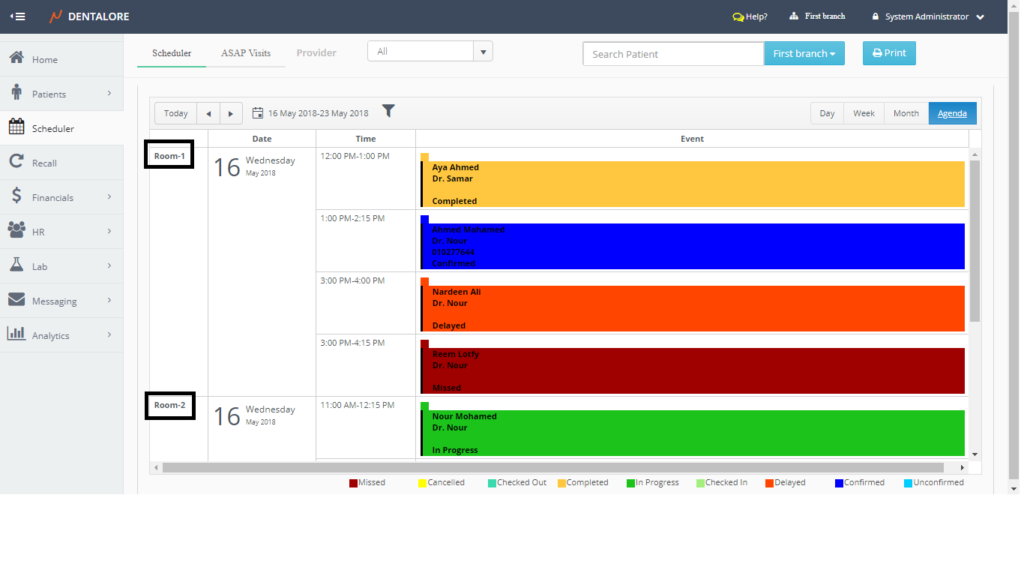
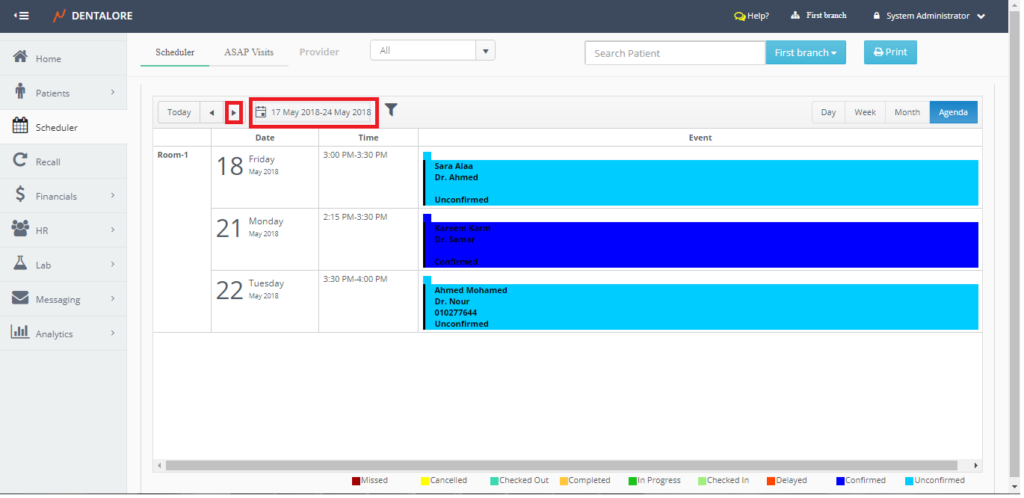
Agenda view displays the visits ordered by rooms.>> And finally you could also change agenda time range to view visits reserved on other days, from:
1- The 2 buttons of “Previous” and “Next”
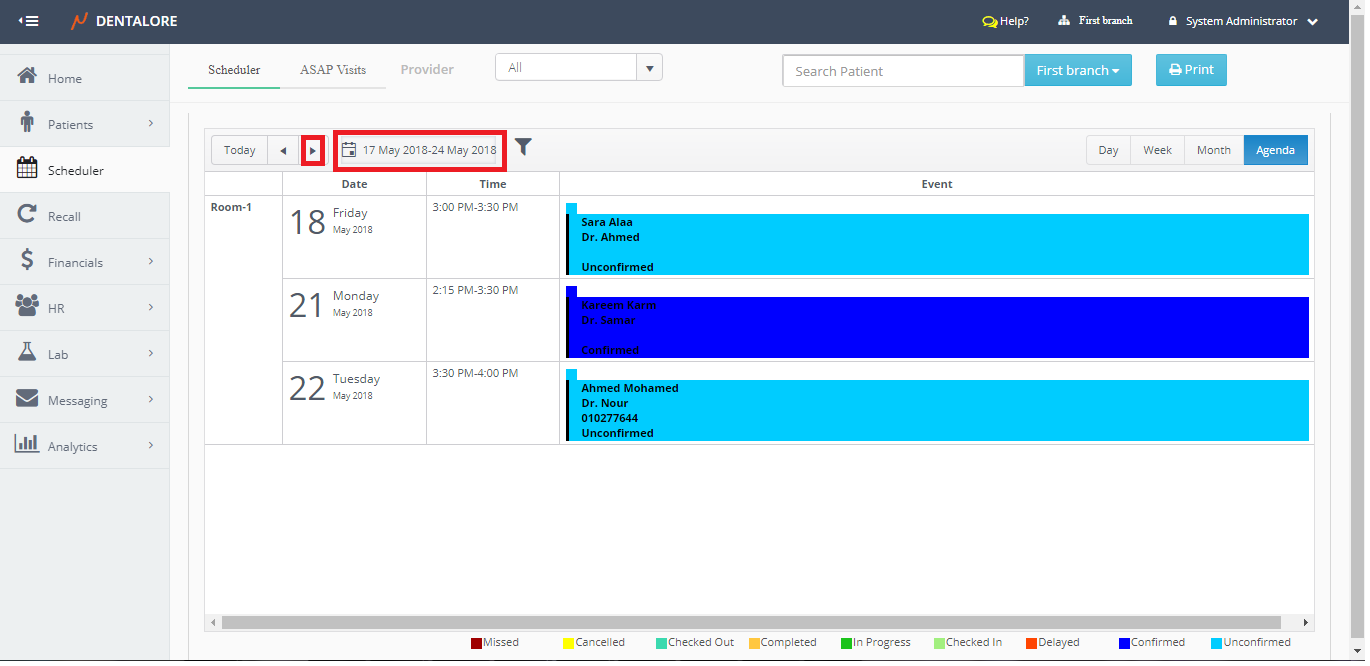
2- The Calendar iconNote that Agenda view displays range of 8 days, starting from the selected date and end on the 8th day of the selected day

Press the next button for example >>