Lab Module is the place where you could manage the adding, editing & deleting settings of any action belongs to the lab; products, products settings and labs that you deal with them.
Configure Lab Product Settings
Settings of Lab Products that DentaLore Cloud System gives the user ability to manage are:
- Shade
- Stain
- Enclosed Item
- Pontic Design
1) Add Lab Product Settings
- Press on your name at the upper right side, & select “Settings”

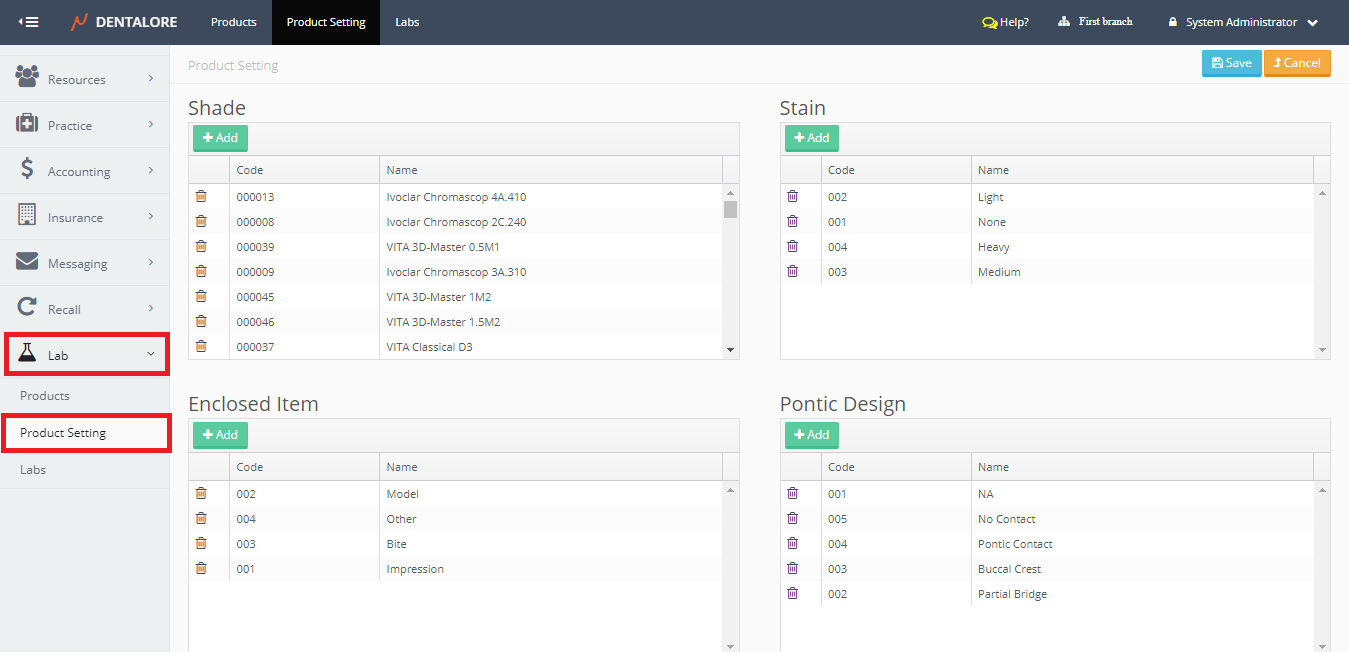
- Expand “Labs” Menu and select “Product Settings”.
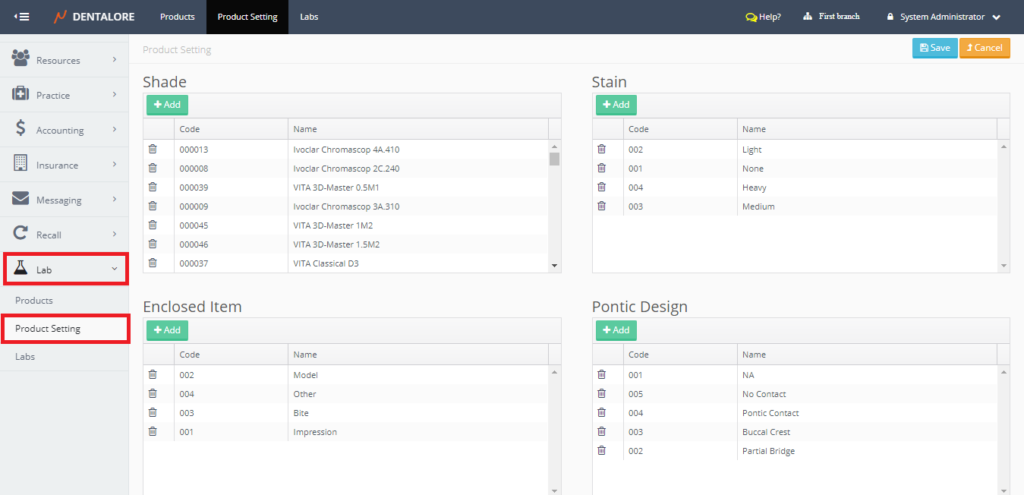
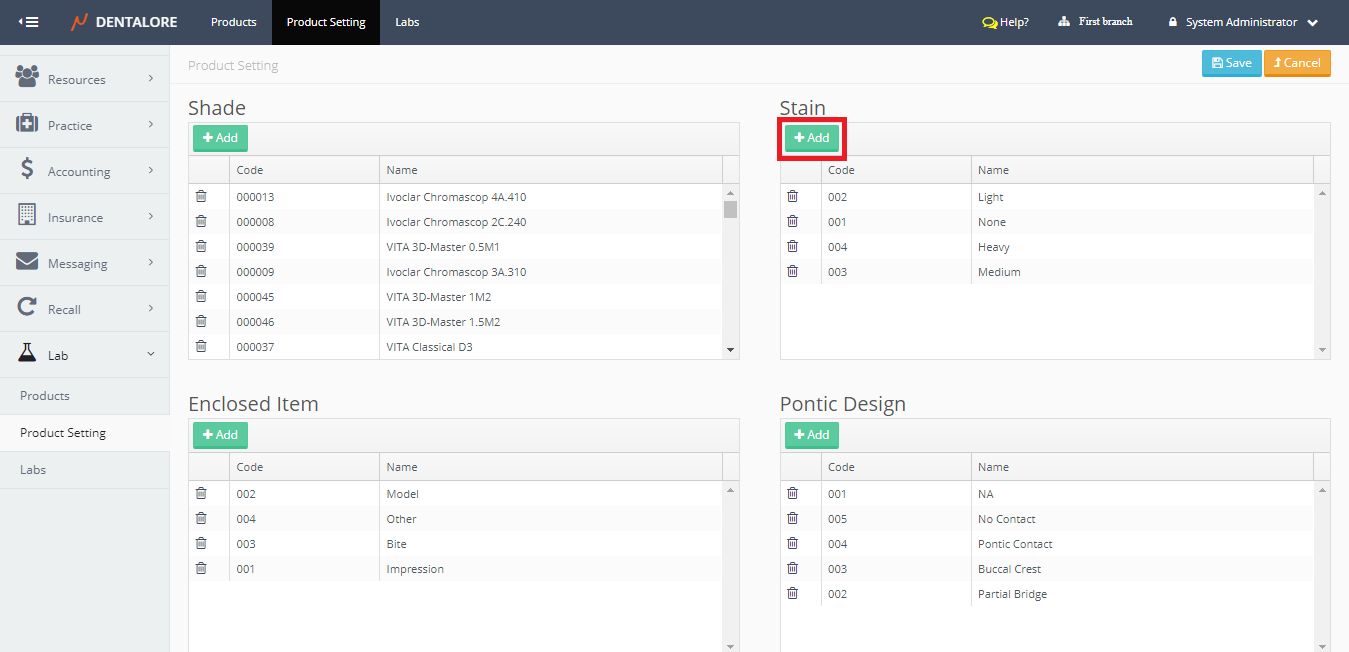
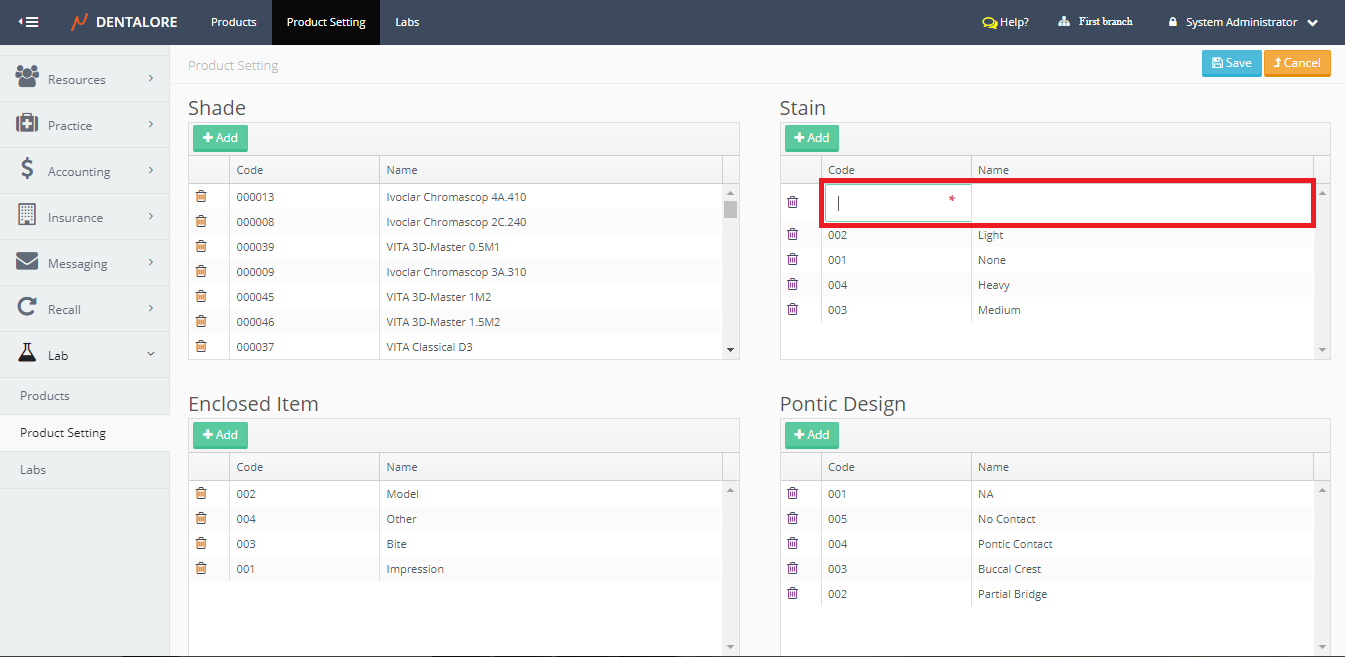
- “Product Settings” page contains 4 Settings of lab products, Select the one you require to add new settings to it and Press “Add” button.
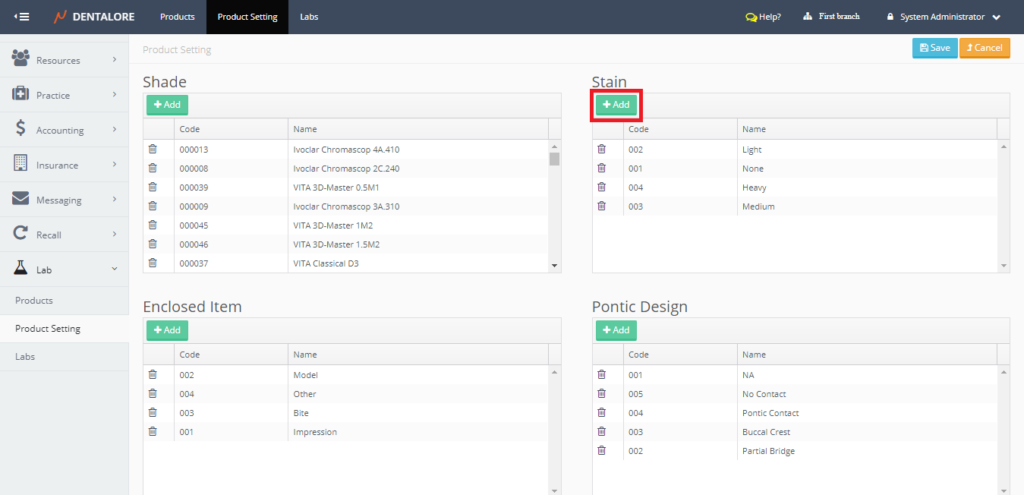
- New field opens to insert the (Code) and (Name) of new settings.
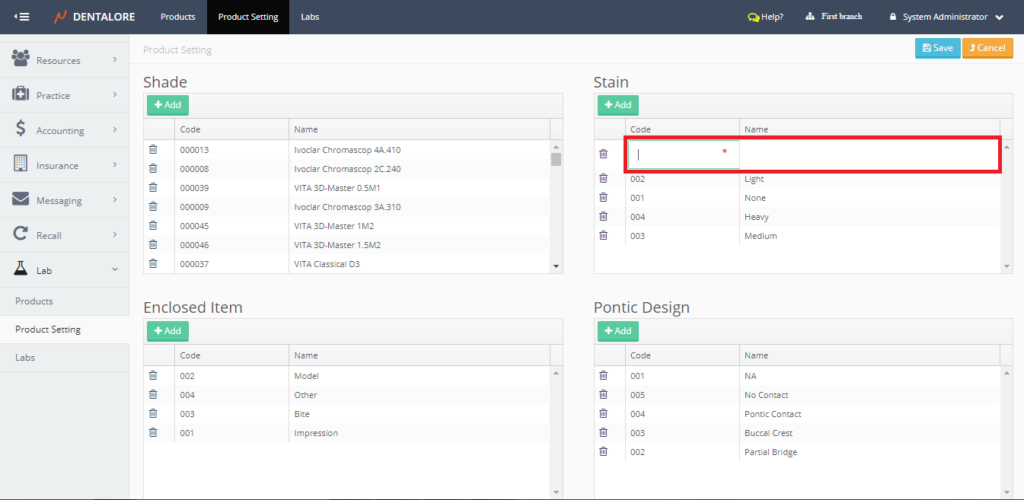
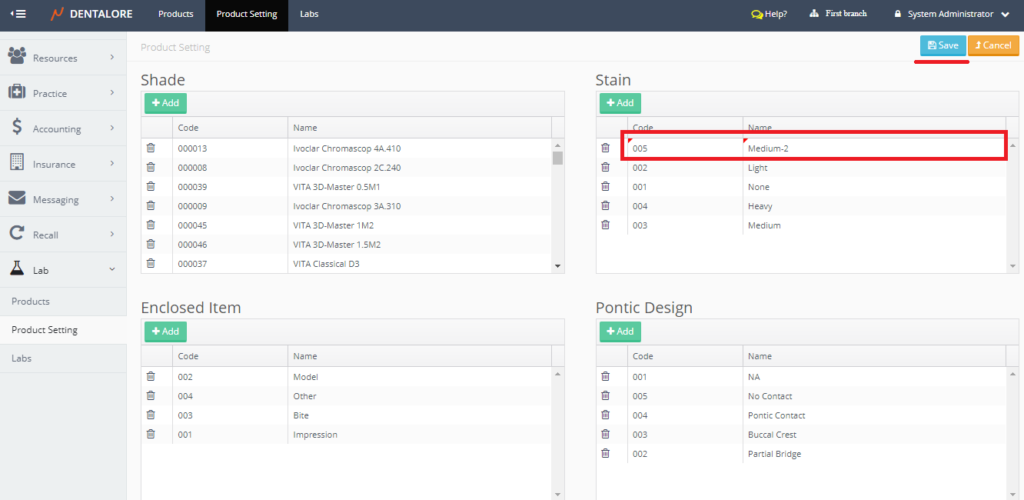
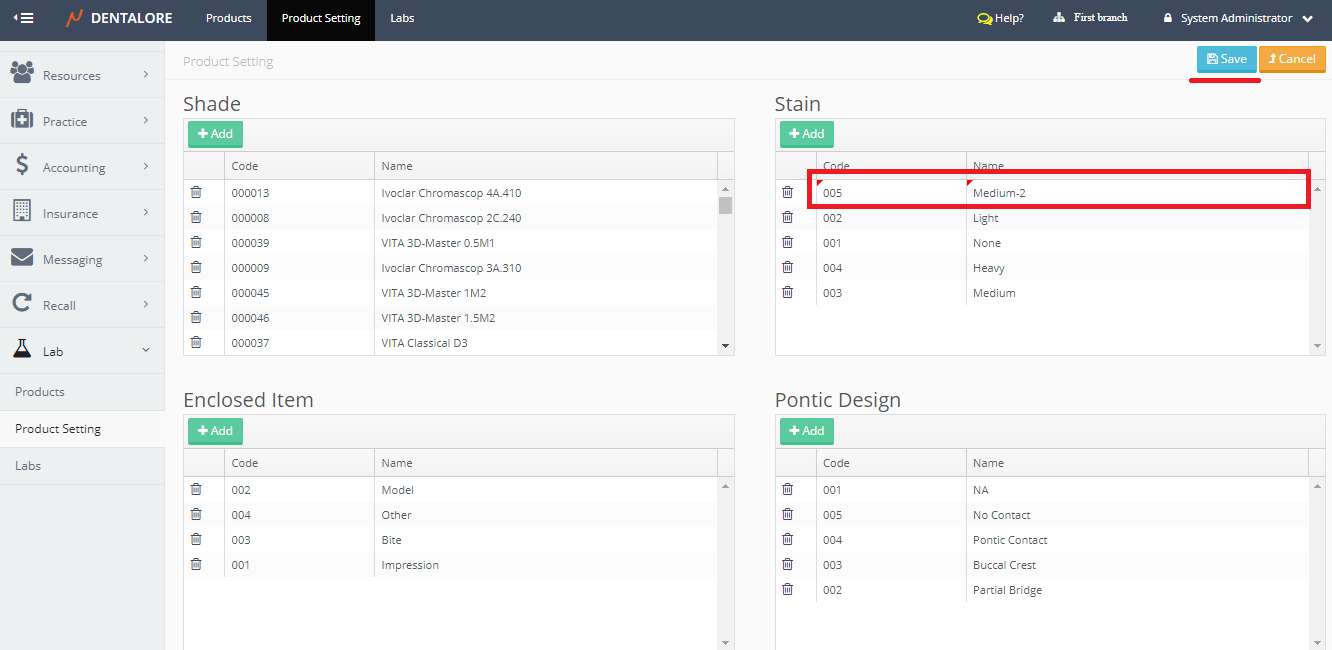
- After Saving the new settings it will be listed in the selected lab product settings grid view.
- To add more settings, repeat the above steps.

2) Update Lab Product Settings
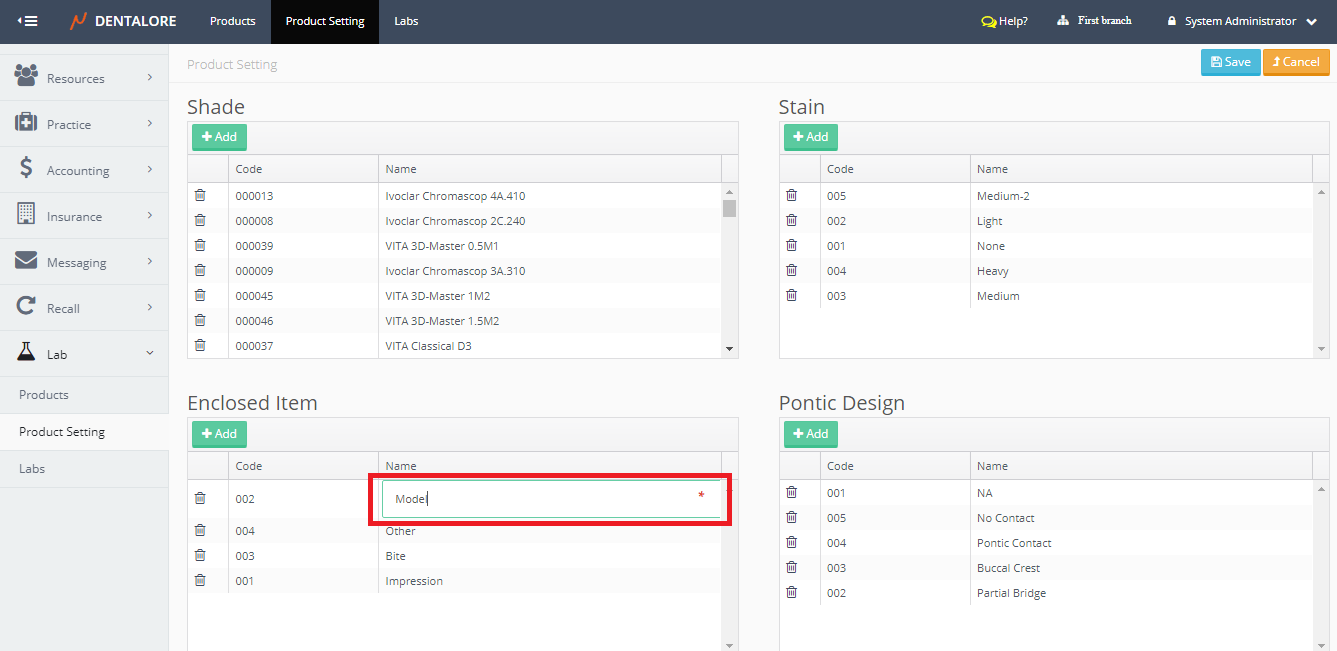
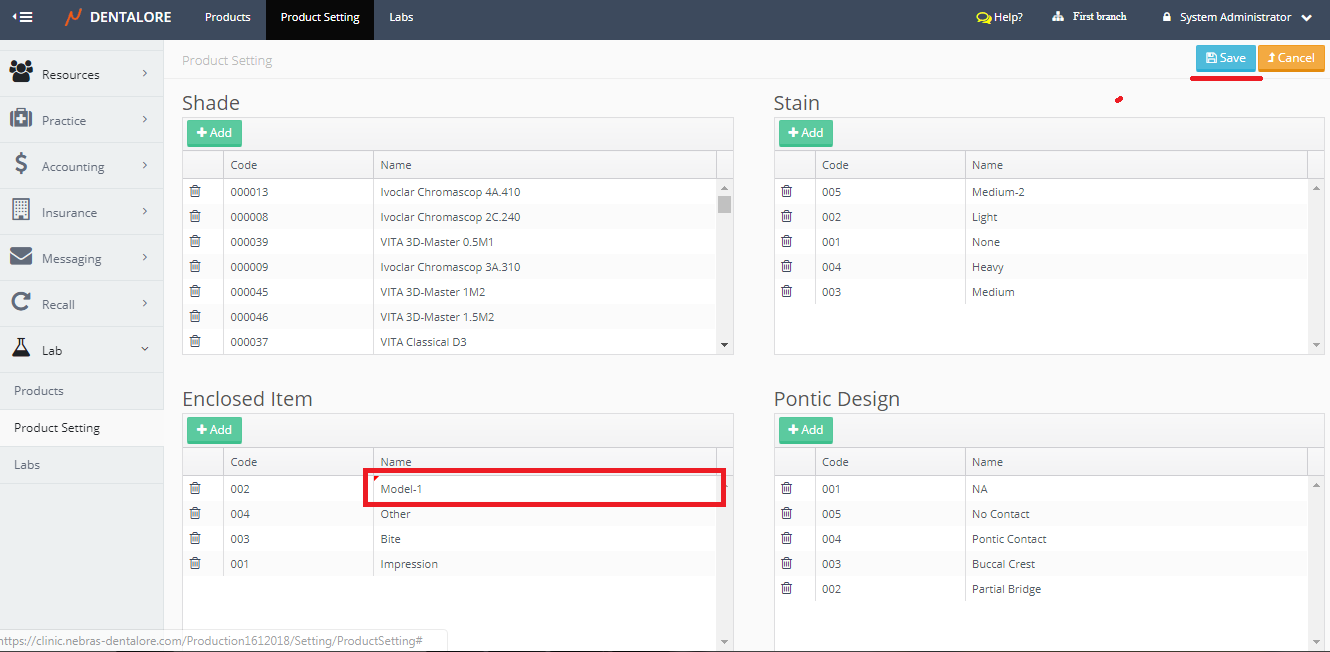
- In order to update any of the existing Lab Product Settings; Double click on the field you need to update (Code and/or Name).
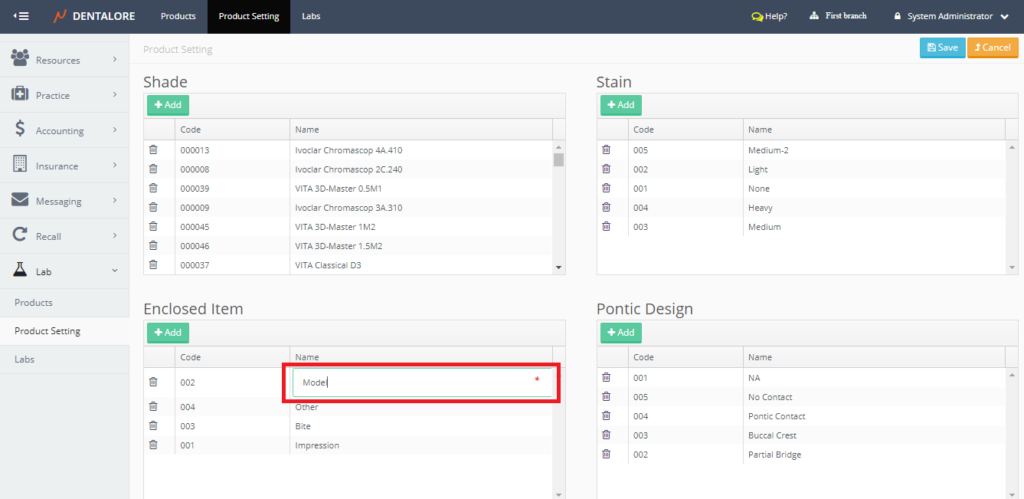
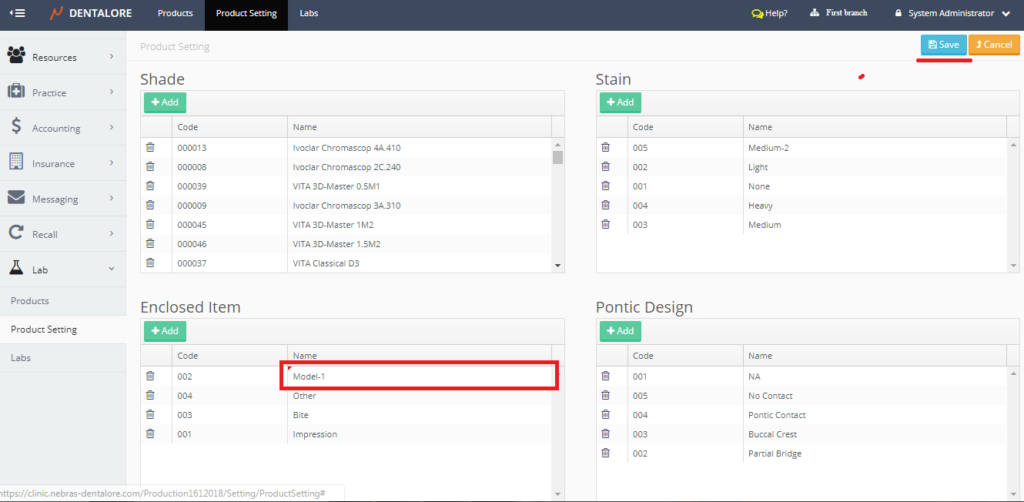
- Write your update and save.
3) Delete Lab Product Settings
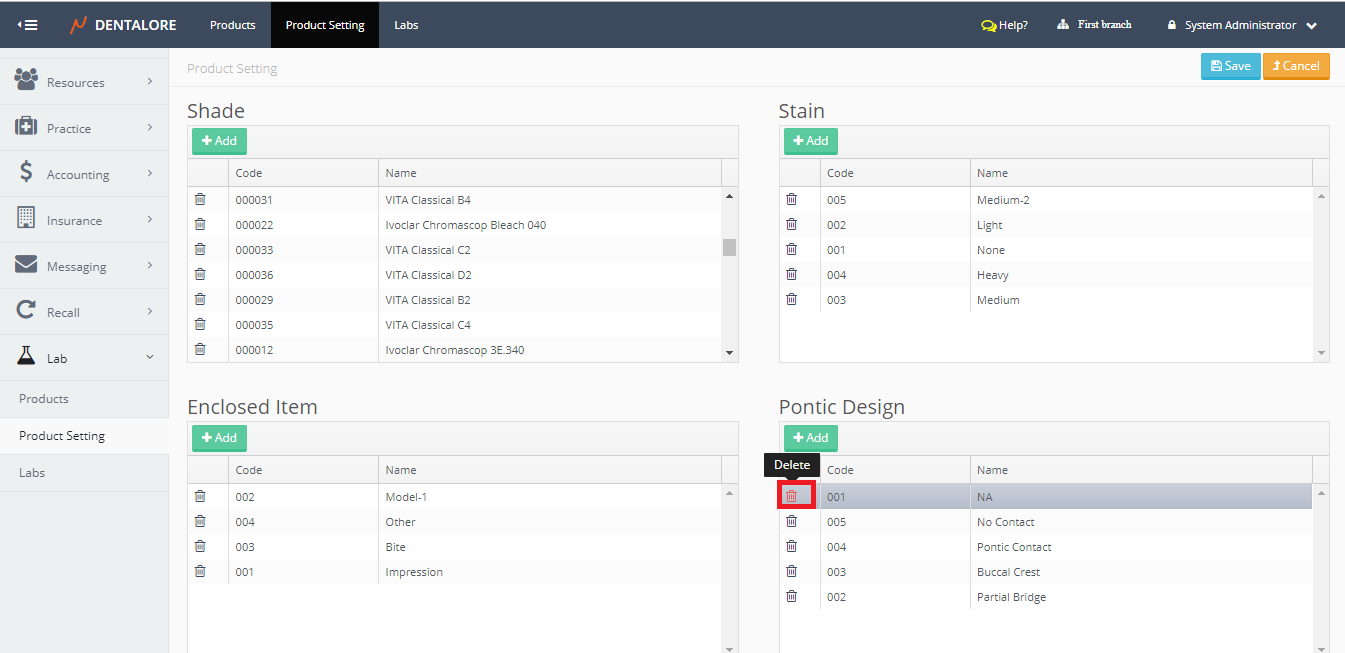
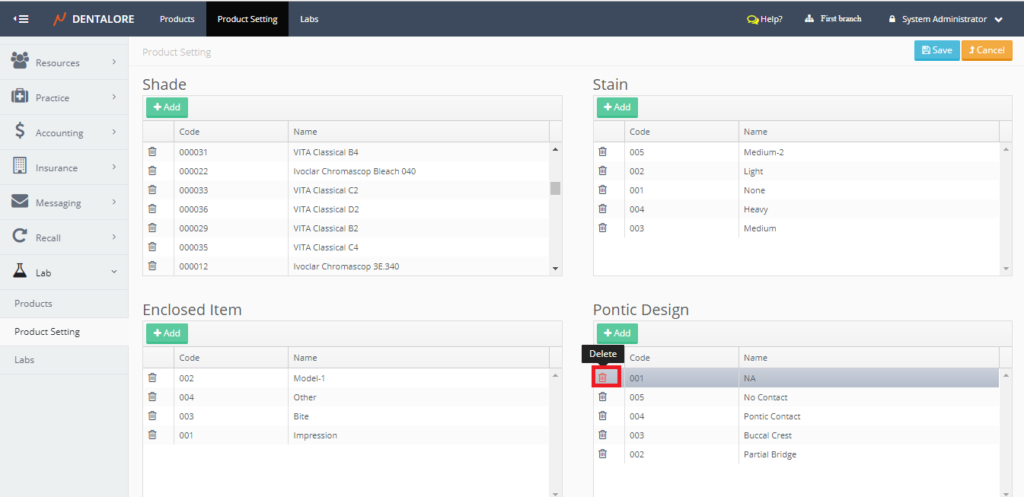
- In order to delete any of the existing Lab Product Settings; Pres the “Delete” icon beside the required Lab Product.
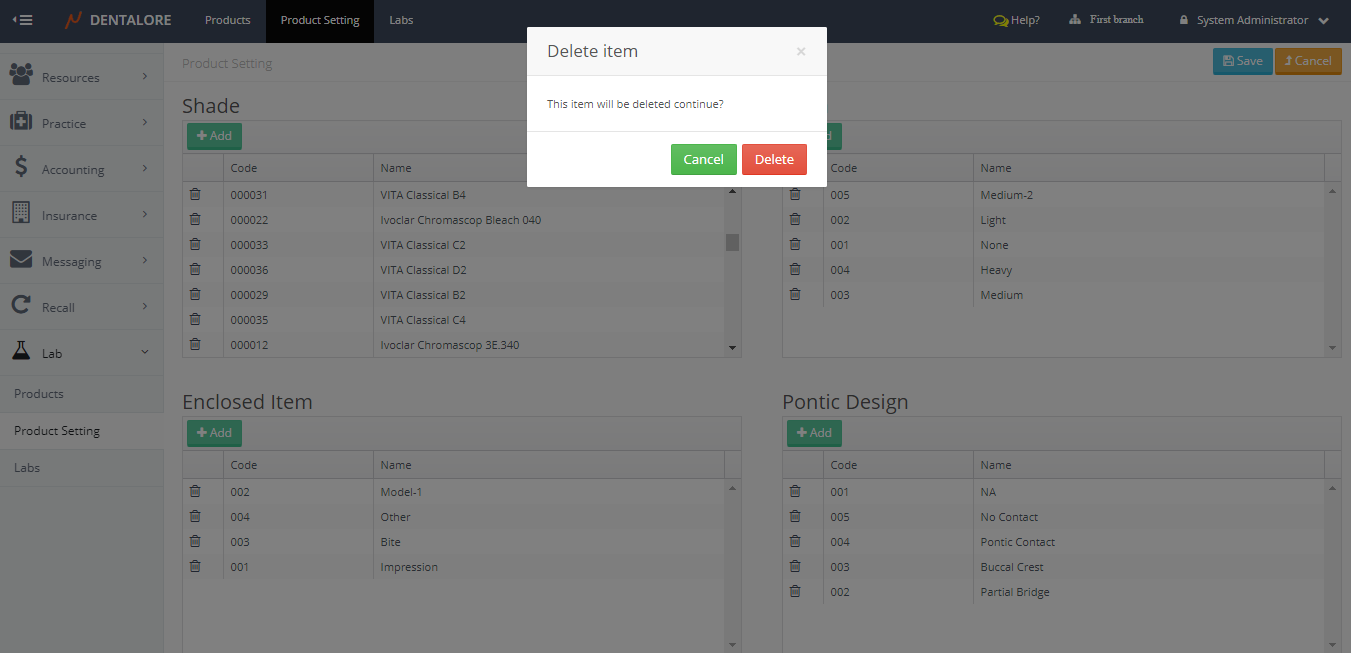
- “Delete Item” Popup Opens.
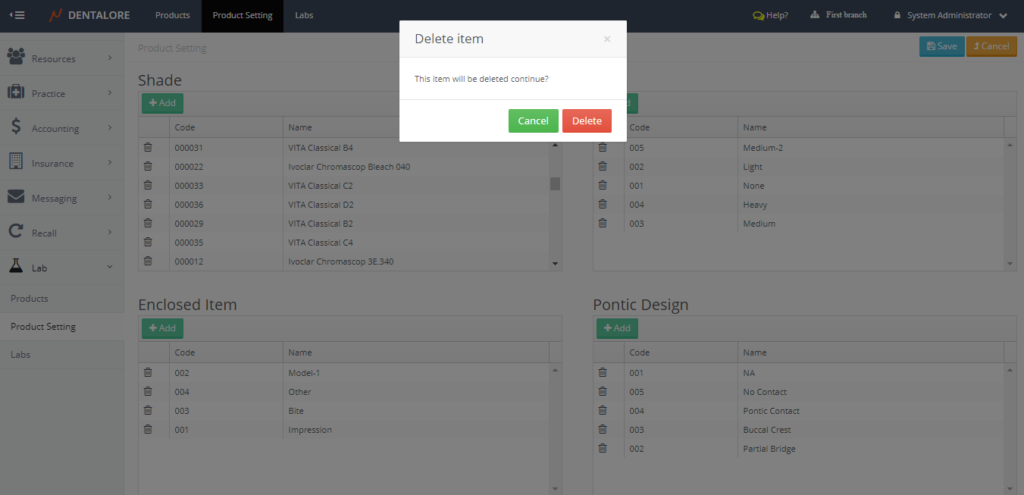
– If user Press “Delete” button then the selected settings will be deleted and removed from grid view. If user Press “Cancel” button then the selected settings will Not be deleted.