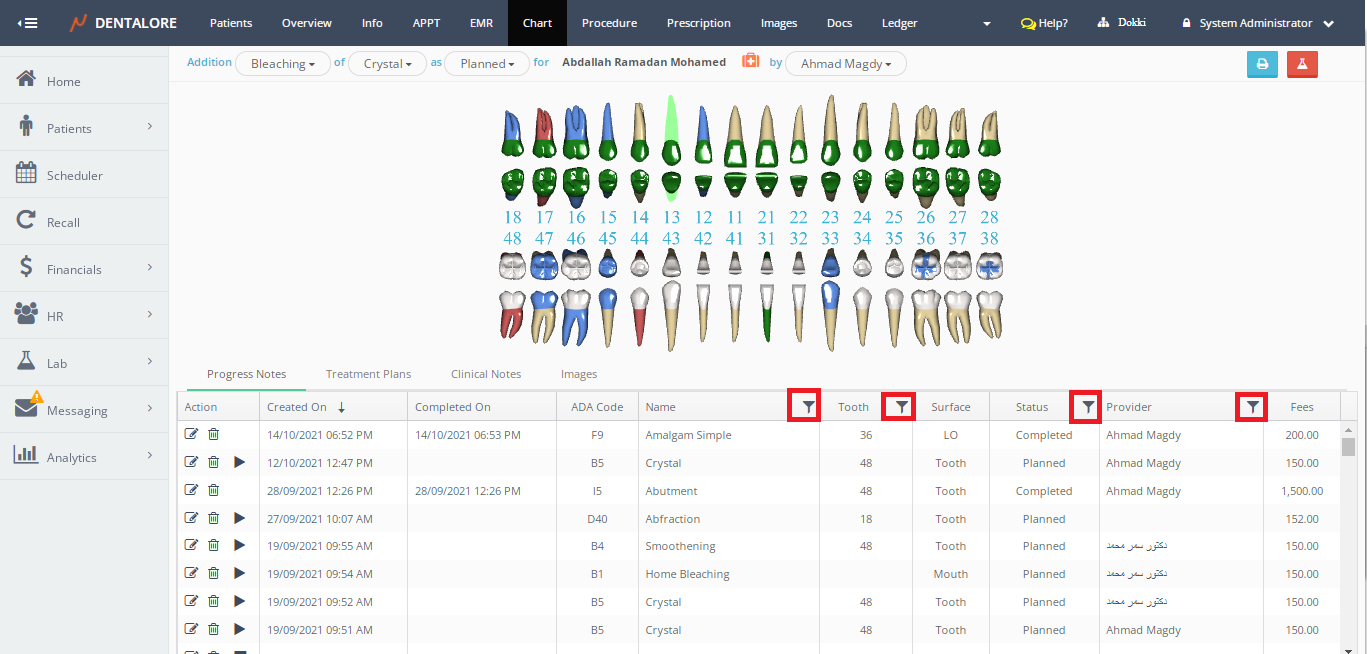
Progress Notes is the place where all the patients' procedures exist, it acts like a container that carries all procedures. It could be accessed from the following places:
1- Scheduler Module; Right click on the visit card; Select "Patient Chart"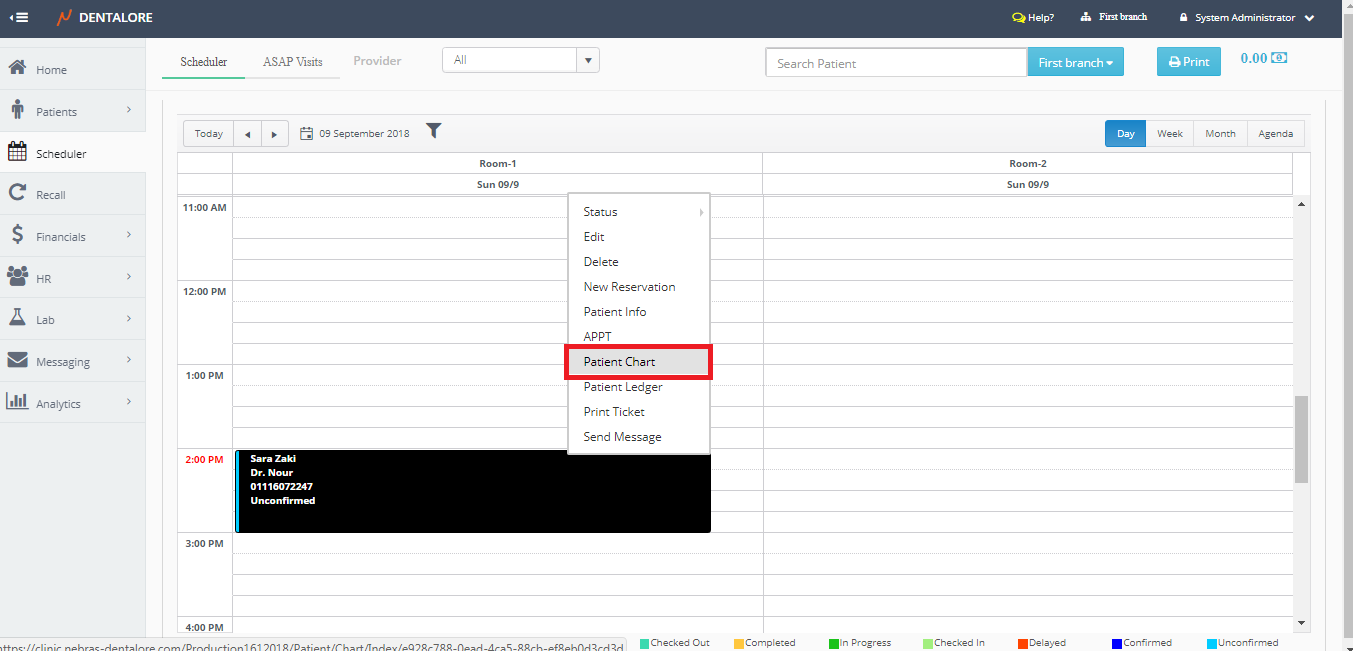
2- Chart View
To Access the Progress Notes from Chart, follow the following:
- Expand the "Patients" menu and select "Patient List".
- From the patients grid view select any of the existing patients.
- All patients' modules become enabled, Select the "Chart".

- Once "Chart" is pressed, 3D teeth chart of patient appears and by default the "Progress Notes" displayed.

- Chart module contains 4 main tabs which are: (Progress Notes, Treatment Plans, Clinical Notes, and Images). The "Progress Notes" tab contains a grid view that displays all of the patients' procedures with the following related data:
- Action
Is the column that contains all the actions that could be done for the procedure which are:
-- Edit Icon: Enables user to update in the selected procedures from the "Edit Procedure" page that he is directed to it.
>> For more information about updating procedure, Check: Edit Procedure.
-- Delete Icon: Enables user to delete the selected procedure with all it's related items.
Once pressed the "Delete Procedure" popup appears:
-- If user Press "Delete" button, then the selected procedure will directly deleted and removed from the patient's progress notes (Procedures). By deleting a procedure all of the related items to it will be deleted, as the lab cases, recalls, ... etc.-- If user Press "Cancel" button, then the selected procedure will not be deleted and still displayed in the patient's progress notes.
-- Start Icon: Enables user to start the procedure. "Start" icon appears if the status of procedure is "Planned".
-- End Icon: Enables user to end the procedure. "End" icon appears if the status of procedure is "In Progress". - Created On
Is the column that displays the date when the procedure has created. Also the user has the ability to sort the procedures from the oldest to the newest and vice versa. Default displayed from the most recent procedure.
>> Note that the "Created On" date could be edited from the "Edit Procedure" page. - Completed On
Is the column that displays the date when the procedure is completed. If procedure is of any other status (Planned, In Progress, Completed by other or condition) then the "Completed On" field of this procedure will be blank. Also the user has the ability to sort procedures by the "Completed On" date.
>> Note that the "Completed On" date could be edited from the "Edit Procedure" page. - ADA Code
Is the column that displays the ADA code equivalent to each procedure. - Name
Is the column that displays the name of procedure. Also the user has the ability to sort procedures by the procedure's name. - Tooth
Is the column that displays the number of tooth (For procedures performed on one tooth) or the teeth range (For Procedures performed on a teeth range). Also the user has the ability to sort procedures by the Tooth column. - Surface
Is the column that displays the name of treatment area where the performed procedure work on, depending on the configuration of procedure from settings, For Example:
-- Procedure of treatment area (Surface) will display the following options in the "Surface" column: (Mesial, Distal, Lingual, Buccal/Facial, or Occlusal/Incisal).
-- Procedure of treatment area (Arch) will display the following options for the "Surface"column: (Upper, or Lower).
>> For more Information about configuring the treatment area of procedure, Check: Configure Procedure. - Status
Is the column that displays the status of procedure that could be: (Planned, In Progress, Completed, Completed by other, or Condition). The user has the ability to filter the existing procedures by the required status.
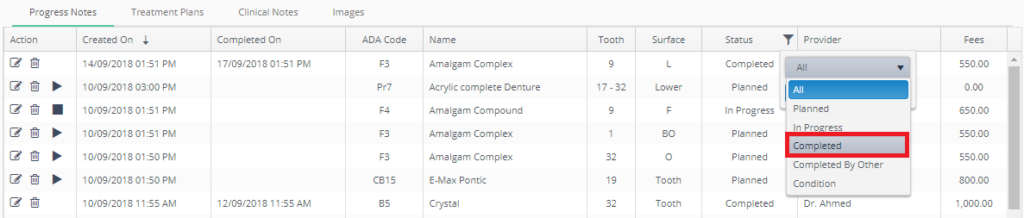

- Provider
Is column that displays the name of the provider who performed the procedure for the patient. - Fees
Is the column that displays the total amount of money that should be paid for this procedure as set in the price list that the patient is treated with. The user is able to edit the "Fees" amount from the "Edit Procedure" page.



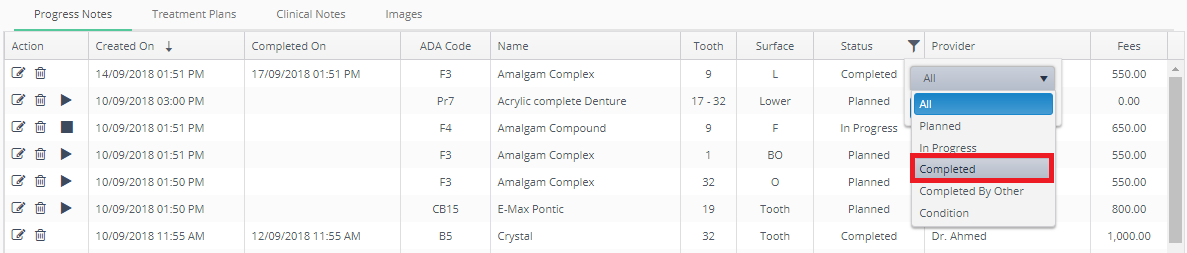

Users are able to filter procedures listed in the “Progress Note” of chart using each of: Name, Tooth, Status and Provider from the filter icon added in each column.